2026_11_0 Release Notes
Release date: November 17, 2026
The release notes describe changes to Instacart Storefront Pro for this release, including new features and enhancements. In addition to these changes, Instacart continually updates the platform to improve accessibility, performance, and stability and to ensure the best user experience for your customers.
Are you using the partner-pick model? Review the Shopper App release notes for recent updates.
New features
The following new features are available in this release.
Scheduled reports for business accounts
Administrators of business accounts on your storefront can now set up scheduled reports that export order data automatically. Administrators choose the files to include, a rolling date range such as Past 7 Days or Past Month, and a daily, weekly, or monthly schedule. Administrators can send each report to up to 10 recipients, including people who don't have an Instacart account.
Previously, administrators needed to export order data manually from the dashboard each time they needed it.
To enable this feature, contact your Instacart representative.
For more information, see Business settings.
Receipt forwarding for business accounts
Business account administrators can now connect an expense system, such as Expensify, Zoho Expense, or Ramp, to forward receipts automatically. After each completed order, receipt forwarding sends a copy of the receipt to the expense system. The expense system reads the receipt and creates an expense for the team member who placed the order.
Administrators set up receipt forwarding from Business settings. Receipt forwarding turns on for all team members, who can turn it off for themselves in Account settings. Your customers' order receipt emails don't change. The expense shows your store as the merchant.
Previously, business customers had to download each receipt and upload it to their expense system manually.
For more information, see Business settings.
Create content pages across sites
You can now create a content page that appears on multiple sites and banners. If you have more than one Storefront Pro site, you no longer need to create and maintain a separate copy of the same page for each site.
When you create a content page in Instacart Platform Portal, you can now choose the sites and banners that the page appears on. While you edit, you can preview the page for each site with the site's branding applied. Any change that you make to the page applies to all of the sites it appears on.
The sites and banners are set when you create the page, and you can't change them afterward. To use a different set of sites and banners, create a new page. Previously, you could only choose one site when you created a content page.
For more information, see Manage content pages.
Background colors for static slots
You can now set background colors for static slots on content pages and custom homepages in Instacart Platform Portal. Choose a color from your storefront theme, and the color displays behind the creative. The background extends to include the spacing above and below the placement, and the same color appears on desktop and mobile.
When you choose a dark color, the text in the placement changes to a light color so that it stays readable. Item cards keep a white background.
The following example shows a featured collection carousel with a dark green background color:
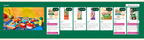
Background color applies to one slot at a time, and it isn't available for some creatives, such as the sponsored products ads carousel. You can't set a background color for an entire page or for dynamic slots.
For more information, see Manage content pages and Manage your custom homepage.
Separate desktop and mobile spacing for creatives
You can now set the space above and below a placement separately for desktop and mobile. Previously, the option that let you set spacing, introduced in the 2026_08_0 release, applied to both.
Choose from preset values between 0 and 48 pixels for the space above and below the placement. When you edit mobile spacing, the editor preview switches to mobile so that you can see the result. Separate desktop and mobile spacing is available for creatives in static slots and dynamic slots, and for divider lines.
For more information, see Manage content pages and Manage your custom homepage.
Configurable loyalty program page
You now have more options to design your loyalty program page in Instacart Platform Portal. The hero and the identity card stay at the top of the page. Below them, you can add, move, and remove content such as benefits, points, links, banners, and carousels, and then preview the page before you publish.
Previously, you customized the page header in a single dialog, and the loyalty program page had a fixed layout.
The updated page editor is rolling out to sites in phases, starting with Storefront Pro version 2026_11_0. For more information about when your site will be upgraded, contact your Instacart representative.
For more information, see Loyalty program page customizations and Customize your loyalty program page.
Manage partner picker shifts with CSV
In Instacart Platform Portal, you can now use the Manage with CSV option to manage shifts at one or more stores by downloading, editing, and uploading a shared file. This option lets you perform large-scale scheduling changes across multiple locations without having to update each store’s shifts individually.
You can search for currently scheduled shifts by recurrence pattern, store location, and date range, and then download a CSV-formatted file that contains a snapshot of the matching shifts. After completing your edits, you can then upload the file. If the file is successfully validated, the shifts in it overwrite the existing shifts and become the new record of your staffing commitment. For more information, see Manage with CSV.
Global banner selector in Instacart Platform Portal
Beta refers to pre-release features or products that are under active development and available for users to try out.
You can now use a global banner selector in Instacart Platform Portal to choose your banners once and have that choice apply across tools. Previously, you chose the banners that your work applied to separately in each tool.
The global banner selector is off by default, and each user can try it out by turning it on for their own profile. When the global banner selector is on, your banner selection follows you from page to page, and tools that support it show data from each of the banners that you selected. Some tools still work with one banner at a time. For those tools, you'll be asked to choose which banner's information you want to manage in that tool.
To try the global banner selector, turn it on from the top navigation in Instacart Platform Portal.
For more information, see Use the global banner selector.
New discounting offer types
The following multi-group offer types are now supported with Catalog inventory file promotions:
Buy_M_Of_A_Get_X_Percent_Off_On_B. Supports the following promotions:- Buy M units from Group A, get N units from Group B free. For example, buy 2 lb of lunch meat, get 1 lb of deli cheese free.
- Buy M units from Group A, get N units from Group B for X% off. For example, buy 2 lb of lunch meat, get 1 lb of deli cheese for 50% off.
Buy_M_Or_More_Of_A_Get_B_For_X_Dollars_Per_Unit. Supports the following promotions:- Buy M or more units from Group A, get units from Group B for $X per unit. For example, buy 2 packages of buns, get ground beef for $1.99 per lb.
- Buy M or more units from Group A, get units from Group B for $X per unit, with a limit per order. For example, buy 2 cans of cranberry sauce, get turkey for $1.99 per lb, limit 5 lb per order.
For more information, see Promotional offer types and metadata examples in the Catalog documentation.
Enhancements
The following enhancements are available in this release.
Clickable images on content cards
The image on a horizontal or vertical content card now links to the same destination as the card's call to action. When you set a destination for a card in Instacart Platform Portal, customers can click or tap either the image or the call to action. Previously, only the call to action was clickable.
For more information, see Creatives properties.
Update to the storefront header
We're rolling out minor changes to how we display pricing information on the storefront header to include additional information across all jurisdictions. The header will show:
- "Pricing & Fees" where it previously showed "Pricing info" or "View Pricing Policy" and
- "No Markups • Fee Info" where it previously showed "No Markups" or "View Pricing Policy"
For more information, see Pricing label.
Edit configurable products in the cart
Customers can now change the options for a configurable product, such as a custom sandwich or cake, after they add it to their cart. When a customer selects the product in their cart, the product details page opens with their previous selections filled in. After they make a change, they select Update cart, and the item in their cart updates. Customers can also change the quantity of a configurable product directly in the cart.
Previously, customers had to remove a configurable product from their cart and add it again to change its options or quantity.
For more information, see Configurable products.
Accurate status for order issue reports that need review
Some order issue reports need to be reviewed by support before a resolution is issued. For these reports, the customer now sees a message that support is reviewing the issue and will email them a resolution.
Previously, the message said that a credit would be added to the customer's account soon, even when the report still needed a review.
For more information, see Order issues.
Filter coupons by brand and nutritional attribute
Customers can now filter the digital coupons page by brand and by nutritional attribute. The filter panel has two new options. Brands lists the brands of the products that the customer's coupons apply to. Attributes lists nutritional and dietary attributes, such as Organic, Gluten-Free, and Kosher. Both lists are collapsed by default, and a search box appears when a list has many values. When a customer selects a value, the page shows only the matching coupons, and each value shows how many coupons match.
Customers can select more than one value. Within a filter, a coupon appears when at least one of its eligible products matches any selected value. Across filters, a coupon appears only when it matches the selections in every filter. Use these filters to help customers find relevant coupons faster when your coupon list is long.
Previously, customers could filter coupons only by category and by whether a coupon was expiring soon, newly added, clipped, or unclipped.
To enable this feature, contact your Instacart representative.
For more information, see Digital coupons page.
Nutrition scores on the product details page
You can now show nutrition scores to your customers on the product details page. Items in scored food and beverage categories show a score from 1 to 10 with a color-coded qualifier, such as Excellent or Good. Customers can select the score to see more details. Details include how the item compares with the average for its category and a breakdown of the score across nine nutrition domains.
When you turn on nutrition scores, the product details page also uses a more compact layout for all of your customers.
To turn on nutrition scores, contact your Instacart representative.
For more information, see Nutrition scores.
Abandoned cart campaigns in the Campaigns without offers dashboard
The Campaigns without offers dashboard in Instacart Platform Portal now includes results for abandoned cart campaigns. This campaign type sends customers an email, a push notification, or both 30 minutes after they end a session with items in their cart and don't check out. Use the new Campaign type filter to view performance for your abandoned cart campaign, including impressions, clicks, and attributed gross merchandise value (GMV).
Previously, abandoned cart performance wasn't available in Instacart Platform Portal.
For more information, see Campaigns without offers dashboard.
Updated badges on item tiles
Badges and product labels on item tiles now appear together at the bottom right of the tile, with an updated style. Each item tile shows up to two badges or labels. When more of an item's product tags apply, the last label shows how many more, such as Organic +1. Badges such as Best Seller take priority over product labels. Customers see the updated badges on the web and in the mobile apps.
Previously, badges and product labels appeared in separate places on the item tile.
For more information, see Product tags.
Shoppers can leave grocery-only orders at the door when customers aren't available
When a customer who chose to meet the shopper at the door isn't available, the shopper can now leave the order at the door instead of canceling it. The customer receives a notification with a photo of the delivery. Orders with restricted items, prescription (Rx) items, or items that require certified delivery can't be left at the door.
For more information, see Delivery.
Order Ahead prompt on category pages
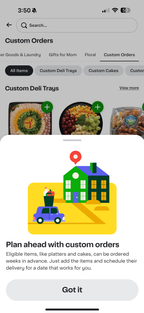
Customers now see a reminder about lead times the first time they open an Order Ahead category, such as Custom Orders or Catering. The first time a customer opens one of these categories, a message explains that eligible items can be ordered in advance and scheduled for pickup or delivery at a later date.
Previously, customers learned about an item's lead time only after they opened its product details page or added the item to the cart.
The reminder appears on both desktop and mobile. The customer closes the prompt by selecting Got it. Each customer sees the message once in each Order Ahead category.
The following image shows the message on a Custom Orders category page on mobile:
This enhancement applies to Order Ahead ordering, which is available on request. For more information, see Order Ahead ordering.
Offer terms on items
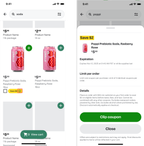
Customers can now view the terms of most offers wherever they see them. An information icon (ⓘ) appears on item tiles, product details pages, and offer sheets. Customers select it to open a dialog with the offer's limits, requirements, expiration date, and terms. For offers that apply to multiple items, customers use a Show terms link in the eligible items view to see the terms.
Offer terms appear for coupons and auto-applied offers from every source. Sources include your catalog, Instacart Platform Portal, third-party integrations, and ads. They are available on mobile web, iOS, Android, and desktop. Previously, offer limits and other terms weren't always visible.
The following image shows an example item tile with the information icon and the offer details dialog that opens when a customer selects the icon:
For more information about user interface components, see Item tile and Product details page.
Preview scheduled content in dynamic slots and a faster Slot manager
You can now preview how your dynamic slots will look on a specific date and time zone, before a campaign goes live. When you edit a content page or your custom homepage in Instacart Platform Portal, you can choose a date to see the campaign creative for that date in each dynamic slot, on desktop and mobile. You can also review the campaigns assigned to a slot, change their order, and open a campaign in the Campaigns tool. Previously, the live preview in the page editor didn't show dynamic slots. The preview shows how a campaign looks, but not what a specific customer sees, because it doesn't apply audience targeting.
With this release, the Slot manager tool also loads faster.
For more information, see Preview dynamic slots by date and Slot manager.