2026_10_0 Release Notes
Release date: October 27, 2026
The release notes describe changes to Instacart Storefront Pro for this release, including new features and enhancements. In addition to these changes, Instacart continually updates the platform to improve accessibility, performance, and stability and to ensure the best user experience for your customers.
Are you using the partner-pick model? Review the Shopper App release notes for recent updates.
New features
The following new features are available in this release.
Personalized Braze banners on content pages
You can now show personalized banners from your own Braze account on your content pages. Add the Braze banner embedded widget to a content page in Instacart Platform Portal and connect it to a banner placement that you set up in Braze. Braze chooses which banner each customer sees based on your targeting, so a banner can reflect a customer's loyalty status, preferences, or shopping history.
Braze banners are supported on desktop and mobile web. Mobile apps aren't supported yet. To use Braze banners, you need your own Braze account, and your storefront must load the Braze Web SDK through Google Tag Manager (GTM). You also need to sign the required agreement with Instacart. To enable this feature, contact your Instacart representative.
For more information, see Manage embedded widgets.
Uberall Store Locator embedded widget
If you manage your store data in Uberall, you can now add your Uberall store locator to a content page in Instacart Platform Portal. The Uberall Store Locator is a new embedded widget that shows your locator directly on your storefront, using the store data from your Uberall account.
On your storefront, customers can search for a store or choose one from a list, and then view details for each store, such as its address and hours. If a customer hasn't accepted the cookies that your consent settings require for the store locator, they see the store list without the map. The Uberall store locator is currently available on web only.
Instacart can also add your store pages to your storefront's sitemap, so search engines can find each of your locations.
Before Instacart can enable the Uberall store locator, you must sign an agreement with Instacart. To enable this feature, contact your Instacart representative.
For more information, see Manage embedded widgets.
One-tap add to cart for featured collection carousels
You can now let customers add every item in a featured collection carousel to their cart with one tap. On your storefront, an Add all to cart button replaces the carousel's call-to-action link, such as Shop now. Use it to make a curated collection, such as a seasonal meal or a themed set of items, easy to shop in one step.
When a customer selects Add all to cart (N), the items are added to their cart and the cart opens. Items that are already in the cart, out of stock, or at their quantity limit are skipped, so selecting the button again doesn't add duplicates. If some of the items are already in the cart, the button reads Add remaining items (N). When all of the items are in the cart, the button reads Added to cart and is unavailable. The button appears only when the collection contains 15 items or fewer. If a collection contains more than 15 items, customers see the View all button instead.
The following image shows a featured collection carousel with an Add all to cart (12) button:

Featured collection carousels with one-tap add to cart turned on also have an updated mobile layout, with the cover image or video above the collection products. This mobile layout applies only to carousels with one-tap add to cart turned on. The following image shows a featured collection carousel on mobile with the Add all to cart (10) button:
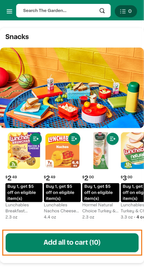
To turn on one-tap add to cart, open the featured collection carousel in the creative editor in Instacart Platform Portal, and then select Set as a bundle under the Collection field.
For more information, see Featured Collection carousel and Creatives properties.
PayPal Pay Later
Customers can now pay for their orders with PayPal Pay Later at checkout on web and in iOS and Android apps. PayPal Pay Later offers options to pay in four payments or monthly installments. PayPal manages the installment plan and the customer's repayments.
Customers add PayPal Pay Later as a payment method once, and then approve the payment in PayPal each time they place an order. On iOS and Android, customers who have the PayPal app installed are taken to the app to approve the payment, and then return to your app. If the PayPal app isn't installed, customers approve the payment in a web browser. If customers cancel the approval, they return to checkout and can try again or choose a different payment method.
PayPal Pay Later has the following limitations:
- It's available only to customers in the US.
- It isn't available for orders that include alcohol or prescription (Rx) items.
- It isn't available for orders under $30.
- PayPal decides whether to offer installment options based on the customer's PayPal account and order.
- After checkout, changes to an order, such as adding items or changing the tip, are limited. If a change goes over the limit, the customer might need to place a new order.
To enable PayPal Pay Later, contact your Instacart representative.
For more information, see Core payment methods.
Merchandise your digital coupons page
You can now add a Coupon list to your digital coupons page and other content pages in Instacart Platform Portal. A Coupon list shows customers a scrollable row of coupons, which helps them find relevant offers faster. Choose a fixed set of coupons using the expiring soon, newly added, clipped, or unclipped filters. You can add more than one Coupon list to a page, and you can use banner creatives on the page to promote campaigns.
You can also now share a link that opens your digital coupons page with filters already applied. Apply the filters on the digital coupons page, copy the URL, and use it as a destination in emails, push notifications, and other campaigns. Customers land on the page with the filters applied and can change them.
For more information, see Manage the digital coupons page and Digital coupons page.
Availability dates
The product details page and item tiles now show availability dates. These apply to Order Ahead items and other items that customers can't buy or receive right away, such as seasonal and special-order items. Customers see "Order for [date] or later" before an item's availability window and "Available until [date]" during it. The messages help customers plan before checkout. After an item's availability window ends, it no longer appears when customers browse or search.
Previously, these items appeared available all year, so customers had no way to know when they could order them or when to expect them.
To use availability dates, contact your Instacart representative.
For more information, see Order Ahead ordering.
Bundle offers
Customers can now earn a discount with bundle offers, which reward them for buying items from two or more product groups together. For example, "Buy any chips and any soda, save $2.00." A bundle offer can have up to five groups. Each group can be a specific item, a collection, a brand, or a department, and the customer needs at least one qualifying item from every group. The reward can be a dollar amount off, a percentage off, or a free item.
Bundle offers are available through your Inmar integration.
For more information, see Bundle offers.
Enhancements
The following enhancements are available in this release.
Replacement suggestions show more relevant items
Customers now see more relevant suggestions when they choose their replacement preferences. Instead of showing only highly available items, recommendations now also include regular in-stock items and low-stock items. Items that are out of stock aren't suggested. Items that are likely to be on the shelf display the Many in stock label, and items that are low in stock display the Likely out of stock label so customers can make an informed choice.
For more information, see Replacement items and Stock levels.
View attribute information sources for Storefront Pro
To view the data source for key product attributes for products displayed on Storefront Pro, use Instacart Platform Portal. Previously, you could only view product information attributes for your products displayed on Instacart Marketplace.
For more information, see View attribute information sources.
Address, pickup location, and service type changes are saved
When a customer changes their delivery address, pickup location, or service type at checkout, the change is now saved automatically. For example, if the customer exits the checkout flow to continue shopping, any changes they made to their delivery address, pickup location, or service type are retained when they return. The changes also apply to the storefront. For example, the store selector on the main shopping page now shows the most recent pickup location the customer selected at checkout. Changes made during checkout persist across shopping sessions, so the customer sees them the next time they shop.
Previously, changes the customer made during checkout only applied to the current checkout session. If a customer exited checkout, any changes to address, pickup location, or service type were reset to their original values.
This enhancement is enabled by default for all Storefront and Storefront Pro retailers. No configuration is required.
For more information about checkout options, see Checkout page.
Improved address search with Google Maps
Address suggestions on your storefront now come from Google Maps. When customers enter a delivery address, they can search by the name of a place, such as a hotel, apartment building, or office. Then they can select the place from the suggestions. When a customer selects a place, the address form fills in the business name automatically. Customers can still create an address manually.
Previously, address suggestions included only street addresses. A search for a place name returned streets with similar names, so customers needed to know the street address. This update applies everywhere customers enter an address on your storefront, including when they sign up, update their addresses, or check out.
Increased static slot limit on department and collection pages
You can now add up to two static slots to department pages, including the global layout, and to collection pages in Instacart Platform Portal. For example, you can pair a primary banner with a product carousel at the top of a page. Previously, you could add only one static slot to each page.
For more information, see Manage department page layouts and Manage collection page layouts.
Anchor links on content pages in mobile apps
Anchor links on content pages now work in your mobile apps. When a customer opens a link to a specific section of a content page, your mobile app opens the page and scrolls to that section, the same way the link works on your web storefront. Anchor links on loyalty pages also work in mobile apps.
Previously, anchor links were supported on your web storefront only. For more information about anchor links on the web, see the 2026_07_0 Release Notes.
For more information, see Link customers to a specific section on a content page.
Multi-banner support for content pages
You can now view and manage content pages across all your sites and banners from a single location in Instacart Platform Portal. In the Content pages tool, you can filter pages by site or banner, and when you create a content page, you can specify which site and banners it appears on. Previously, the Content pages tool showed pages for only one site at a time.
For more information, see Manage content pages.
Content card carousel enhancements
Two updates make vertical card carousels more flexible when you edit them in Instacart Platform Portal:
- Optional body text. Body text is now optional for vertical cards, so you can create a card with only header text and button text. Previously, body text was required.
- Buttons now resize. The button on a vertical card now resizes to fit its text.
For more information, see Creatives properties.
Target drive awareness campaigns to L3 department pages
You can now target drive awareness campaign banners to L3 department pages (the third level of your department hierarchy) in Instacart Platform Portal. The banner appears only on the page you select, so you can promote a specific subcategory, such as Packaged Coffee, without changing the pages above it in your department hierarchy. Previously, drive awareness campaigns supported only L1 and L2 department pages and collection pages, so a creative intended for an L3 department page didn't appear to customers.
For more information, see Create drive awareness campaigns.
Manage order menu in the Operational dashboard
The Modify order button on the order details page in the Operational dashboard in Instacart Platform Portal is now a Manage order button. Click Manage order and select Modify order to cancel an order, with the same steps and permissions as before. Grouping order actions under one menu makes room for additional order actions. Previously, the order details page displayed a standalone Modify order button.
For more information, see Modify order status.
Item-level performance data in the Flyers dashboard
In the Flyers dashboard in Instacart Platform Portal, you can now view performance data for each item in a flyer. When you open a flyer, a table shows the gross merchandise value (GMV), item clicks, cart adds, and total purchases for each item. You can switch between top performing and bottom performing items, sort by any metric, and download the data. Use this data to see which items drive the most sales and to plan your next flyer.
Previously, the Flyers dashboard showed performance data only for each flyer as a whole.
Item-level data is available for clickable, digital, and hybrid flyers.
For more information, see Flyers dashboard and Dashboard metric definitions.
In-store shopping list improvements
Customers who shop in your stores now have more ways to plan their trips with lists. The shopping list, which replaces the cart when customers use the in-store shopping context, now appears with the lists they've saved to their account, and both types of lists support custom items and sorting.
Previously, the shopping list and saved lists were separate, and customers could add only products from your catalog to a list.
The improvements include the following capabilities:
- Custom items. Customers can add a general item, such as yogurt, to a list without choosing a specific product. Custom items don't have a price and aren't included in list totals.
- Sorting. Customers can sort a list by department, alphabetically, or by price. Custom items are sorted only when the customer sorts the list alphabetically.
- Checked items total. Along with the estimated total and savings, the shopping list now shows a running total for the items the customer has checked off.
- Sharing. Customers can share a list as plain text, for example, in a text message or a notes app.
- Duplicate lists. Customers can copy a saved list to start a new one.
- List menu. Actions in the shopping list menu, such as unchecking all items, removing checked items, and removing all items, now apply to custom items too.
These improvements apply to all storefronts with in-store shopping. For more information, see In-store shopping.
Shoppable seasonal flyers
You can now publish seasonal flyers as clickable flyers or digital flyers, so customers can shop holiday sales and other limited-time events directly from the flyer. Each seasonal flyer uses a custom flyer type with its own name and date range, such as a 4-day weekend sale, and a metadata file that adds products to the flyer. Previously, seasonal flyers displayed only as a PDF, and customers couldn't add items to their cart from them.
Seasonal flyers created before this release don't become shoppable automatically. To make one shoppable, create a new flyer with a metadata file.
For more information, see Manage clickable flyers and Manage digital flyers.
Details and Ingredients links removed from the product details page
On desktop and mobile web, the Details and Ingredients shortcut links near the top of the product details page are removed. Customers can still find product details and ingredients by scrolling down the page. This change aligns your web storefront with your mobile apps.
For more information, see Product details page.