Product details page
Your customers can view all the information about a product on the product details page. Based on the information you provide in the catalog, this page displays additional product information, such as ingredients, nutrition details, and warnings. This page also displays the recommended related products for your customers to view and add to their cart or shopping list. Customers open the product details page by clicking an image in an item tile.
The following image shows an example of a product details page:
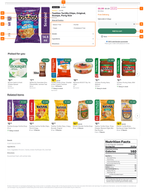
- Stock levels. (Optional) The stock levels for an item. For more information, see Stock levels.
- Product name. Retrieved from the inventory file. For more information, see Minimum catalog requirements.
- Product size. Retrieved from the inventory file. For more information, see Minimum catalog requirements.
- Secondary product images. Retrieved from the inventory file. For more information, see Image requirements.
- Product information. Retrieved from the inventory file. For more information, see Product claims.
- Primary product image. Retrieved from the inventory file. For more information, see Image requirements.
- Product price and price per unit. Retrieved from the inventory file. When offer terms are enabled and an offer has terms, an information icon (ⓘ) appears next to the offer label. The customer clicks the information icon to see the terms of the offer. For more information, see Minimum catalog requirements.
- Quantity. The customer sets the quantity, which in this example is number of items. Products can be sold by weight or other units.
- Add to Cart. The customer clicks the button to add the quantity to the cart.
- Save. The customer can save the item to their Saved list and view saved items in the Buy it again page.
The recommended items section contains the following items:
- Picked For You. Shows recommended items based on the customer's interests, purchase behavior, and browsing history. The customer can add items to the cart.
- Related Items. Shows recommended items based on customers with similar purchases. The customer can add items to the cart.
The product information section contains the following information:
- Details. Shows details about the product.
- Ingredients. Shows the list of ingredients, if applicable.
- Nutrition Facts. Shows the nutrition label, if applicable.
- Directions. Shows product directions, if applicable.
- Warnings. Shows any known product warnings, if applicable.
Nutrition scores
Nutrition scores help your customers understand how nutritious an item is. When you turn on nutrition scores, items in scored food and beverage categories show a score from 1 to 10 on the product details page. Scores are based on Tufts University nutrition research. Nutrition scores are available in the US.
To turn on nutrition scores, contact your Instacart representative.
Each score shows a color-coded qualifier:
- Excellent. A score of 9 or 10.
- Good. A score of 7 or 8.
- Fair. A score from 4 to 6.
Scores from 1 to 3 don't show a qualifier. Items outside the scored categories, items without score data, and configurable products don't show a score. Scores depend on the nutrition information in your catalog, so complete nutrition facts help more of your items show a score.
The score appears in the Nutrition section of the product details page. Customers can select the score or Show more to see the following details:
- A Nutrition score summary with a one-line description of the item's nutrition.
- How the item compares with the average for its category.
- A breakdown of the score across nine nutrition domains, grouped into Positives and Negatives. The domains are vitamins, minerals, beneficial food ingredients, additives, processing, beneficial fats, fiber and protein, phytochemicals, and nutrient ratios.
- Answers to common questions about nutrition scores.
- The item's product tags, nutrition facts, and ingredients.
Nutrition scores also change the product details page to a more compact layout for all of your customers, including on items without a score:
- The product image is smaller.
- A nutrition summary shows four key nutrients. Items without a score show a fifth nutrient instead of the score.
- Up to two product tags appear. Customers can see the rest in the nutrition details.
- Nutrition facts and ingredients move from the product details page into the nutrition details.
- Promotions appear on one line.