Loyalty program page customizations
With Storefront Pro, you can fine-tune the look and feel of your loyalty program page to align with your brand.
- Header layout
- Barcode display
- Membership tier
- Account identifier
- External URLs
- Additional merchandising slots
- Quick links to the loyalty program page
Header layout
Choose how your program name, logo, and banner image are arranged in the page header.
Overlay. A banner image with your program name and logo overlaid on top.

Stacked. A banner image with your program name and logo below. This is the default.

Image only. A banner image without your program name and logo.

Name and logo only. Your program name and logo without a banner image.

Barcode display
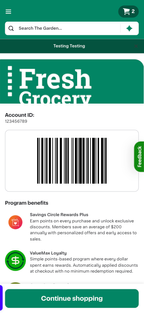
Choose how the loyalty barcode appears on mobile.
Hidden. The barcode is hidden behind a button that the customer taps to reveal it. This is the default.

Inline. The barcode appears directly on the page.
Membership tier
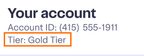
If your program has membership tiers, the customer's current tier automatically appears on their loyalty program page, below their account information. No configuration is required.
Account identifier
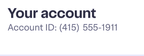
Show or hide the account identifier section. Hiding it is useful for programs that don't display a customer-visible account number, such as card-scan programs.
External URLs
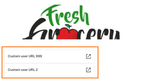
Add links to the bottom of the page, such as your program FAQs, terms and conditions, a store locator, or a forgot to scan link. Each link opens in the customer's browser.
Additional merchandising slots
You can add digital coupon carousels and points coupon carousels to your loyalty program page. Points coupon carousels display points redemption offers.
Quick links to the loyalty program page
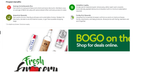
If you use the quick link carousel, you can add a link to the loyalty program page.
To add a link to a quick link carousel, use Instacart Platform Portal. For more information, see Design creatives.
Access to loyalty cards and rewards pages
In the web app, customers can access loyalty cards and rewards pages directly from the following locations:
- Header
- Account menu
- Quick link carousel
Customer experience
Customers see the results of your loyalty program page configuration each time they visit their loyalty or rewards page. The header is the first thing customers see when they open the page. Depending on the layout you choose, they see a banner image, your program name and logo, or a combination, giving the page a look that reflects your brand.
Customers who are enrolled in a tiered program see their current membership tier displayed below their account information. For example, a customer in the Gold tier sees that label on their page. Customers who haven't yet reached a tier don't see a tier label.
On mobile, customers access their loyalty barcode from the loyalty program page. If you use the inline barcode display, the barcode appears directly on the page. If you use the default setting, customers tap a button to reveal the barcode. Either way, the barcode is available for in-store scanning.
If you choose not to display the account identifier section (useful for programs that use card scanning rather than a customer-visible account number), customers see the loyalty program page without that section.
Any external URLs you add appear at the bottom of the loyalty program page. Customers tap a link to open it in their browser, where they can access resources like program FAQs, terms and conditions, or a store locator.