Order Ahead ordering
With Order Ahead ordering, FoodStorm retailers who publish items to Storefront Pro can accept orders for catering and other prepared items that require advance scheduling. Customers can place these orders up to 90 days in advance and choose the fulfillment date that works for them, giving retailers the ability to plan production and staffing for complex orders.
Order Ahead is available for FoodStorm retailers who publish items to Storefront Pro or Marketplace.
How Order Ahead ordering works
Order Ahead ordering applies when a cart contains an item with a lead time, such as a catering order, a custom cake, or a holiday meal. In these cases, the checkout flow, payment timeline, and rescheduling rules differ from a standard grocery order.
Scheduling at checkout
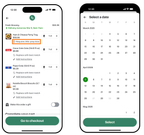
When a customer adds an Order Ahead item to their cart, checkout presents a calendar-style date picker instead of the standard time-slot selector. The customer can select a fulfillment date from a window that starts at the item's earliest available date, based on its lead time, and extends to the retailer's maximum scheduling horizon, up to 90 days in advance. Retailers can configure a horizon of 60, 90, or another number of days, depending on their assortment and operations.
Lead-time messaging appears when customers add the item to the cart, in the cart, at checkout, and on the order status page. When a cart contains more than one Order Ahead item with different lead times, the entire order is governed by the longest lead time among those items.
The following image shows an example cart that includes an Order Ahead item and a calendar date picker:
Payment
Order Ahead orders use a deferred payment authorization model. This differs from the standard storefront checkout flow, where the core payment method is authorized at the time of order placement.
For an Order Ahead order, payment works as follows:
- At order placement. No authorization is made. If the payment card is added at checkout, a zero-dollar card-validity check runs to confirm the card can be used. If a card is already on file, no authorization action is taken.
- Five days before the fulfillment date. The customer receives an email and a push notification including the total order amount and reminding them that their card will be charged the next day.
- Four days before the fulfillment date. The full order amount is authorized on the core payment method.
- At fulfillment. The authorized amount is captured, the same as any other order.
Because authorization happens four days before fulfillment rather than at checkout, the amount authorized reflects the order total as it was scheduled. If the customer makes changes to the order after authorization, reconciliation works the same way as for standard orders.
If the authorization fails, the customer is notified by email and push notification and a "payment method failed" label appears in their order history. The customer can update their payment method through a dedicated payment-update flow. Each order has a cancellation deadline, the latest date and time the customer can update their payment before the order is automatically cancelled.
Order Ahead orders support credit cards and debit cards only. Alternative payment methods such as Klarna, SNAP EBT, and HSA/FSA, and digital wallets such as Apple Pay and Google Pay, aren't available for Order Ahead orders.
Availability dates on product pages
Order Ahead items sometimes can't be ordered or fulfilled on the day a customer first sees them. For example, a holiday platter might appear on your storefront weeks before your kitchen can prepare it, and a seasonal item might be available for only a few days. Without a date on the item, customers have no way to know when to order or when to expect it. Availability dates solve this by showing a message directly on the product details page and on item tiles, so customers can plan before they reach checkout.
Items can have two kinds of dates:
- Preview dates. The dates an item appears on your storefront before customers can order it, such as a "coming soon" item.
- Availability dates. The dates that your store can fulfill the item. When a customer orders an item with availability dates, checkout fulfillment dates reflect that window. The end date is the last day you can fulfill an order.
The dates affect only what customers see and the dates they can choose. Whether a customer can add an item to the cart depends on the item's availability, not on the dates themselves.
What customers see depends on where the item is in its schedule:
- Coming soon. Before the item can be ordered, customers can view it but can't add it to the cart. The item shows the date it becomes available.
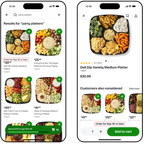
- Order ahead. Before the fulfillment window begins, customers can add the item to the cart when your lead time allows ordering ahead. The item shows the message "Order for [date] or later," where the date is when fulfillment starts.
- Available now. During the fulfillment window, customers add the item to the cart as usual. The item shows the message "Available until [date]," where the date is the last date the item is available.
- Expired. After the window ends, the item no longer appears when customers browse or search. In other places where a customer might still find it, such as Buy it again or the cart, the item appears as out of stock. For more information, see Stock levels.
The following image shows an Order Ahead item with an availability message on an item tile in search results and on the product details page:
Checkout follows the same dates. If a cart contains items whose availability windows don't overlap on any date, the customer sees an error and must remove at least one item. A customer who tries to order outside an item's window also sees an error at checkout. If an item can be ordered but can't be fulfilled the same day, the customer is told that the item won't arrive today. The delivery window for the whole order adjusts to the item's date.
FoodStorm retailers set availability dates in the FoodStorm order management system (OMS). To use availability dates, contact your Instacart representative.
Customer experience
The following describes what customers see when they browse, place, and manage an Order Ahead order.
- Browsing items with availability dates. When an item has availability dates, the product details page and item tile show a message about when the item is available. For more information, see Availability dates on product pages.
- Adding an Order Ahead item to the cart. When a customer adds an Order Ahead item, the cart displays a message explaining that the item requires advance scheduling. The entire cart adopts the Order Ahead flow if any item in the cart has a lead time.
- Scheduling at checkout. Instead of the standard time-slot selector, checkout presents a calendar date picker. The customer selects a fulfillment date from the available range. Pickup and delivery time slots are shown for the selected date, at parity with standard slots. If the item has availability dates, checkout offers only dates within the item's availability window.
- Order confirmation. After placing the order, the customer receives a confirmation that includes the scheduled fulfillment date and a note that their payment method will be authorized for the full amount four days before that date.
- Payment notifications. Five days before the fulfillment date, the customer receives an email and push notification that their card will be charged the next day, along with the order summary and total. If the authorization fails, the customer receives a separate notification with instructions to update their payment method and the deadline to do so.
- Order status page. The order status page shows the scheduled fulfillment date and, if a payment issue has occurred, a "payment method failed" label along with a link to update the payment method.