Product carousel
A product carousel displays a pre-defined or dynamic collection of products. Add product carousels to pages to help customers find and add items to their cart.
You can add the following types of product carousels:
- Standard Product carousel
- Featured Collection carousel
- Sponsored Products Ads carousel
- Buy it again carousel
- Flyer Product carousel
- Flyer Featured Collection carousel
Standard Product carousel
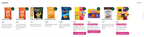
Displays the products in a collection. Customers can click the arrows to browse the products or click a button to go to the collections page, which displays the entire collection in a product grid.
The following image shows an example of a Snacks standard product carousel:
Featured Collection carousel
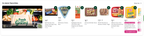
Displays the products in a collection similar to the standard product carousel, with added support for a custom title, subtitle, and a cover tile. The cover tile can feature an image, animated looped image, or video to capture your customer’s attention.
The following image shows an example of an In store favorites featured collection carousel:
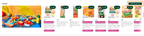
You can also let customers add all the items in a featured collection carousel to their cart with one tap. When you turn on this option for a carousel in Instacart Platform Portal, an Add all to cart button replaces the carousel's call-to-action link, such as Shop now. The button appears only when the collection contains 15 items or fewer. If the collection contains more than 15 items, customers see a View all button instead.
The button label reflects what is already in the customer's cart:
- Add all to cart (N). No items from the collection are in the cart. N is the number of items in the collection.
- Add remaining items (N). Some items from the collection are in the cart. N is the number of items that are not yet in the cart.
- Added to cart. All items from the collection are in the cart. The button is unavailable.
When a customer clicks the button, Instacart adds the items to the cart and opens the cart. Items that are already in the cart, out of stock, or at their quantity limit are skipped.
The following image shows a Snacks featured collection carousel with an Add all to cart (12) button:
For more information about turning on this option, see Creatives properties.
Sponsored Products Ads carousel
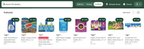
Displays sponsored products only. The products are chosen by the Carrot Ads service's algorithm. Customers can click the arrows to browse the products.
The following image shows an example of a Sponsored Products Ads carousel:
Buy it again carousel
Displays the customer's Buy it again collection. The products are selected from the customer's order history. For more information, see Buy it again collection.
When you add a buy it again carousel to a digital flyer page, the Buy it again carousel displays the products a customer has previously purchased at your store that are also part of the current flyer. This brings personalization into the flyer, so customers can spot deals on the products they already buy without searching for them.
Flyer carousels
Displays products from your active flyer. You can pin products to the top of your flyer carousels and set the order they appear. You can pin up to 40 products per flyer and the products appear in the same order wherever the carousel is displayed. Customers can click a link to open the Flyer page.
Flyer Product carousel
Displays products based on your flyer data files.
Flyer Featured Collection carousel
Displays products in a featured layout, with support for a custom title, a button, and a cover tile.