Business settings
Administrators can configure the business account in the following ways:
- Create custom fields for checkout
- Submit tax exemption forms and supporting documents
- Schedule recurring reports of order data
- Connect an expense system to forward receipts automatically
- Share Instacart+ subscriptions with team members
Custom fields
Administrators can create custom fields that appear for team members during checkout. These fields help categorize orders for tracking purposes. The collected data appears in the dashboard and exported reports.
When creating custom fields, administrators can define the following:
- Name. The name of the field. This name isn't shown to team members at checkout.
- Type.
-
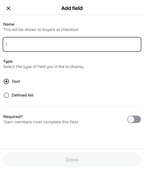
Text. A text field where team members can enter any information. This field can be marked as required.
-
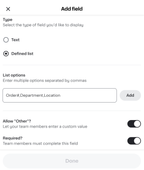
Defined list. A list of options for team members to choose from. This field can be set as required. Administrators can also set this field as "Other," where team members enter a custom value.
-
When a team member checks out, they can provide information from the Business order details tile. If a team member doesn't view the business order details and there are required fields, they're prompted to update the order details before proceeding through checkout.
Tax exemption
Many types of businesses are exempt from sales tax when buying for business-related purposes. Administrators can submit forms and supporting documents to identify their tax exemption category by state. After Instacart validates the forms, applicable taxes aren't charged on eligible orders.
The Tax exemption page is available under Business settings in the business account menu.
The following image shows the Tax exemption page on a mobile device:
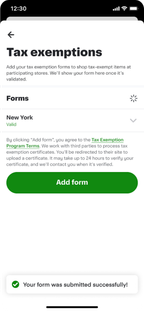
Currently, tax exemptions are limited to Marketplace Facilitator states. For businesses in non-Marketplace Facilitator states, a tax exemption is possible but requires additional configuration. For more information, contact the Instacart Business team.
Scheduled reports
Administrators can set up scheduled reports that export order data on a recurring schedule and email it to the recipients they choose. Scheduled reports use the same files as order and receipt exports, so administrators don't need to export the same data manually each week or month.
The Reports page is available under Business Settings in the business account menu. Administrators can also open it from the Export order data page on the dashboard.
When creating a scheduled report, administrators can define the following:
- Schedule name. A name that identifies the report, such as "Weekly finance report."
- Frequency. How often the report is sent. Reports can be sent daily, weekly on a selected day, or monthly on a selected day from the 1st to the 28th. Administrators also select a delivery time and a time zone.
- Date range. Which orders to include. Date ranges are recalculated each time the report runs and don't include the day the report is sent. The following options are available:
- Past Day, Past 7 Days, Past 30 Days, and Last X Days. The days right before the report is sent. For Last X Days, X is a number from 1 to 365.
- Past Week (Monday - Sunday). The most recent full Monday to Sunday week.
- Past Month. The most recent full calendar month.
- Group. All groups or a single group.
- Files. One or more of the following files: Receipts (PDF), Order Summary (PDF), Order Summary (CSV), and Order & Item Details (CSV). For more information about the data in each file, see Order and receipt exports.
- Recipients. Up to 10 email addresses. Recipients don't need an Instacart account, so administrators can include a shared mailbox, such as a finance team inbox. The email address of the administrator who creates the report is added by default.
- Schedule active. Whether the report runs. Administrators can pause a report without deleting it.
Each recipient receives an email with a secure download link. Links expire after 24 hours. If a report can't be created, for example because the date range has no orders or has more than 1,000 orders, recipients receive an email that explains the reason.
Administrators can view, edit, and delete scheduled reports from the Reports page. They can also view the run history for each report.
A business can have up to 10 scheduled reports, including paused reports. Deleted reports don't count toward this limit. Administrators can't filter scheduled reports by user role. To enable scheduled reports, contact your Instacart representative.
Receipt forwarding
Administrators can connect an expense system to forward receipts from business orders automatically. After each completed order, receipt forwarding sends a copy of the receipt to the expense system. The expense system reads the receipt and creates an expense for the team member who placed the order.
Administrators set up receipt forwarding from the Integrations tab in Business settings. Administrators can choose from the supported expense systems, such as Expensify, Zoho Expense, and Ramp. A business can connect one expense system at a time. Administrators can remove the expense system at any time. If an administrator removes it, receipts stop forwarding for all team members.
When an administrator sets up receipt forwarding, it turns on for all team members, and each team member gets an email. Team members can turn off receipt forwarding for themselves in Account settings.
Receipt forwarding applies only to orders placed after an administrator sets it up. If your storefront offers payment by invoice, receipt forwarding doesn't include orders paid by invoice.
Instacart+
If the business owner is subscribed to Instacart+, the subscription can be shared with four additional team members. To share the subscription with more team members, higher tiers of Instacart+ are available by contacting business@instacart.com.
- Instacart+ offers a business-specific benefit of 2% credit back on orders above $250.
- For customers with both a personal and business account, Instacart+ benefits are shared across both profiles.