Guest user shopping
Customers can browse your store and add items to their cart without logging in by shopping as a guest. However, they must sign in or create an account to check out and complete their purchase.
Your storefront uses the customer's location to show store-specific catalogs. Guests can either accept the suggested location or choose another one. They might select a different location if location services are turned off or if they're shopping for someone else.
While shopping as a guest, customers can't access the Favorite items, Order history, or Buy it again capabilities.
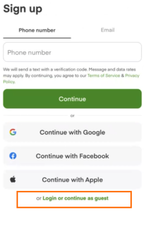
On the app, guests can start shopping without logging in by selecting Continue as guest. The following image shows the sign up page in the iOS app with Login or continue as guest:
Example journey
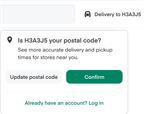
In this example, a guest arrives on a storefront using the retailer's web app. Instacart estimates the guest's ZIP code/postal code from their location information. The guest changes the location and the storefront displays the catalog for a store close to the selected location.
-
A guest visits a storefront using the retailer's web app. The storefront estimates the guest's ZIP or postal code based on location data.
-
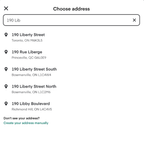
The guest updates the location, and the storefront displays a catalog for the store closest to the selected location.
-
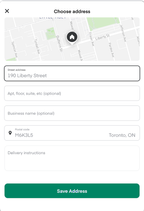
The storefront displays the ZIP or postal code and asks the guest to confirm it or enter a new one. The guest verifies the address and clicks Save Address.
-
The guest browses the store, adds items to the cart, and clicks Go to checkout when finished. From the checkout page, they can sign in or create an account.

-
The guest clicks the Sign In/Register button, and follows the instructions to create an account. When the process is complete, they're logged in as a customer, and the checkout continues as normal.