2026_09_0 Release Notes
Release date: September 29, 2026
The release notes describe changes to Storefront for this release, including new features and enhancements. In addition to these changes, Instacart continually updates the platform to improve accessibility, performance, and stability and to ensure the best user experience for your customers.
Are you using the partner-pick model? Review the Shopper App release notes for recent updates.
New features
The following new features are available in this release.
Store-level Direct Pay connections in Stripe associations
You can now connect a Stripe Direct Pay account at the individual store level in Instacart Platform Portal. This is useful if your stores each hold their own bank account, such as in a franchise model, because it lets Direct Pay funds route to the correct store's Stripe account instead of a single banner-level account.
Previously, Direct Pay could only be connected at the banner level, covering all of a banner's stores with one account. Alcohol and Pharmacy connections already supported this store-level option; Direct Pay now matches.
We have also improved the button text in the Stripe associations tool for clarity.
With this release, we have disabled reusing Stripe Connected accounts for legal and compliance reasons. Specifically, for alcohol and prescription (Rx) accounts, store locations owned by different legal entities may not share the same Stripe Connected account. If you have store locations that belong to the same entity and want to share an account, contact your Instacart representative.
For more information, see Connect to Stripe.
Segment library
The Segment library in Instacart Platform Portal is a new, redesigned home for the audiences you use to target campaigns. It replaces the previous Segments experience and brings your CSV-uploaded segments, saved rule sets, and API segments together in one page, where you can search for a segment by name and filter the list by segment type or status.
New descriptive upload statuses tell you whether a CSV upload succeeded. A Failed status means none of the entries matched. A Partial success status means some entries matched and some did not, so you know the health of your list without contacting support.
If you have a loyalty or membership program, you can now upload a list of member IDs to create a targeting segment, in the same way you upload email address lists. Member ID uploads are available to eligible retailers.
To protect customer data, uploaded email address and member ID lists cannot be viewed or downloaded, and Instacart automatically deletes uploaded lists after 45 days. Your existing segments carry over to the Segment library automatically.
To find out whether member ID uploads are available for your storefront, contact your Instacart representative.
For more information, see Create a segment.
Order Ahead ordering (Storefront Pro 5)
FoodStorm retailers who publish items to Instacart Storefront Pro or Marketplace can now accept orders for catering and other prepared items that require advance scheduling. Customers can place these orders using a calendar date picker at checkout and select a fulfillment date up to 90 days from the date that the order is placed, depending on the retailer's configuration.
Order Ahead ordering includes the following capabilities:
- Extended scheduling window. Checkout displays a calendar date picker when a customer's cart contains an Order Ahead item with a lead time, allowing customers to select a fulfillment date from a range determined by the item's lead time and the retailer's maximum scheduling horizon.
- Deferred payment authorization. The customer's card is not charged at order placement. Instead, a notification is sent five days before the fulfillment date, and the full order amount is authorized four days before fulfillment.
- Payment recovery flow. If the pre-fulfillment authorization fails, the customer is notified and can update their payment method before a cancellation deadline. If the deadline passes without a successful payment, the order is cancelled.
To enable Order Ahead ordering, contact your Instacart representative.
For more information, see Order Ahead ordering.
Customize collection page layouts (Storefront Pro 5)
You can now configure layouts for collection pages directly in Instacart Platform Portal using the Collections tool. Add banners and other creatives to these pages in a static slot to promote seasonal campaigns, highlight products, or align with your brand at key points in the browse experience. Each collection page can be customized individually and supports scheduling, so you can plan content in advance without manual activation.
For more information, see Manage collection page layouts.
Flyer featured collection carousel (Storefront Pro 5)
You can now add a flyer featured collection carousel to your content pages and custom homepages. The carousel displays products from your active flyer in a featured layout, with a cover image you upload, a title, and a button that opens your flyer experience.
Previously, you could surface flyer products in a flyer product carousel, or build a featured collection carousel from a standard collection, but you could not present your flyer in the featured collection layout. The flyer featured collection brings the two together, so you can promote your flyer with the same cover image and featured styling.
On your storefront, customers see the cover image alongside products from your active flyer, including current pricing and promotions. When they click the button, they go to your flyer experience, where they can browse all of your flyer's deals.
To use the flyer featured collection carousel, your storefront must have a flyer experience configured.
For more information, see Slots and creatives and Creatives properties.
Buy it again carousel on digital flyer pages (Storefront Pro 5)
You can now add a Buy it again carousel to your digital flyer pages. The carousel shows a signed-in customer the items they've previously purchased at your store that are also part of the current flyer, bringing the personalization of Buy it again into the flyer experience. This carousel is available on digital flyers only.
The following image shows an example of the Buy it again carousel on a digital flyer page:
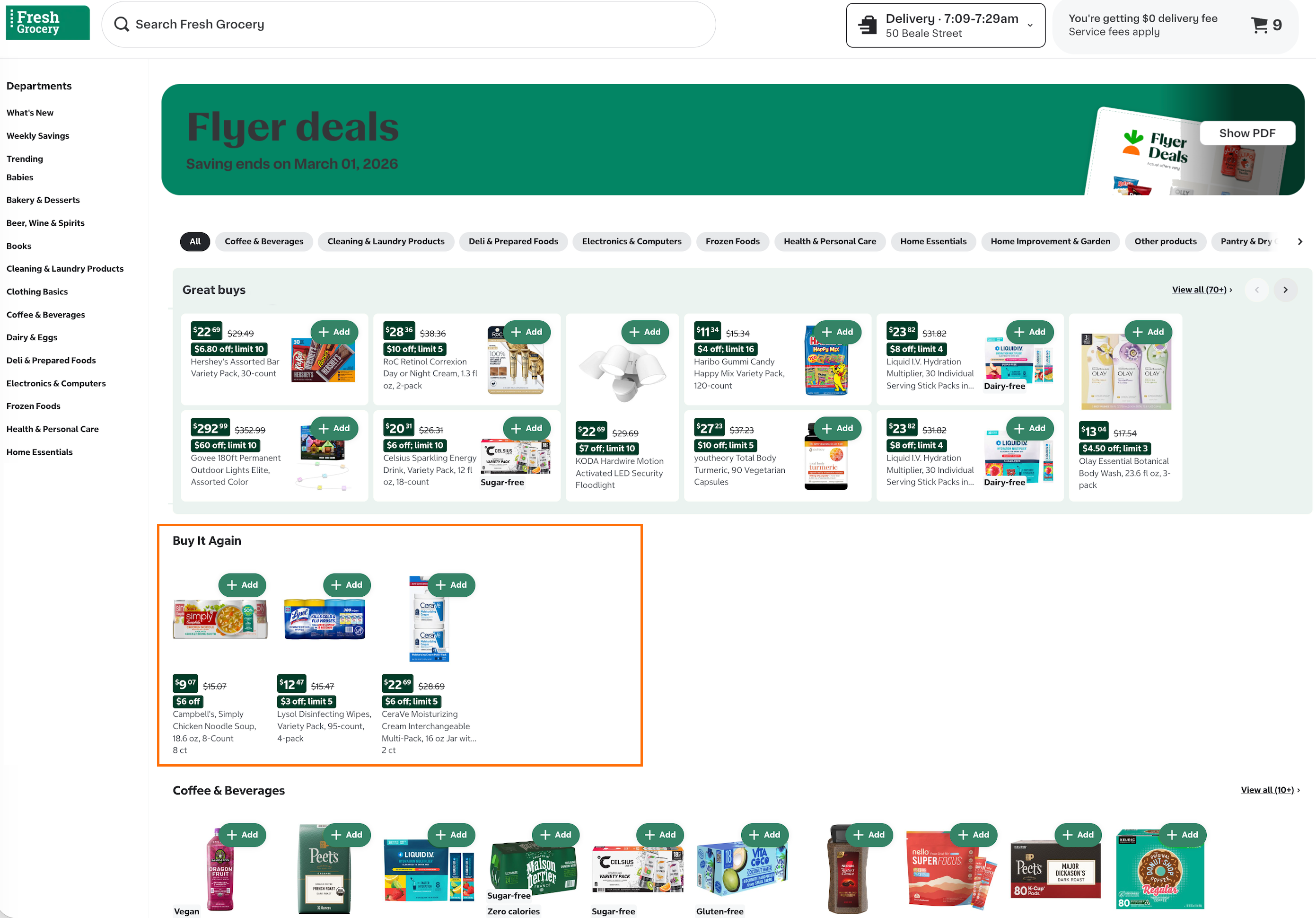
The carousel appears when a signed-in customer has at least two items that are in both their Buy it again list and the current flyer. If fewer than two items match, or the customer isn't signed in, the carousel doesn't appear and the rest of the flyer is unchanged.
To add the carousel, add a Buy it again product carousel to your digital flyer in Instacart Platform Portal. For more information, see Manage digital flyers and Buy it again.
Manual pinning on flyer carousels (Storefront Pro 5)
You can now pin products to the top of your flyer carousels and set the order they appear. Manual pinning is available on the flyer product carousel and the flyer featured collection carousel. Previously, these carousels populated automatically from your active flyer, with no way to control which products appeared first.
You can pin up to 40 products per flyer. Only products in your currently active flyer appear on the storefront, and because pins apply to the whole flyer, your pinned products appear in the same order anywhere that flyer is displayed.
For more information, see Creatives properties.
View attribute information sources
You can now view the data source for key product attributes using Instacart Platform Portal. Your inventory file provides the foundation of your product catalog, and by design, Instacart integrates data from other sources to ensure that the product information displayed on your storefront is accurate, consistent, and aligned with regulatory and industry standards. The new attribute details pane shows the value displayed on your storefront, the source it came from, and the values you provided for the attribute. This feature currently applies to products displayed on your Instacart Marketplace storefront.
The attribute details pane has two sections:
- Storefront value. The value that is displayed on your storefront, the source it came from, and when the product was last updated.
- Provided values. The values you provided for the attribute, from your catalog inventory file or an edit in Instacart Platform Portal. Each entry shows the value, the source it came from, and when that source last updated the value.
Compare the two sections to see which source is responsible when a value on your storefront differs from what you provided.
For more information, see View attribute information sources.
Enhancements
The following enhancements are available in this release.
Scope navigation links to store groups (Storefront Pro 5)
You can now scope navigation links to specific store groups, so customers browsing different stores see navigation tailored to their location. Previously, all navigation links displayed for all stores regardless of where a customer was browsing. When you add or edit a link in the Navigation tool in Instacart Platform Portal, you can restrict the link to one or more store groups. Customers see only the links scoped to the store group that matches their current store, along with any links that apply to all stores.
To use store group navigation scoping, you must first configure store groups in Instacart Platform Portal.
For more information, see Manage desktop navigation, Manage mobile web navigation, and Manage native app navigation.
Improved order issue reporting
Customers now use a single, consistent flow to report a problem with an order. The flow guides customers to select which items had issues, choose the type of issue, and answer follow-up questions, so each report includes the detail needed to resolve it.
Previously, customers could submit incomplete reports, and some were resolved through email. Now, support handles reports that need more information in a live chat session, so customers reach a resolution faster.
For more information, see After fulfillment.
Fee rewards available with any distribution channel
When you create a Storefront campaign with a fee reward, all five fee options are now available regardless of which distribution channels you select. You can pair any fee reward ($0 pickup or delivery fee, $0 pickup fee, $0 delivery fee, $0 priority fee, or $0 service fee) with on-site placements, email, push, a coupon code, or a direct link.
Previously, fee reward availability depended on the distribution channel. Campaigns that included email or push could offer only the $0 delivery fee.
For more information, see Create a minimum spend offer on baskets.
Live preview for page editing enhancements (Storefront Pro 5)
Building on the desktop live preview introduced in the last release, this release adds two improvements that help you see how your content pages and custom homepage will look before you publish:
- Mobile preview. A device toggle now lets you switch the canvas between desktop and mobile viewports. In mobile view, the canvas renders at mobile width and shows your storefront's actual branding: the same fonts and colors your customers see. Changes you make in the configuration pane update the mobile canvas in real time.
- Dynamic collection preview. Carousels in static slots that are linked to a dynamic collection now show the actual products from that collection in the canvas, instead of a gray placeholder. The preview uses products from one of your store locations. Live preview for dynamic slots (also known as campaign slots) is not yet available.
The following image shows an example of editing a content page in Instacart Platform Portal with mobile preview:
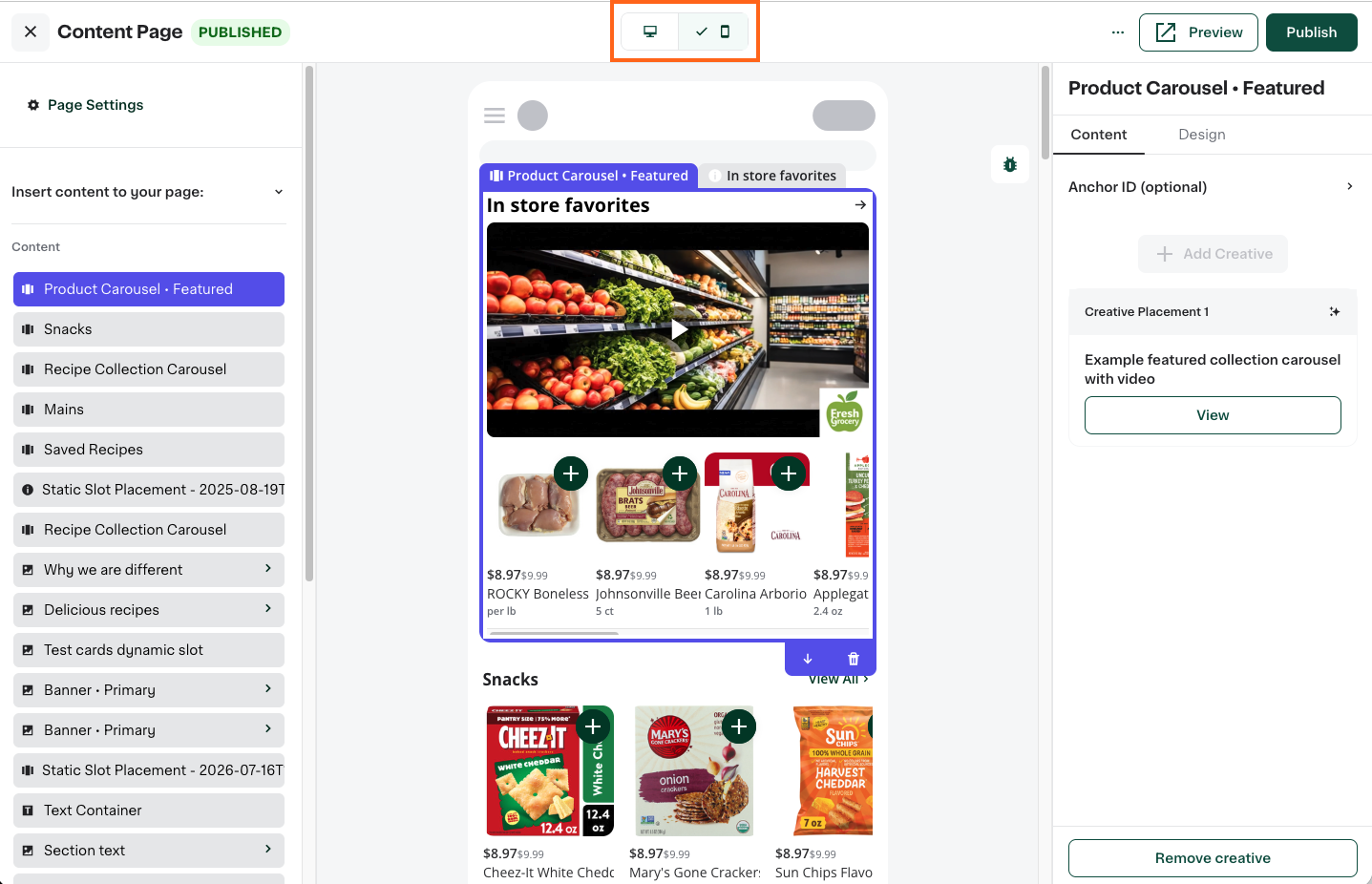
For more information, see Manage content pages and Manage your custom homepage.
Creatives design control enhancements (Storefront Pro 5)
This release expands the Design tab in the creative editor in Instacart Platform Portal. When you edit a creative, the design tab now includes additional color and layout controls, and is available for more creative types and page types than in the previous release:
- Card carousels. A new image position control lets you choose where the card image appears relative to the card text (Top/Bottom for vertical cards, Left/Right for horizontal cards). Card color settings and carousel settings have also moved from the Content tab to the Design tab.
- Banners. Color settings for primary and secondary banners have moved from the Content tab to the Design tab.
- Slim banners. Color controls are now available on the Design tab for slim banners.
- Dynamic slots. The design tab is now available for creatives in dynamic slots (also known as campaign slots), where you can set spacing and alignment.
- Flyer, department, and collection pages. The design tab is now available for creatives on flyer, department, and collection pages.
For more information, see Creatives properties, Manage content pages, and Manage your custom homepage.
Phone number masking in chat and notifications
Phone numbers in shopper and customer chat, push notifications, and SMS for Storefront orders are now masked. Shoppers and customers see [phone number hidden] in place of the other person's number, which helps protect privacy during fulfillment and reduce the risk of account takeover attacks. This extends the masking already available for Marketplace orders.