2026_11_0 Release Notes
Release date: November 17, 2026
The release notes describe changes to Instacart Storefront for this release, including new features and enhancements. In addition to these changes, Instacart continually updates the platform to improve accessibility, performance, and stability and to ensure the best user experience for your customers.
Are you using the partner-pick model? Review the Shopper App release notes for recent updates.
New features
The following new features are available in this release.
Scheduled reports for business accounts
Administrators of business accounts on your storefront can now set up scheduled reports that export order data automatically. Administrators choose the files to include, a rolling date range such as Past 7 Days or Past Month, and a daily, weekly, or monthly schedule. Administrators can send each report to up to 10 recipients, including people who don't have an Instacart account.
Previously, administrators needed to export order data manually from the dashboard each time they needed it.
To enable this feature, contact your Instacart representative.
For more information, see Business settings.
Receipt forwarding for business accounts
Business account administrators can now connect an expense system, such as Expensify, Zoho Expense, or Ramp, to forward receipts automatically. After each completed order, receipt forwarding sends a copy of the receipt to the expense system. The expense system reads the receipt and creates an expense for the team member who placed the order.
Administrators set up receipt forwarding from Business settings. Receipt forwarding turns on for all team members, who can turn it off for themselves in Account settings. Your customers' order receipt emails don't change. The expense shows your store as the merchant.
Previously, business customers had to download each receipt and upload it to their expense system manually.
For more information, see Business settings.
Manage partner picker shifts with CSV
In Instacart Platform Portal, you can now use the Manage with CSV option to manage shifts at one or more stores by downloading, editing, and uploading a shared file. This option lets you perform large-scale scheduling changes across multiple locations without having to update each store’s shifts individually.
You can search for currently scheduled shifts by recurrence pattern, store location, and date range, and then download a CSV-formatted file that contains a snapshot of the matching shifts. After completing your edits, you can then upload the file. If the file is successfully validated, the shifts in it overwrite the existing shifts and become the new record of your staffing commitment. For more information, see Manage with CSV.
Global banner selector in Instacart Platform Portal
Beta refers to pre-release features or products that are under active development and available for users to try out.
You can now use a global banner selector in Instacart Platform Portal to choose your banners once and have that choice apply across tools. Previously, you chose the banners that your work applied to separately in each tool.
The global banner selector is off by default, and each user can try it out by turning it on for their own profile. When the global banner selector is on, your banner selection follows you from page to page, and tools that support it show data from each of the banners that you selected. Some tools still work with one banner at a time. For those tools, you'll be asked to choose which banner's information you want to manage in that tool.
To try the global banner selector, turn it on from the top navigation in Instacart Platform Portal.
For more information, see Use the global banner selector.
New discounting offer types
The following multi-group offer types are now supported with Catalog inventory file promotions:
Buy_M_Of_A_Get_X_Percent_Off_On_B. Supports the following promotions:- Buy M units from Group A, get N units from Group B free. For example, buy 2 lb of lunch meat, get 1 lb of deli cheese free.
- Buy M units from Group A, get N units from Group B for X% off. For example, buy 2 lb of lunch meat, get 1 lb of deli cheese for 50% off.
Buy_M_Or_More_Of_A_Get_B_For_X_Dollars_Per_Unit. Supports the following promotions:- Buy M or more units from Group A, get units from Group B for $X per unit. For example, buy 2 packages of buns, get ground beef for $1.99 per lb.
- Buy M or more units from Group A, get units from Group B for $X per unit, with a limit per order. For example, buy 2 cans of cranberry sauce, get turkey for $1.99 per lb, limit 5 lb per order.
For more information, see Promotional offer types and metadata examples in the Catalog documentation.
Enhancements
The following enhancements are available in this release.
Update to the storefront header
We're rolling out minor changes to how we display pricing information on the storefront header to include additional information across all jurisdictions. The header will show:
- "Pricing & Fees" where it previously showed "Pricing info" or "View Pricing Policy" and
- "No Markups • Fee Info" where it previously showed "No Markups" or "View Pricing Policy"
For more information, see Pricing label.
Edit configurable products in the cart
Customers can now change the options for a configurable product, such as a custom sandwich or cake, after they add it to their cart. When a customer selects the product in their cart, the product details page opens with their previous selections filled in. After they make a change, they select Update cart, and the item in their cart updates. Customers can also change the quantity of a configurable product directly in the cart.
Previously, customers had to remove a configurable product from their cart and add it again to change its options or quantity.
For more information, see Configurable products.
Accurate status for order issue reports that need review
Some order issue reports need to be reviewed by support before a resolution is issued. For these reports, the customer now sees a message that support is reviewing the issue and will email them a resolution.
Previously, the message said that a credit would be added to the customer's account soon, even when the report still needed a review.
For more information, see Order issues.
Nutrition scores on the product details page
You can now show nutrition scores to your customers on the product details page. Items in scored food and beverage categories show a score from 1 to 10 with a color-coded qualifier, such as Excellent or Good. Customers can select the score to see more details. Details include how the item compares with the average for its category and a breakdown of the score across nine nutrition domains.
When you turn on nutrition scores, the product details page also uses a more compact layout for all of your customers.
To turn on nutrition scores, contact your Instacart representative.
For more information, see Nutrition scores.
Abandoned cart campaigns in the Campaigns without offers dashboard
The Campaigns without offers dashboard in Instacart Platform Portal now includes results for abandoned cart campaigns. This campaign type sends customers an email, a push notification, or both 30 minutes after they end a session with items in their cart and don't check out. Use the new Campaign type filter to view performance for your abandoned cart campaign, including impressions, clicks, and attributed gross merchandise value (GMV).
Previously, abandoned cart performance wasn't available in Instacart Platform Portal.
For more information, see Campaigns without offers dashboard.
Updated badges on item tiles
Badges and product labels on item tiles now appear together at the bottom right of the tile, with an updated style. Each item tile shows up to two badges or labels. When more of an item's product tags apply, the last label shows how many more, such as Organic +1. Badges such as Best Seller take priority over product labels. Customers see the updated badges on the web and in the mobile apps.
Previously, badges and product labels appeared in separate places on the item tile.
For more information, see Product tags.
Shoppers can leave grocery-only orders at the door when customers aren't available
When a customer who chose to meet the shopper at the door isn't available, the shopper can now leave the order at the door instead of canceling it. The customer receives a notification with a photo of the delivery. Orders with restricted items, prescription (Rx) items, or items that require certified delivery can't be left at the door.
For more information, see Delivery.
Offer terms on items
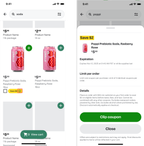
Customers can now view the terms of most offers wherever they see them. An information icon (ⓘ) appears on item tiles, product details pages, and offer sheets. Customers select it to open a dialog with the offer's limits, requirements, expiration date, and terms. For offers that apply to multiple items, customers use a Show terms link in the eligible items view to see the terms.
Offer terms appear for coupons and auto-applied offers from every source. Sources include your catalog, Instacart Platform Portal, third-party integrations, and ads. They are available on mobile web, iOS, Android, and desktop. Previously, offer limits and other terms weren't always visible.
The following image shows an example item tile with the information icon and the offer details dialog that opens when a customer selects the icon:
To enable offer terms, contact your Instacart representative. For more information, see Item tile and Product details page.