2026_07_0 Release Notes
Release date: July 28, 2026
The release notes describe changes to Instacart Storefront for this release, including new features and enhancements. In addition to these changes, Instacart continually updates the platform to improve accessibility, performance, and stability and to ensure the best user experience for your customers.
Are you using the partner-pick model? Review the Shopper App release notes for recent updates.
New features
The following new features are available in this release.
Improvements to order guides for business accounts
Order guides have been updated with several improvements to make it easier for business customers to shop and manage their buying lists.
- Default quantities. Administrators can now set a default quantity for each item in an order guide. When a member adds the guide to their cart, each item is added using the saved default quantity. Existing order guides default to a quantity of 1 per item.
- Shopping mode. Customers can now enter a dedicated shopping mode to review and adjust order guide items before adding them to their cart. Customers can select specific items and update quantities for the current shopping session. Quantity adjustments made in shopping mode don't change the saved default quantities for the order guide.
- Editing. The order guide editing experience has been redesigned with an improved layout for easier item management.
- Sharing. The sharing experience has been updated to make it easier for administrators to share order guides with team members and groups.
For more information, see Order guides.
Bulk team member invitations
Administrators can now invite multiple team members at once by uploading a CSV file from the Team members page. Each row in the file specifies a distinct email address, role, and optional group for the invitee, so administrators can configure each person differently in a single upload.
If any row in the file contains an error, no invitations are sent. Administrators can download a detailed error report that identifies which rows failed and why, correct the file, and re-upload.
For more information, see Team management.
Redesigned campaign creation experience
The campaign creation experience in Instacart Platform Portal has been redesigned with a new unified experience. The experience guides you through a consistent set of steps whether you're creating a drive awareness campaign or an offer discount campaign, replacing separate workflows for each campaign type.
The redesigned experience introduces several new capabilities:
- More ways to reach customers. You can now distribute campaigns via email and push notifications in addition to on-site placements, coupon codes, and direct links. Email and push require CRM integration. To enable these channels, contact your Instacart representative.
- More precise audience targeting. The audience step includes new targeting categories, including subscription status and payment-related attributes. Targeting rules are organized in a tabbed panel with your most-used rules, saved configurations, and additional options.
- Placement configuration. For drive awareness campaigns, you can now choose placement types and configure each placement's dynamic slot and creative without leaving the campaign creation flow.
- Save your progress. You can save a campaign as a draft at any point and return to it later. Draft campaigns appear in the Drafts tab on the Marketing Campaigns page.
If you prefer the previous campaign creation experience, click Switch to classic experience in the tool banner. The classic experience will be retired in a future release.
For more information, see Campaigns and offers.
Enhancements
The following enhancements are available in this release.
Family cart switching prompt
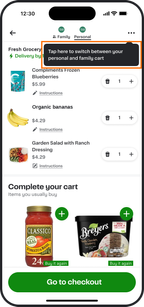
Customers in a complete family household (two or more members) now see a one-time prompt that helps them switch between their family and personal carts. The prompt appears on the storefront and in the cart, and doesn't reappear after it has been seen.
The following image shows an example of the cart switching prompt:
For more information, see Family accounts.
Resizable columns in Instacart Platform Portal list views
You can now resize column widths in list views in Instacart Platform Portal by dragging column edges. This makes it easier to see long item values (such as campaign, collection, and creative names) at a glance, without clicking into individual records. Column resizing is available in the Collections, Campaigns, Creatives, and Orders tools on desktop.
Mobile view for Operational dashboard in Instacart Platform Portal
The Operational dashboard in Instacart Platform Portal now displays a card layout on mobile devices. Each card represents one order and shows all the information from the list view. The layout switches automatically between a table list view or a card list view based on your device's screen size.
Previously, the Operational dashboard tool only displayed a table layout that required horizontal scrolling on smaller screens, making it difficult to review and manage orders from a phone or tablet.
For more information, see Operational dashboard.
Checkout notification when the customer's location isn't the same as the delivery address
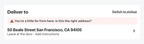
The notification that prompts customers to confirm their delivery address when their current location is more than 1 mile away is now available on web and mobile web. The notification displays a banner at checkout when a potential delivery address mismatch is detected.
The following image shows an example checkout notification:
Previously, this capability was available only on Storefront mobile apps.
For more information about the checkout flow, see Checkout.
Updated item tile design
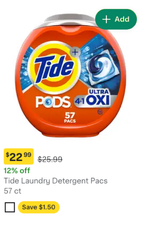
Item tiles on your storefront have been updated with the following visual changes:
- Secondary product details, such as brand, weight, and ratings, appear in a lighter color to direct customers' focus to the price and promotion.
- The coupon promotion is updated from a text label to a pill shape with refreshed colors.
- The See eligible items button is updated to a yellow that matches the promotion color. The functionality of both components is unchanged.
The following image shows a coupon promotion on an updated item tile: