Item tile
Item tiles display information about individual products or an assortment of products. Assortments can be a selection of grocery items or a specialty assortment of items for a catering tray or holiday meal. When shopping online, customers want to see enough key details on the item tile to make a purchasing decision quickly. They also want to be able to add a quantity of the item to their cart from the tile. You can configure how much information appears on item tiles on your storefront.
Item tile layout
Your customers interact with item tiles on the homepage or while browsing your catalog, searching for items, or reviewing items in a cart.
The following image shows a sample item tile with some of the most commonly used components:
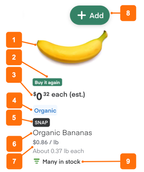
- Product image. Retrieved from the inventory file. A customer can click the image to open the product details page.
- Buy it again label. Based on a customer's purchase history. Indicates items previously purchased by a customer. For more information, see Buy it again.
- Pricing details. Retrieved from the inventory file. The default price is always displayed when available. The other pricing components are displayed automatically for sales, discounts, offers, or if the customer is a loyalty member. When offer terms are enabled and an offer has terms, an information icon (ⓘ) appears next to the offer label. The customer clicks the information icon to see the terms of the offer.
- Product labels. Retrieved from the inventory file and displayed at the bottom right of the item tile, with other labels such as the Buy it again label. An item tile shows up to two badges or labels. When more labels apply, the last label shows how many more, such as Organic +1.
- Snap label. (Optional) Retrieved from the inventory file.
- Product name. Retrieved from the inventory file and displayed using a subset of the global text style.
- Product size and price per unit. Retrieved from the inventory file and displayed using a subset of the global text style.
- Add to cart. Enables customers to add items to the cart. The button uses the global button color. For produce sold in more than one way, the quantity icon spells out the unit. For example, a customer might see "1 banana" or "3 bunches" instead of a bare number. In these cases, the product image matches the actual unit (a single banana, a full bunch, or a box).
- Stock levels. (Optional) The stock levels for an item. For more information, see Stock levels.