Department pages
On department pages, customers can view the products in the department and add items to their cart. Products are displayed in item tiles, which are small product cards that appear in the department page and in product carousels.
Page content
The following image shows a sample department page:
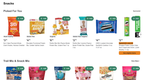
The department page includes the following sections:
Item tiles
Item tiles display information about individual products or an assortment of products. Assortments can be a selection of grocery items or a specialty assortment of items for a catering tray or holiday meal. When shopping online, customers want to see enough key details on the item tile to make a purchasing decision quickly. They also want to be able to add a quantity of the item to their cart from the tile. You can configure how much information appears on item tiles on your storefront.
The following image shows a sample item tile with some of the most commonly used components:
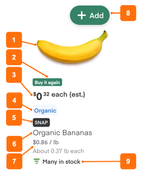
- Product image. Retrieved from the inventory file. A customer can click the image to open the product details page.
- Buy it again label. Based on a customer's purchase history. Indicates items previously purchased by a customer. For more information, see Buy it again.
- Pricing details. Retrieved from the inventory file. The default price is always displayed when available. The other pricing components are displayed automatically for sales, discounts, offers, or if the customer is a loyalty member.
- Product labels. Retrieved from the inventory file and displayed in the global label color.
- Snap label. (Optional) Retrieved from the inventory file.
- Product name. Retrieved from the inventory file and displayed using a subset of the global text style.
- Product size and price per unit. Retrieved from the inventory file and displayed using a subset of the global text style.
- Add to cart. Enables customers to add items to the cart. The button uses the global button color. For produce sold in more than one way, the quantity icon spells out the unit. For example, a customer might see "1 banana" or "3 bunches" instead of a bare number. In these cases, the product image matches the actual unit (a single banana, a full bunch, or a box).
- Stock levels. (Optional) The stock levels for an item. For more information, see Stock levels.
Automatically generated carousels
Customers may also see the following automatically generated carousels at the top of department pages:
- Picked for you. Shows recommended items based on the customer's interests, purchase behavior, and browsing history.
- On sale now. Shows items that are currently on sale or part of a promotion. By default, the carousel appears only if there is at least one item on sale in the department. You can customize this minimum threshold by contacting your Instacart representative.
Page entry points
Department pages are automatically available from the navigation. For more information, see Departments.