Shopping contexts
The shopping context identifies and supports the customer's purpose for visiting the site. The options displayed in the shopping context selector reflect the choices made while onboarding, including fulfillment options and in-store shopping. For example, if you chose to support only delivery and pickup, the shopping context selector will display only these options and not the in-store option.
Delivery
Customers want the order delivered. Customers can place delivery orders if they live in an area that's serviced by Instacart. When a customer inputs their delivery address, the storefront adjusts to show items that are deliverable from nearby store locations. After a customer places a delivery order, a shopper picks the ordered items and then delivers the order to the customer.
Pickup
Customers want to pick up the order. When a customer selects the store where they want to pick up the order, the storefront adjusts to show items that are available at the selected store. After a customer places a pickup order, a shopper or associate picks, packs, and stages the order. The customer goes to the store location to pick up the order.
In-store
With in-store shopping enabled, customers can add items to a shopping list and plan their shopping trips before going to the store. Customers can also use the in-store context to view in-store prices and promotions, clip coupons, and find the product location within a store. When a customer selects the store that they plan to visit, the storefront adjusts to show items that are available at the selected store.
Customer experience
When customers switch shopping contexts, some components on your site change.
Header
The following table shows the differences in the header:
| Delivery | Pickup | In-store |
|---|---|---|
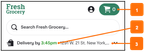 | 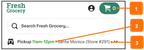 | 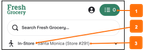 |
- Cart.
- For delivery and pickup, the header includes a cart icon.
- For in-store, the header includes a list icon.
- Time slot.
- For delivery and pickup, the time slot shows the earliest available slot in which the order can be fulfilled.
- For in-store, the store hours are shown when the context is clicked and the selector opens.
- Address.
-
For delivery, the header includes the delivery address.
-
For pickup and in-store, the header includes the store name.
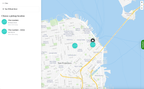
Customers can select the store to change the store location. Available nearby store locations appear on a map. For more information, see Store locations.
noteFor multi-banner retailers, you can show the pickup and in-store locations for multiple banners, on both desktop and mobile browsers.
-
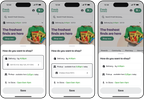
When a customer clicks the shopping context from the header on a mobile device, a bottom sheet appears. Customers can then view additional information for each context, or switch to another context.
The following image shows the three shopping contexts from the expanded context selector:
Item tile
The following table shows the differences in item tiles:
| Delivery and pickup | In-store |
|---|---|
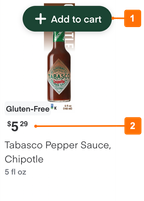 | 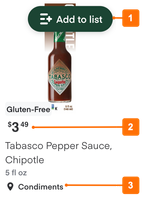 |
- Add button.
- For delivery and pickup, the button includes the text Add to cart.
- For in-store, the button includes the text Add to list.
- Price.
- For delivery and pickup, the price includes the markup (if any) for customers purchasing online.
- For in-store, the price shows the in-store pricing. You must provide in-store prices in your catalog inventory file.
- Product location.
- For delivery and pickup, product location isn't displayed to customers.
- For in-store, the item tile can include the location of a product in your store. To show the location, you must include the
location_datacolumn in your catalog inventory file.
Cart menu
The following table shows the differences in the cart menu:
| Delivery and pickup | In-store |
|---|---|
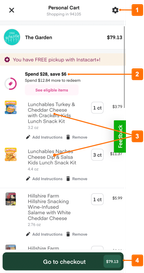 | 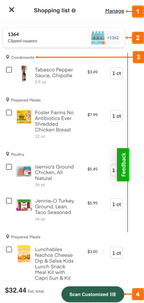 |
- Settings/Manage button.
- For delivery or pickup, the cart includes a Settings button. Customers can use the button to switch between different carts, such as their personal cart or family cart.
- For in-store, the shopping list includes a menu. Customers can use the menu to uncheck all items, remove checked items, remove all items, share the list, or add items from the list to the cart.
- Promotions and coupons.
- For delivery or pickup, the cart shows promotions that the customer can redeem for online purchases.
- For in-store, the list shows clipped coupons that the customer can redeem for in-store purchases. For customers to redeem clipped coupons, you need to integrate your storefront with your loyalty program.
- Product location.
- For delivery and pickup, items are grouped by category, but product location isn't available.
- For in-store, items are grouped by category, or if available, by product location. Customers can sort the list by department, alphabetically, or by price.
- Checkout/Loyalty button.
- For delivery or pickup, a Go to checkout button displays. Customers can click the button to proceed to the checkout process.
- For in-store, a loyalty card button displays. Customers can present their loyalty barcode to the cashier to have it scanned. When scanned, clipped coupons are applied and loyalty points are earned at the point-of-sale. If you don't have a loyalty program, the button is hidden and customers can't apply the clipped coupons to the in-store purchase.
Store locations
For pickup or in-store orders, the nearest store location is preselected by default. Customers can use the store selector to choose a different store location. The store selector displays a list of nearby store locations and a map view of the locations. Store details can include the store name and store phone number.
The following image shows an example of store details for pickup locations: