Digital coupons page
If you are integrated with third-party loyalty providers, you can add a Digital coupons page to your storefront. Customers must sign in or have a loyalty ID associated with their account to clip and redeem coupons.
Digital coupon discounts are added to existing item-level sale prices or loyalty prices. For example, an item's regular price is $10, but $9 for loyalty customers. If a digital coupon offers $2 off the item, then the item's price with both discounts combined is $7.
Digital coupon discounts aren't added to any other item-level discounts, such as Buy X Get Y Free special promotions defined in your catalog. The special promotion takes precedence and the digital coupon isn't applied at checkout.
Page content
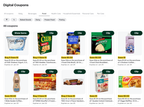
The following image shows an example of the Digital coupons page:
Coupon tiles
Each coupon tile contains information about the coupon, such as the eligible items, discount value, order limits, and terms and conditions. The details for the coupons shown on the coupons page are retrieved from the third-party loyalty provider.
To modify the coupon details, work with your Instacart representative.
Filtering options
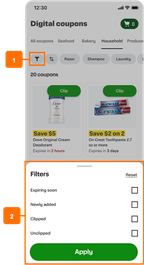
Customers can narrow down their search for specific coupons using the filter button and filter panel. When a customer clicks the filter button, the filter panel shows the following options:
- Expiring soon
- Clipped
- Unclipped
- Newly added
The following image shows the filter button and panel:
Categories
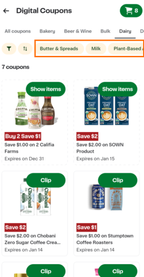
Customers can also click a category to view its subcategories for more targeted results.
The following image shows the Dairy category and its subcategories, which include Butter & Spreads, Milk, and Plant-Based:
Page entry points
After your Instacart representative sets up the coupons page, you can add navigation links and create banners to direct customers to the page.
If you want customers to be able to view digital coupons without logging in to your storefront, consider upgrading to Instacart Storefront Pro. Your third-party loyalty provider must also support this option.
Example journey
A typical customer journey starts with the customer navigating to the coupons page.
-
The customer goes to the coupons page.
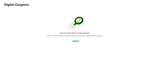
If the customer isn't signed in, they may be prompted to sign in to view coupons.
The page shows a list of coupons that are available for their selected store location. Each coupon tile contains information such as the product description, the savings amount, and the coupon expiration date.
The page also supports the following filter and sort capabilities:
- Show all coupons
- Show clipped coupons
- Sort alphabetically
- Sort by best match, based on a combination of the customer's purchase history, search history, and item popularity
- Sort by coupon expiration date and time
- Filter by newly added, expiring soon, clipped, or unclipped.
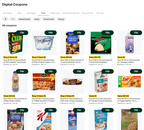
-
The customer clicks Clip for the coupon that they want to use. If the customer isn't signed in, they're prompted to sign in before returning to the same page.
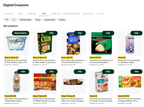
The coupon is added to the cart or shopping list. The coupon tile button text changes from Clip to Show items.
For example, the following image shows that when the customer clicks Clip for Chobani yogurt as shown in the previous image, Clip becomes Show items.
-
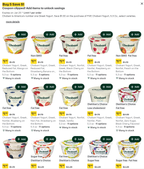
The customer clicks Show items to view all items that are eligible for the offer.
-
The customer adds eligible items to the cart or shopping list.
-
The customer closes the dialog and continues shopping.
-
For the in-store shopping context:
-
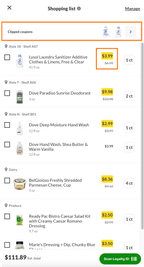
The customer clicks the shopping list to view what was added.
The list displays a Clipped coupons button that customers can click to review their coupons. The item prices reflect the discounted price after applying the coupon.
-
The customer goes to the store to shop for the items.
-
At checkout, the customer clicks Scan Loyalty ID to display the loyalty barcode.
-
The cashier scans the barcode and the coupons are applied to the in-store order.
-
-
For the delivery or pickup shopping contexts:
-
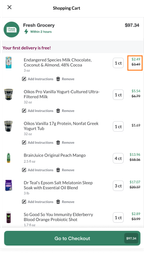
The customer clicks the cart to start the checkout process. The item prices reflect the discounted price after applying the coupon.
-
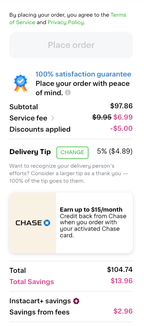
The customer clicks Go to checkout. The totals reflect all the discounts applied, including coupons and other store offers.
-