In-store shopping
Some customers want to plan their shopping trips before going to the store. You can choose to enable the in-store shopping context for your storefront. Customers can use the in-store shopping context to select a store, view in-store prices, and add items to a shopping list.
The following image shows in-store selected in the header:
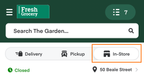
To learn how in-store shopping affects your storefront, see Shopping contexts.
Store selector
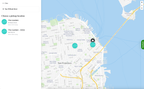
To make it easier for customers to find a store, your storefront includes a store selector map. The nearest store location is preselected by default.
Customers can use the store selector to choose a different store location. The store selector displays a list of nearby store locations and their locations on the map. Store details can include the store name and store phone number.
The following image shows a store selector map:
Shopping list
When a customer uses the in-store shopping context, the cart becomes a shopping list. Customers add items to the list before going to the store and check them off while they shop. The shopping list includes capabilities unique to the in-store shopping context, such as a list menu, clipped coupons, items sorted by product category or location, and a loyalty barcode button.
The following image shows a shopping list:
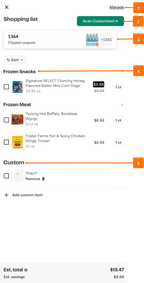
- List menu. Customers can uncheck all items, remove checked items, remove all items, share the list, or move the items from the list to a cart.
- Loyalty barcode button. With a loyalty program, customers who have linked their loyalty account can open and scan their loyalty barcode at checkout.
- Clipped coupons. With a loyalty program, customers can view and apply their clipped coupons.
- Product category or location. Items are organized by category or location in the shopping list to make them easier to shop. By default, the list is sorted by department.
- Custom items. Items that customers add without choosing a specific product appear in their own group.
The shopping list shows an estimated total, estimated savings, and a running total for checked items. Totals are estimates and might not reflect current in-store prices.
The shopping list also appears first on the Your saved lists page, with the customer's other lists. With both the shopping list and saved lists, customers can do the following:
- Add custom items, such as yogurt, without choosing a specific product. Custom items don't have a price and aren't included in totals.
- Sort the list by department, alphabetically, or by price. Custom items are sorted only when the customer sorts the list alphabetically.
- Share the list as plain text. The shared text includes each item and its size, followed by any custom items.
Customers can also duplicate a saved list to start a new one.
If a customer creates a shopping list as a guest and then signs in, the guest list merges with the shopping list in their account.
In-store pricing and promotions
When a customer selects the in-store shopping context, your storefront updates to show in-store pricing and promotions. You set these values in your catalog inventory file.
Coupons and loyalty programs
If your storefront is integrated with your loyalty program, the loyalty card barcode is available from the shopping list. Customers can scan the barcode at checkout, redeem clipped coupons, and earn loyalty points.
Configuration
Retailer configuration steps:
- Add in-store pricing to your catalog inventory file.
- (Optional) Add in-store promotions to your catalog inventory file.
- (Optional) Add aisle or shelf numbers, or both, to your catalog inventory file.
- (Optional) Integrate your storefront with your loyalty program.