Team management
Administrators can invite team members to join a shared business organization from the Team members page.

Selecting Invite members opens a form to assign a role and enter one or more email addresses. All invitees in that form get the same role and group.
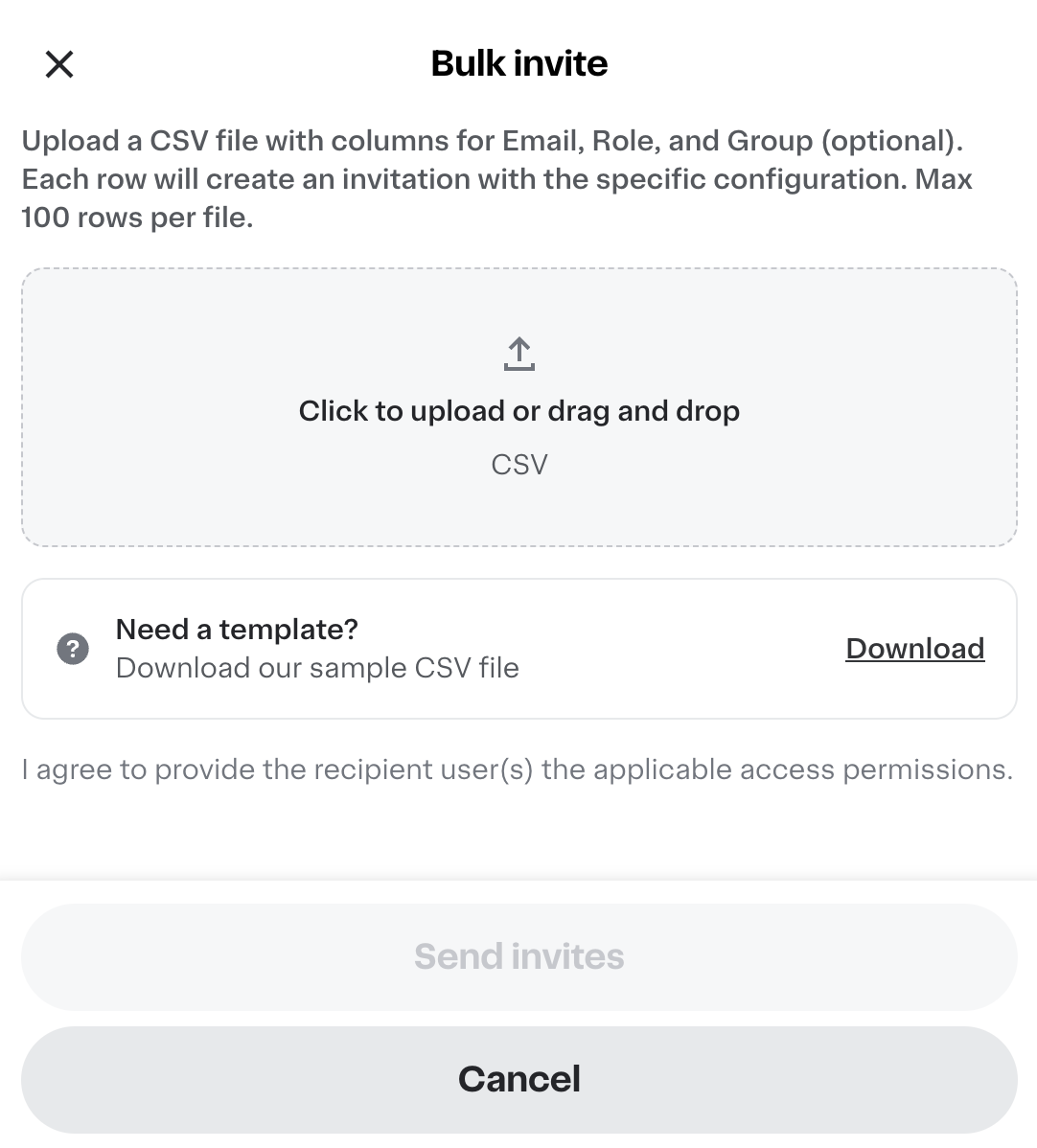
Selecting Bulk invite opens a file upload dialog where administrators can upload a CSV file to invite up to 100 team members, each with their own role and optional group assignment. A downloadable template is available in the upload dialog. If any row in the file contains an error, no invitations are sent. Administrators can download an error report, correct the file, and re-upload.
Invited members appear as Pending on the Team members page until they accept. Invitations expire after 7 days.
Business organizations can have an unlimited number of team members. The following roles are available:
- Administrator. Places orders for the business, manages members, and views analytics.
- Approver. Approves orders placed by team members.
- Buyer. Places orders for the business.
Account groups
Administrators can organize team members into groups. Spend limits and order approvals configured at the group level apply to all buyers in the group.
The Team members page includes a Groups tab where administrators can view, create, and manage groups. To create a group, provide only a unique name.
After creating a group, administrators can manage it from the following tabs:
- Members. Add members to the group in bulk, or move members from one group to another.
- Permissions. Configure spend limits and order approvals for all buyers in the group.
- Settings. Rename or delete the group.
Administrators can also manage an individual member's group assignment from the team members list, or assign invitees to a group at the time of invitation. When using Invite members, all invitees in a single form submission share the same role and group. To assign invitees to different groups, send a separate invitation for each group. When using Bulk invite, each row in the CSV can specify a different group, so administrators can configure each invitee differently in a single upload.
When a team member belongs to a group, the group's spend limit and order approval settings override their individual settings. Individual spend limit and order approval settings are disabled for members of a group.
Spend limits
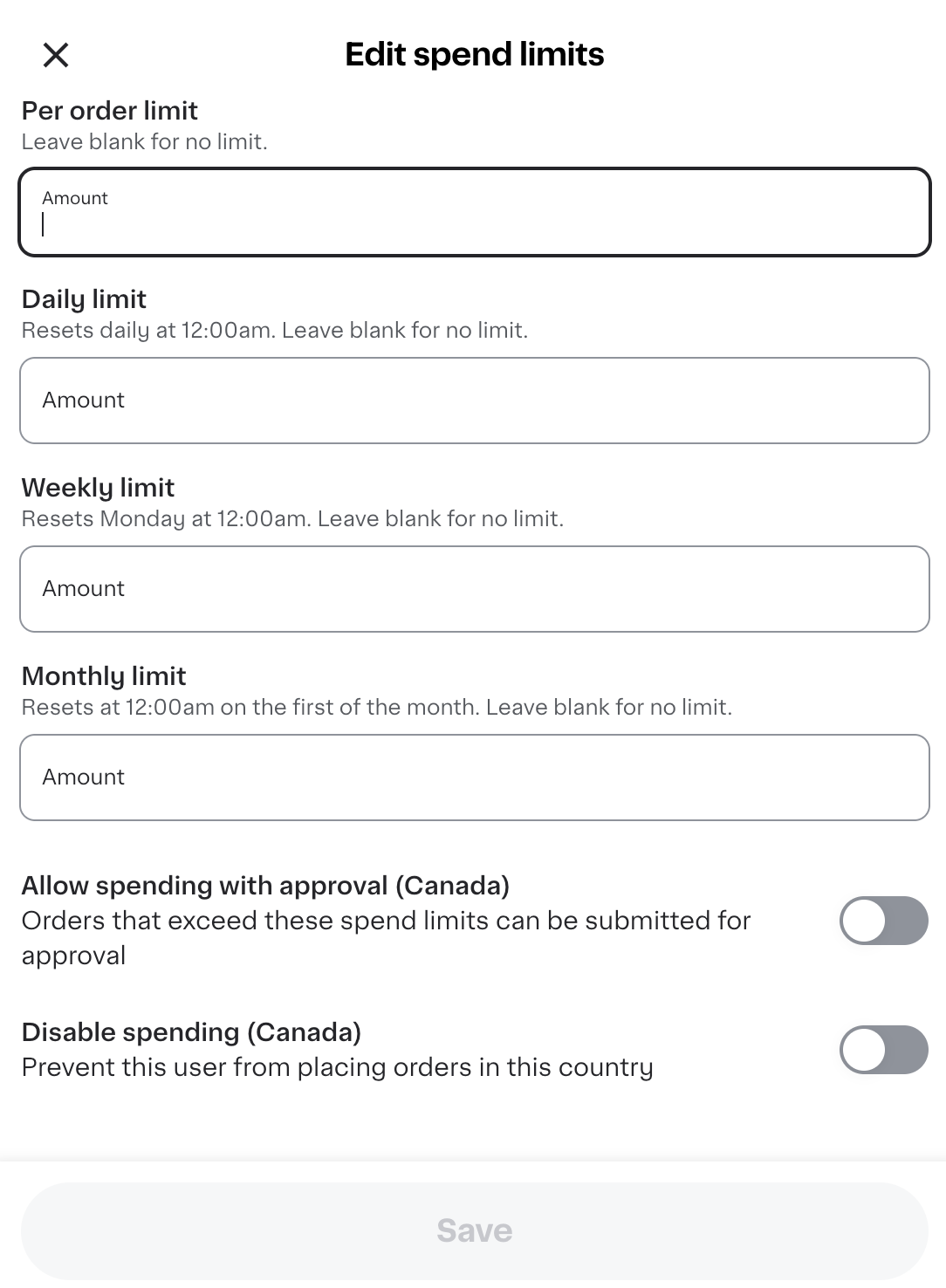
Spend limits restrict buying on an order, day, week, or month basis and are enforced at checkout. Spend limits also apply to post-checkout order changes.
Administrators can configure spend limits for individual buyers or for all buyers in a group. Spend limits can be added when inviting a member to the team, or when editing the member after they're added to the organization.
Administrators can also configure a spend limit to allow members to submit orders for approval when an order exceeds the limit. When a member's order exceeds the limit, they can submit it for approval instead of being blocked. Approvers see the reason the order requires approval before they accept or decline it.
The following image shows the screen for editing spend limits:
Order approvals
Administrators can configure Buyer accounts to require approval for all orders submitted.
When order approvals are configured for a group, administrators can choose from the following approval configurations:
- Approvers in the organization. All approvers in the business are notified of and authorized to approve orders. This is the default configuration.
- Approvers in this group. Only approvers who are members of the same group as the buyer are notified and authorized to approve orders.
- Approvers in another group. Administrators select a group from the business. Only approvers in the selected group receive approval requests.
- Specific approvers. Individual approvers are selected manually from across the business.
Approvers can only see orders they are authorized to approve in their pending approvals list.
Account transfers
Administrators can move a user from one business organization to another through the existing invite flow. This is useful for organizations that manage users across sub-businesses, or when users from the same company have inadvertently created separate businesses.
To transfer a user, administrators invite them as they would any new team member. When the user accepts the invitation, Instacart removes them from their original business and adds them to the new organization.
Organization transfer is separate from deactivating a team member. A user who transfers out of an organization does not receive a deactivation email.
To enable organization transfers, contact your Instacart representative.