Account access
Account creation
Customers can create a business account in three ways: signup, conversion, and connection.
Signup
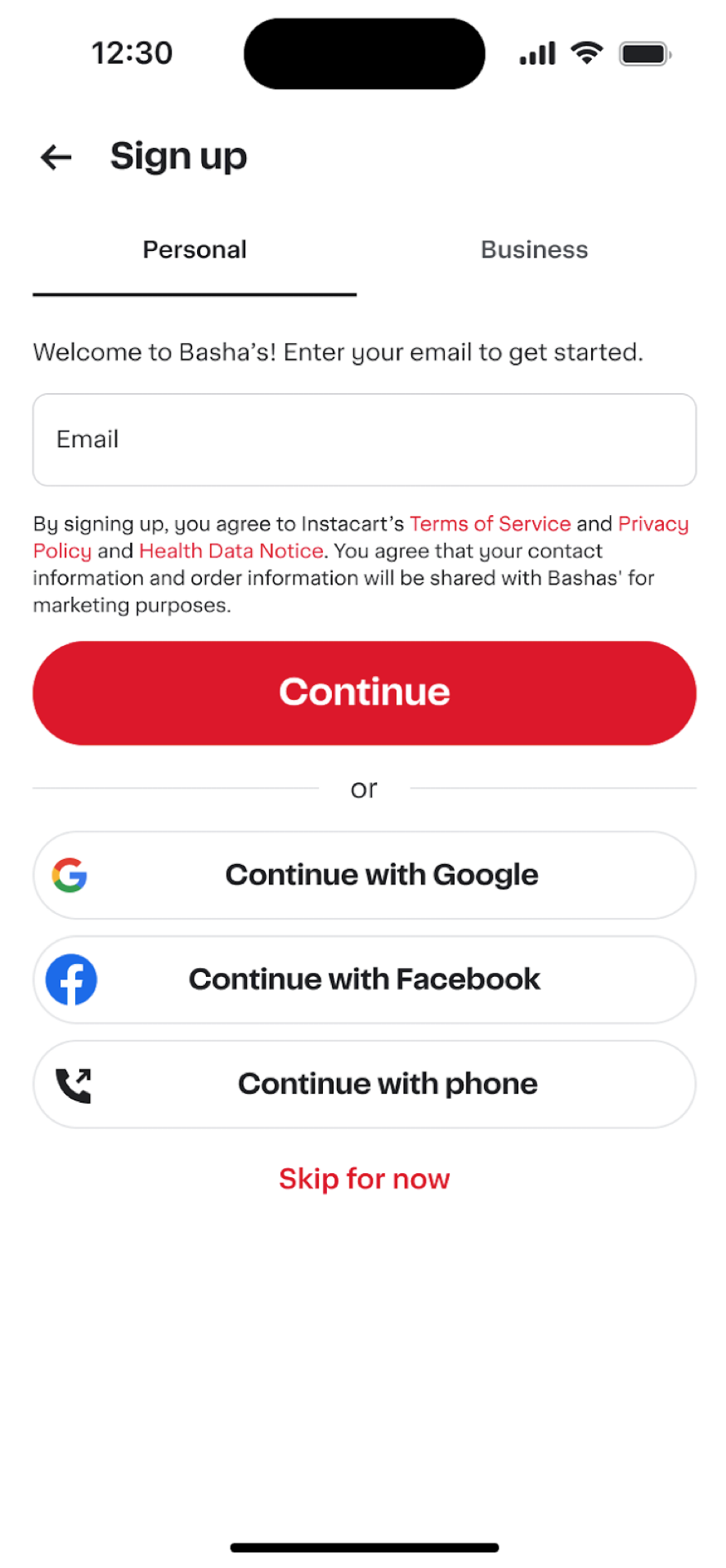
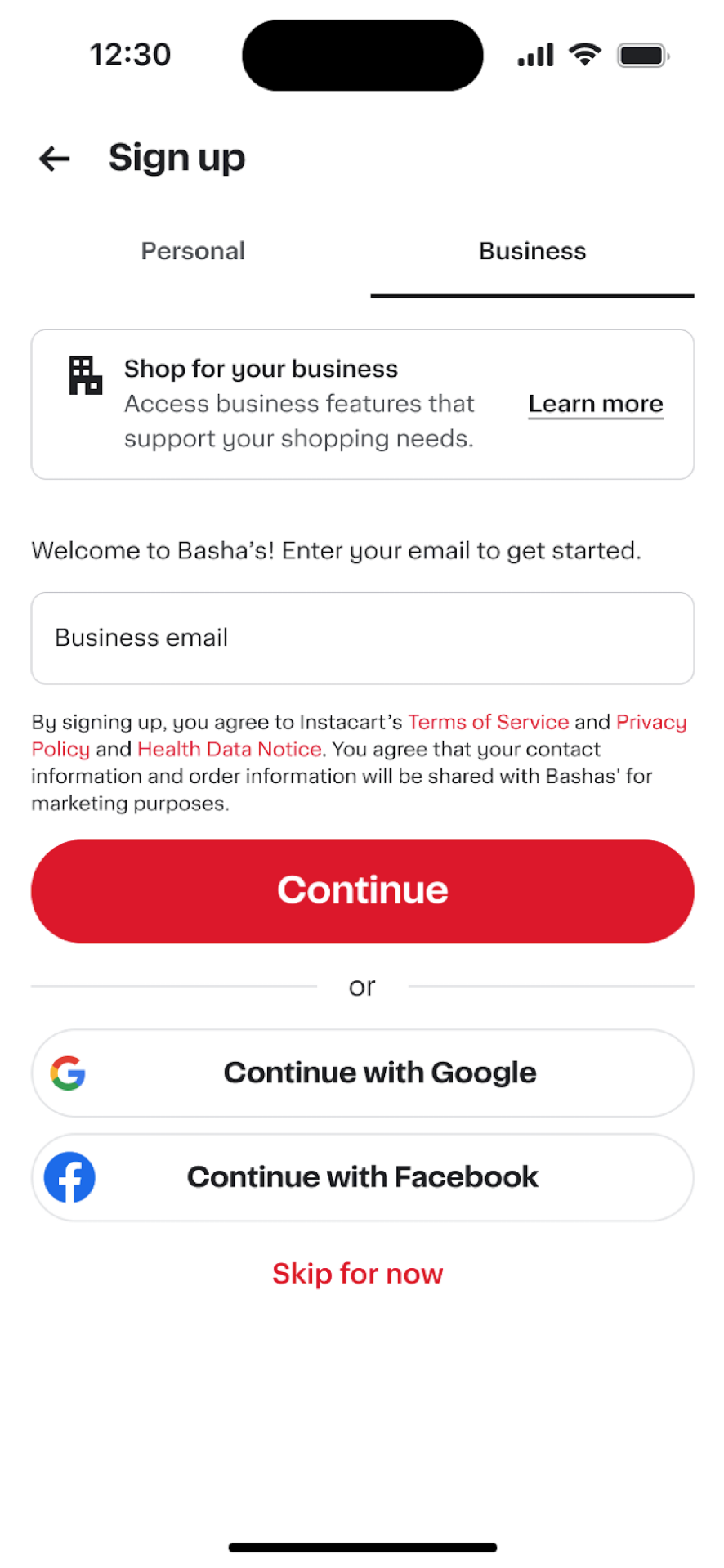
During signup, customers can choose to create a business account instead of a personal account. Personal accounts remain the default.
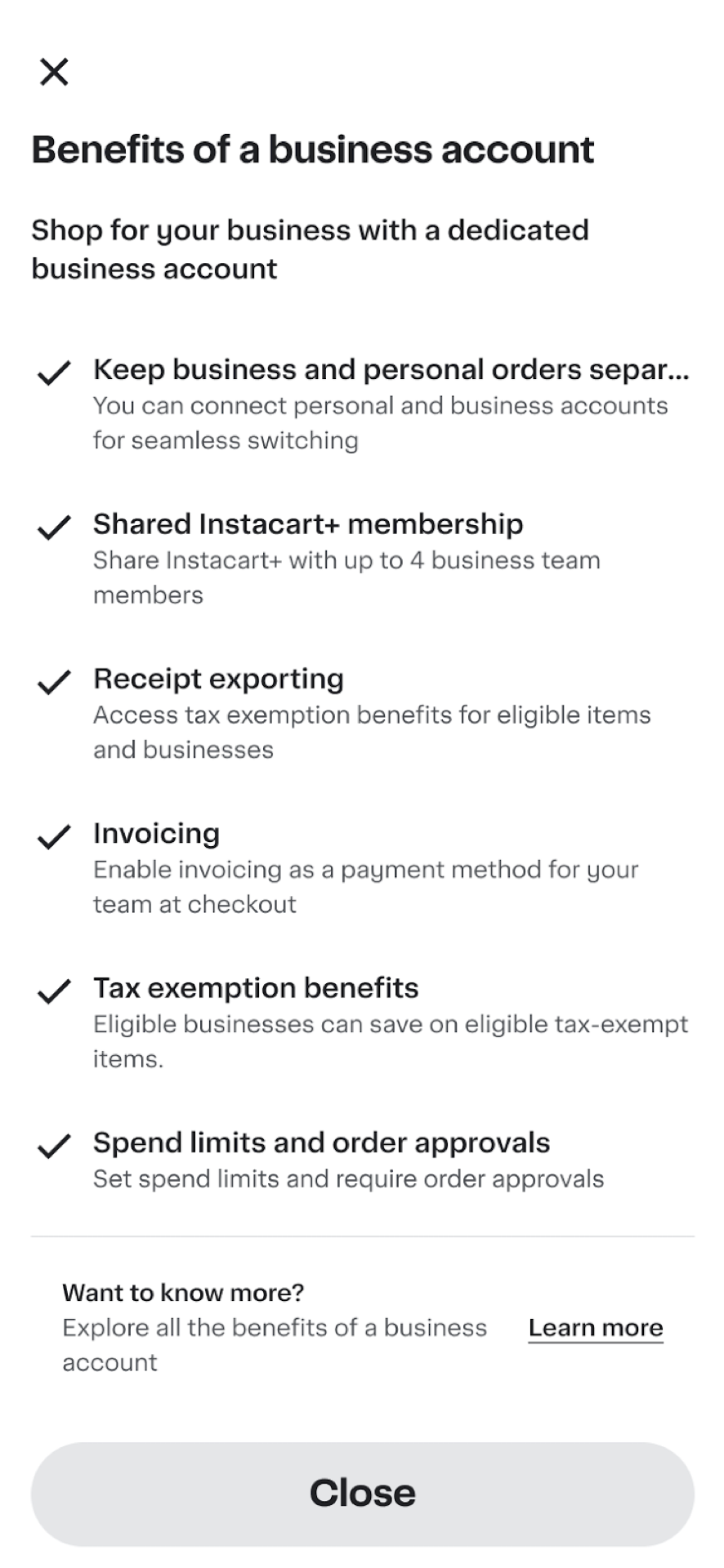
The following table shows a signup flow on mobile devices:
| Personal tab (default) | Business tab | Learn more dialog (Business tab) |
|---|---|---|
 |  |  |
Conversion
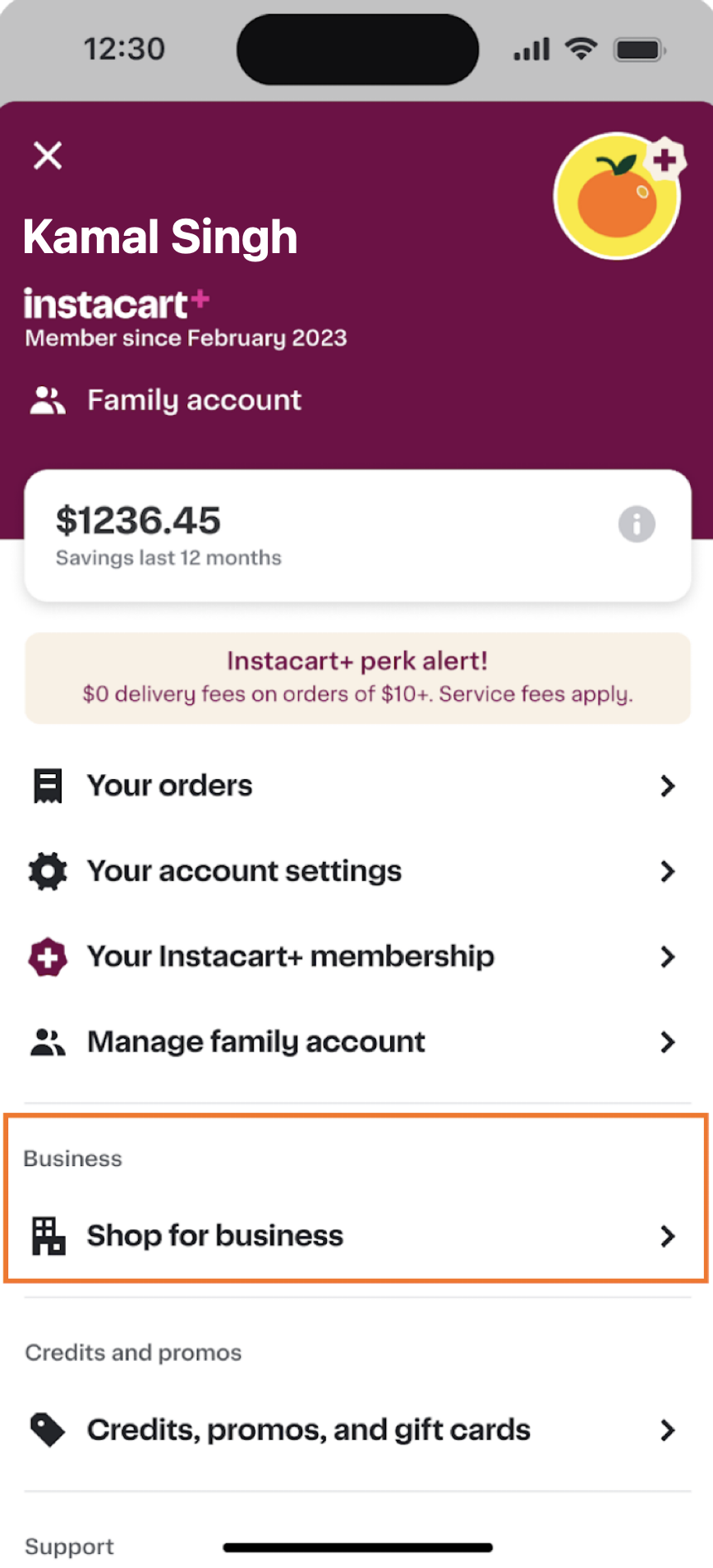
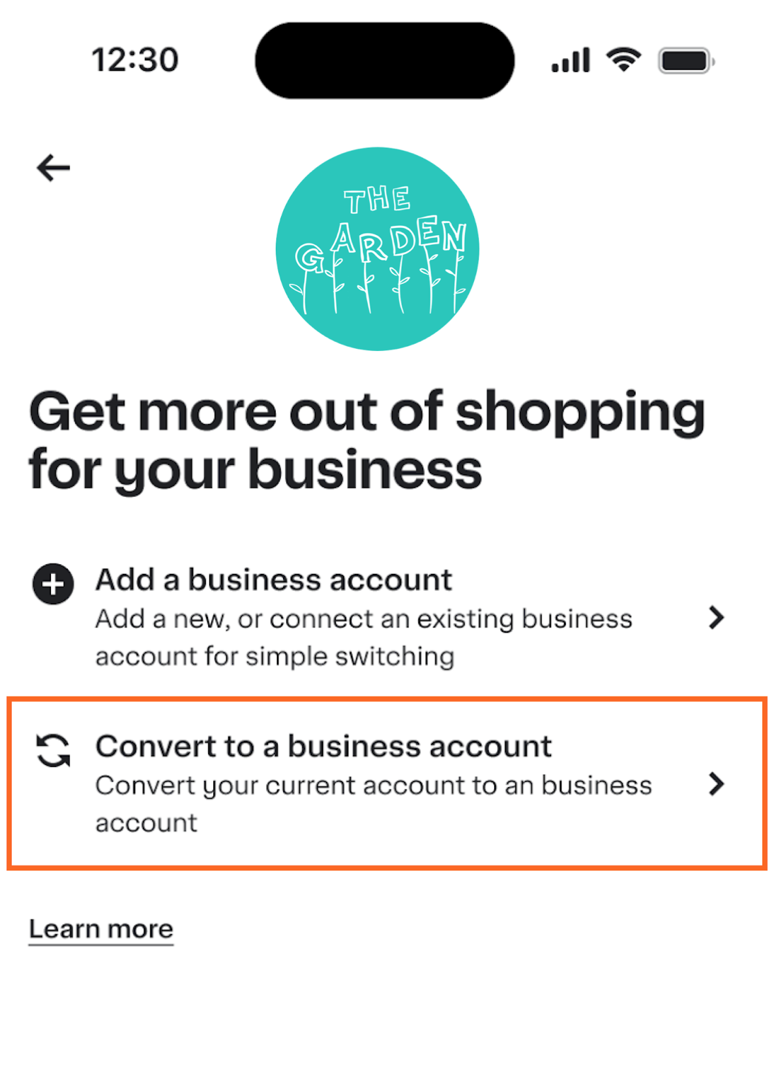
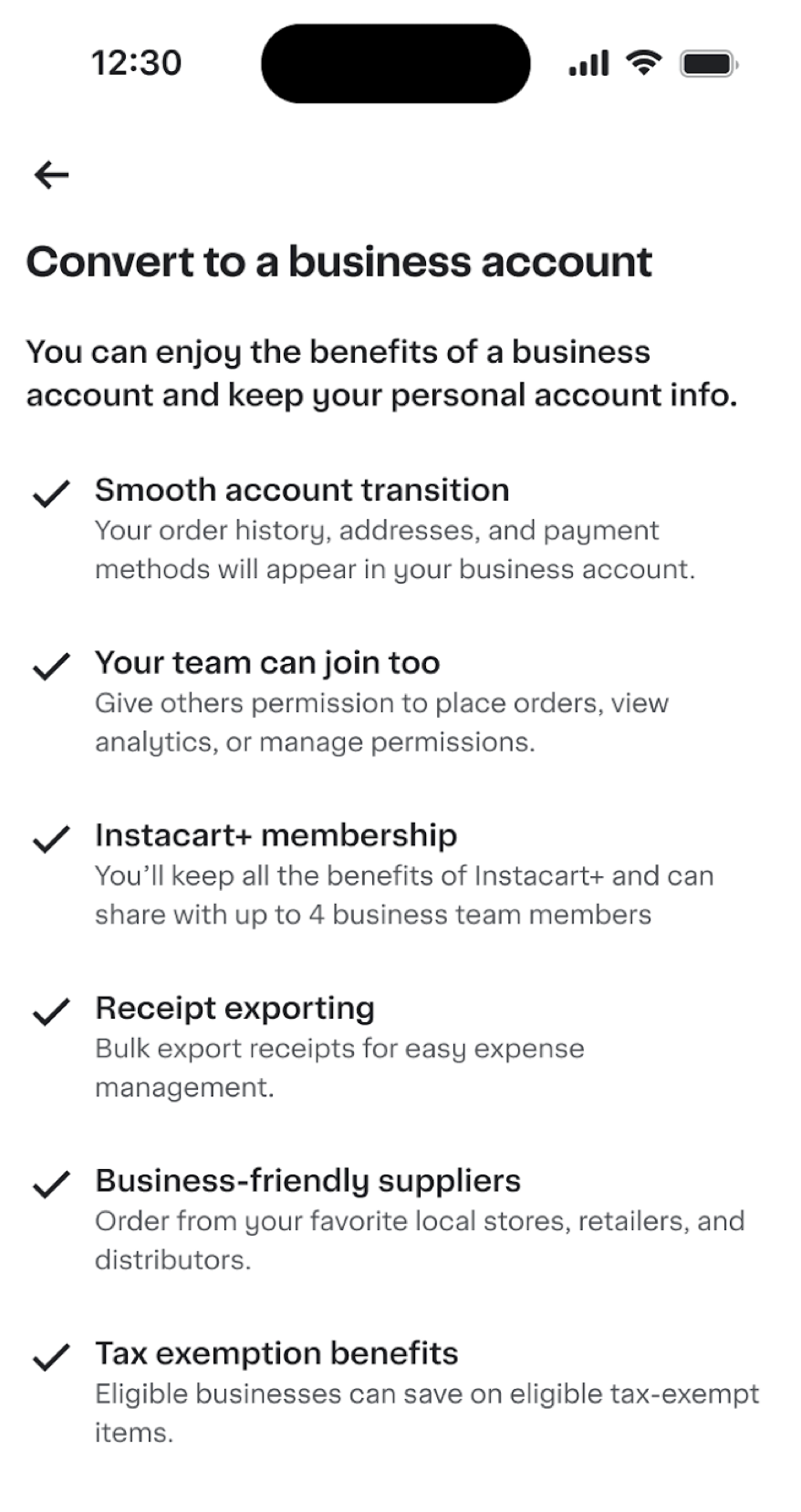
Existing customers can convert their personal account to a business account while keeping their personal account information.
The following table shows a conversion flow on mobile devices:
| Menu entry point | Convert option | Convert learn more |
|---|---|---|
 |  |  |
Connection
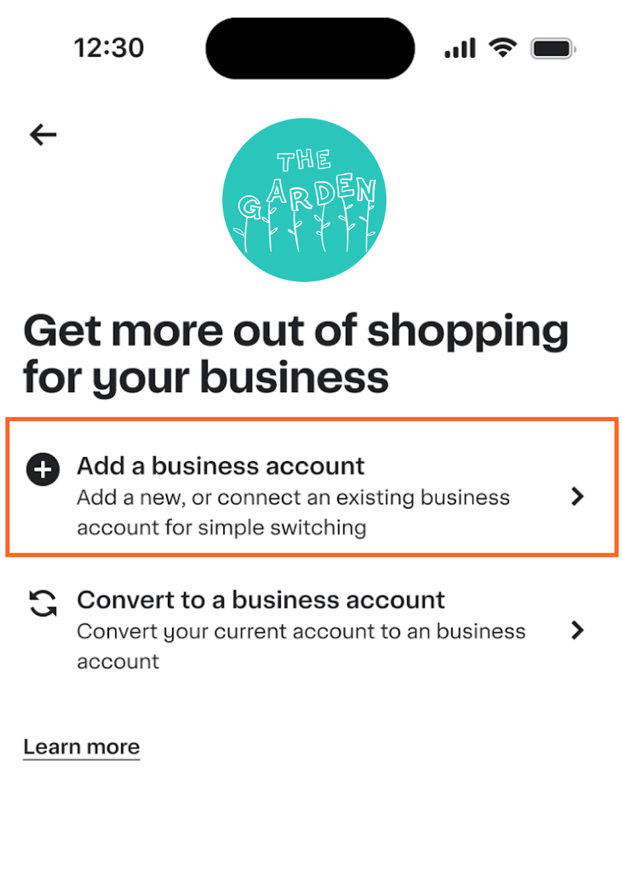
Existing customers can keep their personal account and create a separate business account linked to it.
The following table shows a connection flow on mobile devices:
| Add / connect option | Create / connect | Sign up | Log in |
|---|---|---|---|
 | 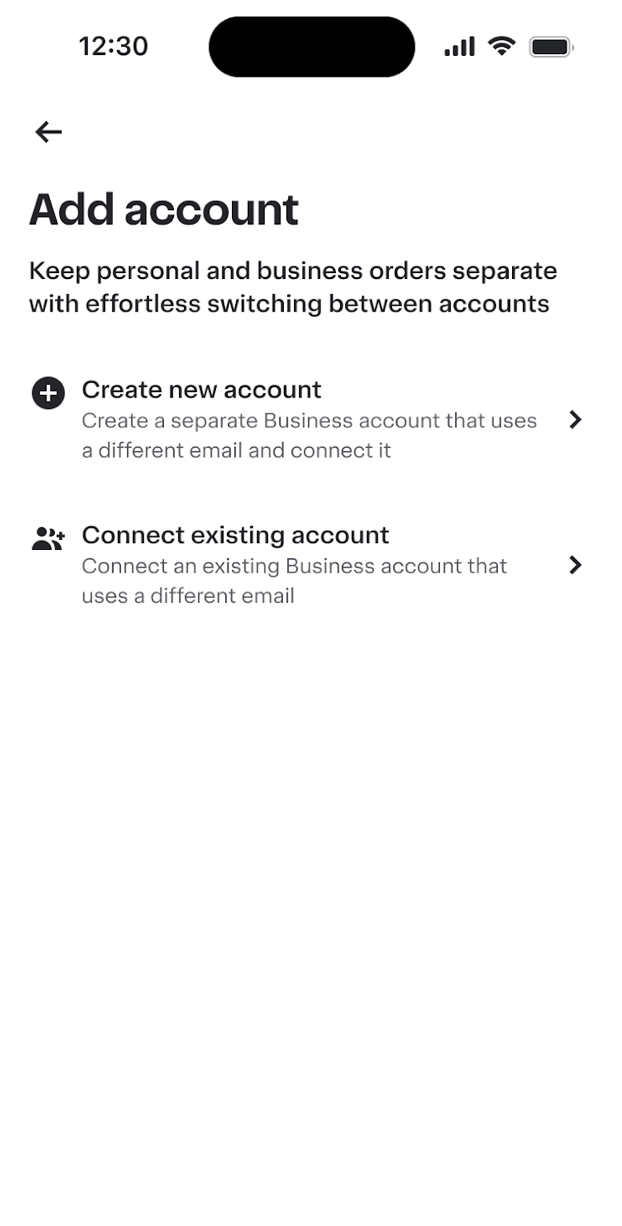 | 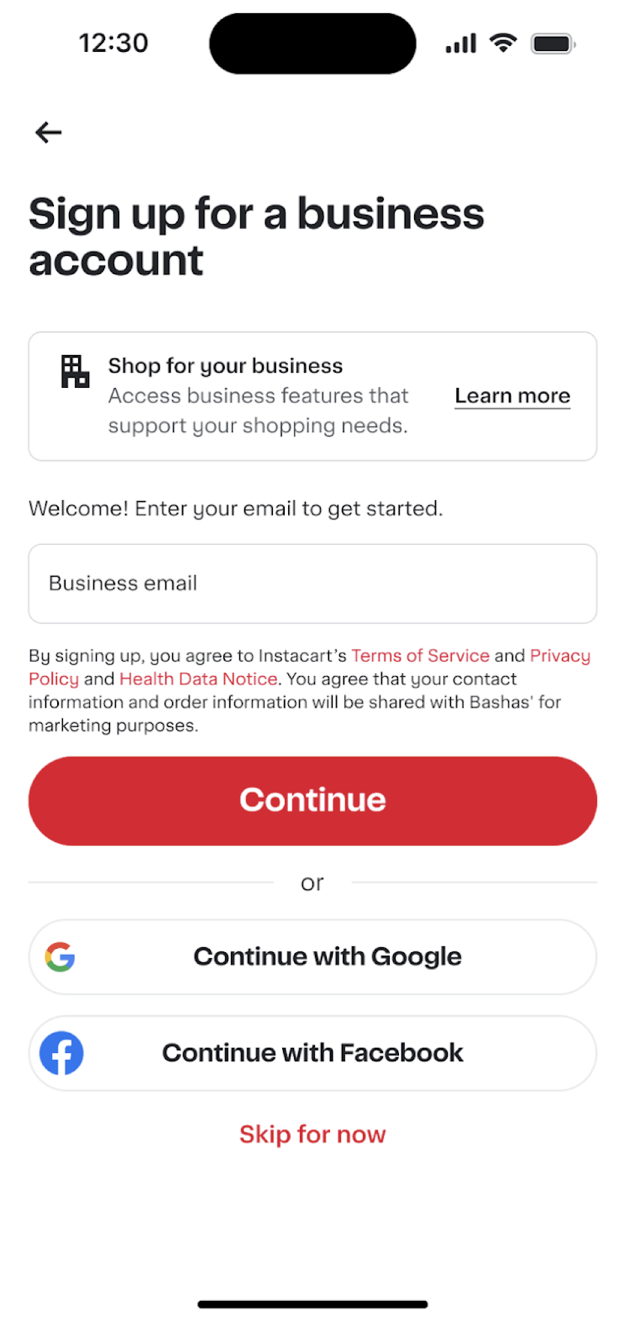 | 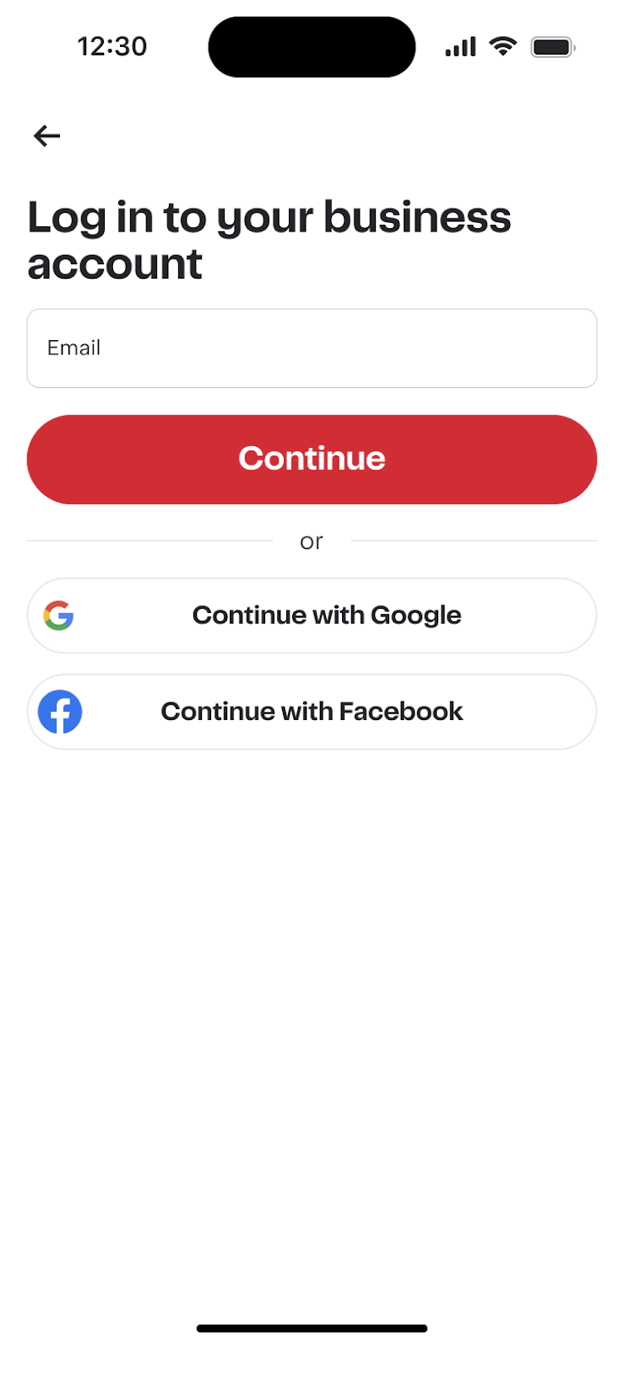 |
Account switching
Customers with both a personal and business account can switch between them without signing out.
The following image shows the Switch to business button on the account menu screen:
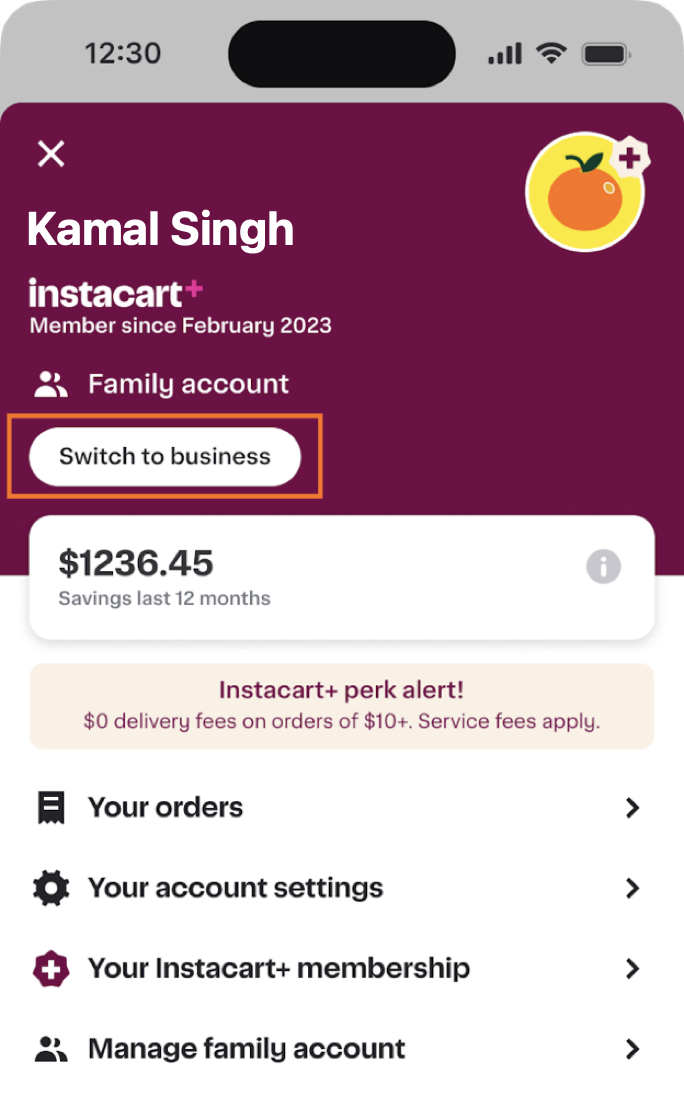
After switching to a business account, customers have access to the following menu items:
- Team members
- Tax exemption
- Order guides
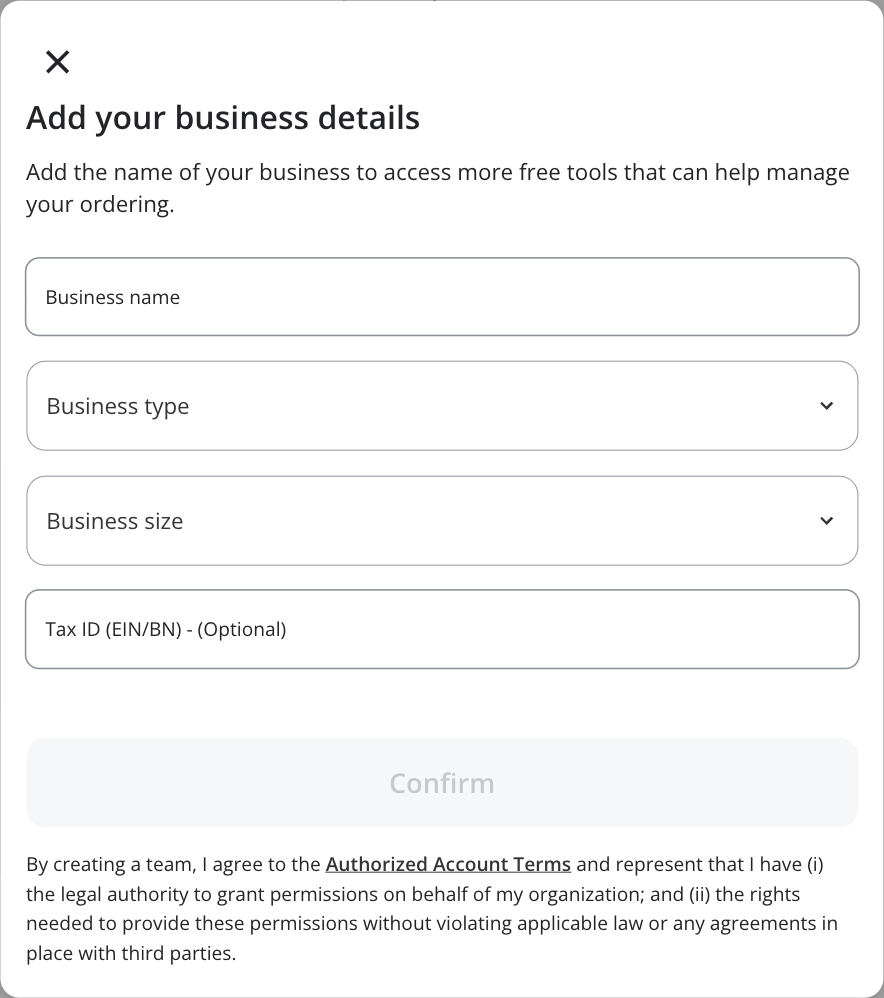
To access the Dashboard or Order approvals from the menu, customers must first enter their business details. Customers are prompted to enter their business details the first time they click any of these menu items.
The following image shows the business details form: