Two-factor authentication
To better secure your Ads Manager account, you can set up two-factor authentication.
If you enable two-factor authentication, we send a unique code whenever you attempt to login, update your email address/password, or update your authentication settings. You must enter the code in order to access or update your account.
Enable two-factor authentication
To set up two-factor authentication—
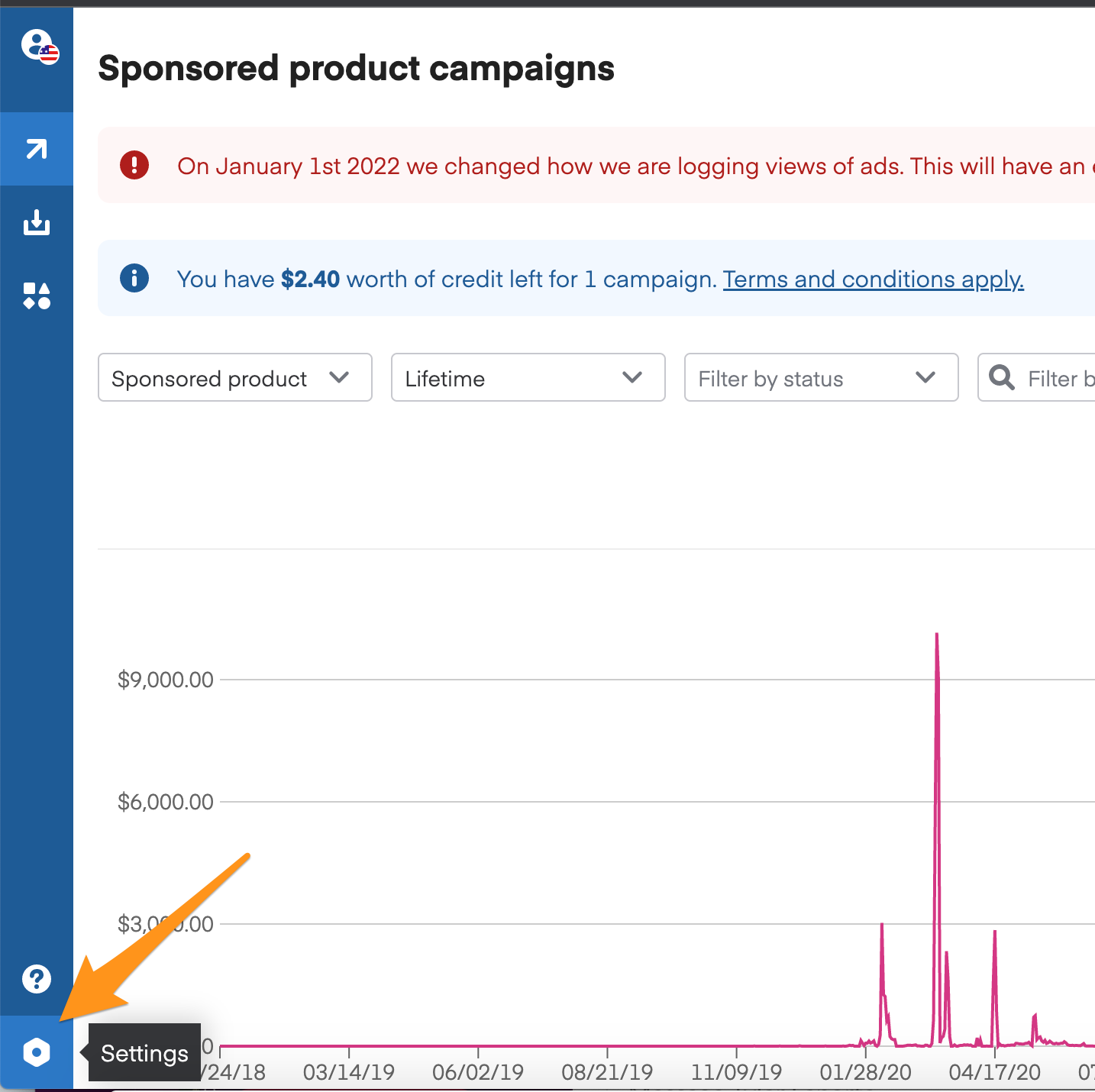
- After logging in to Ads Manager, click Settings in the lower left corner of your screen.
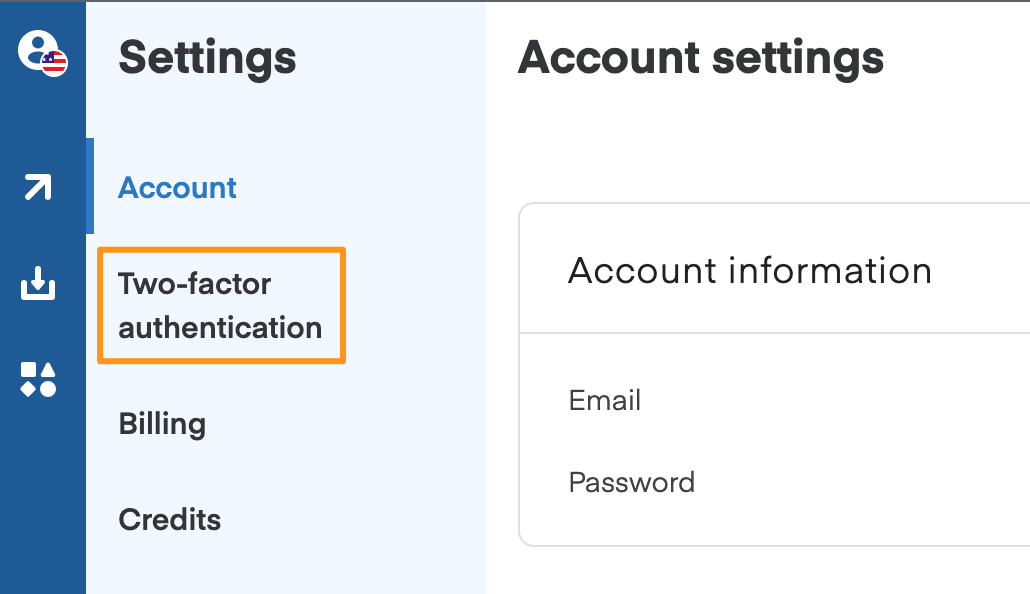
- Click Two-factor authentication in the left-hand menu.
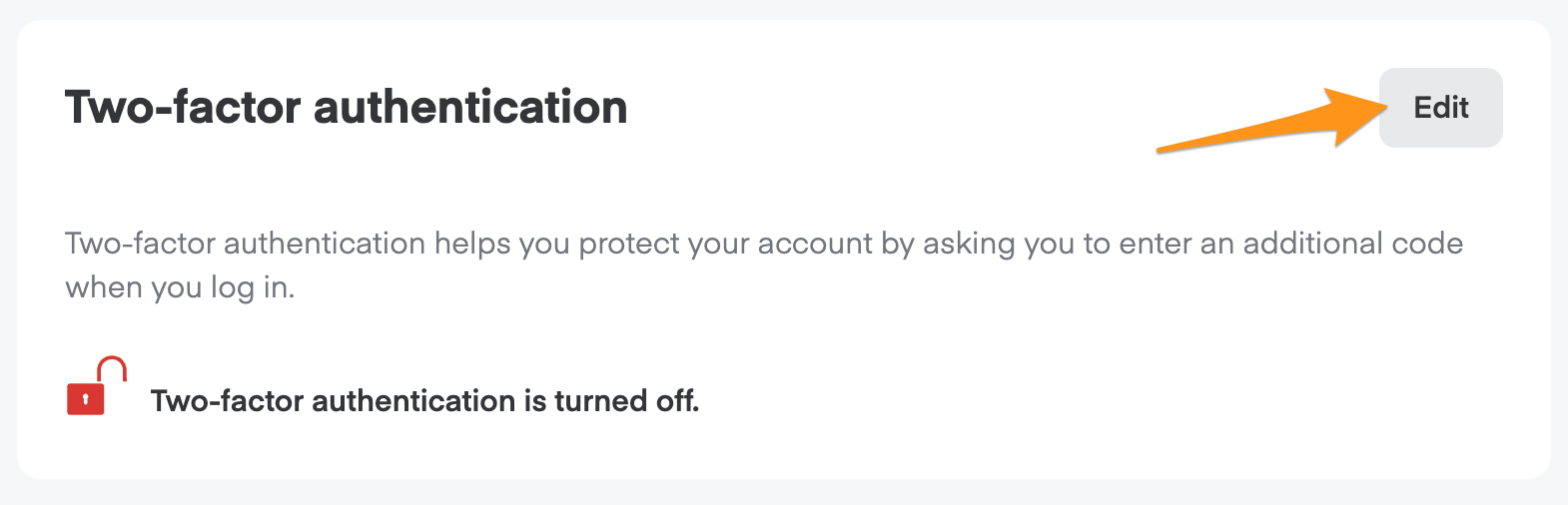
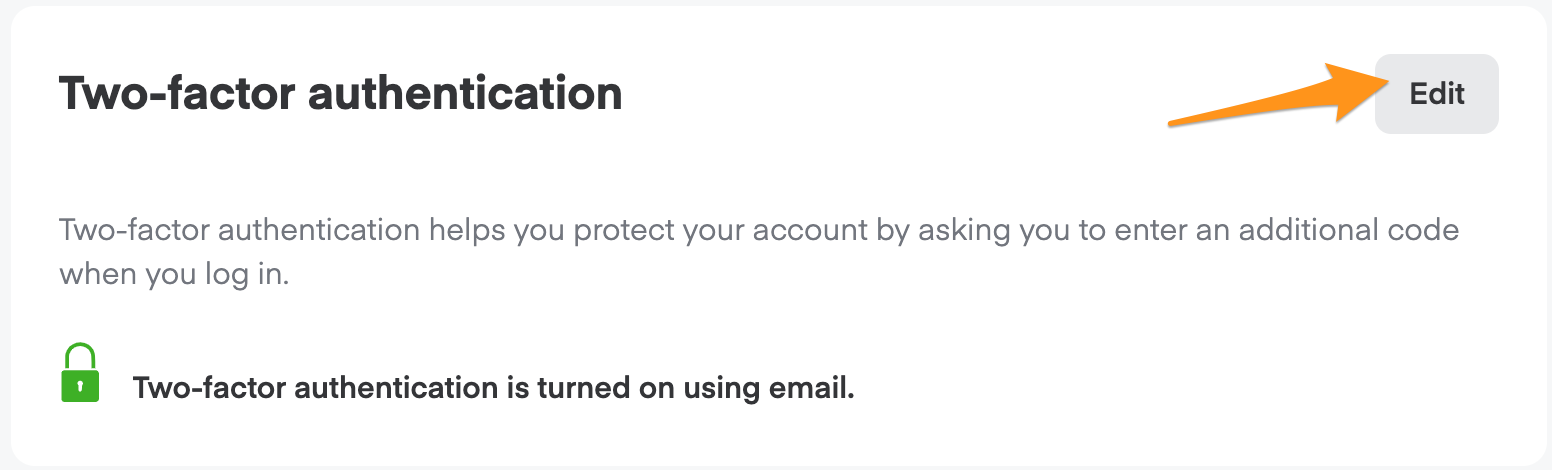
- Click Edit.
-
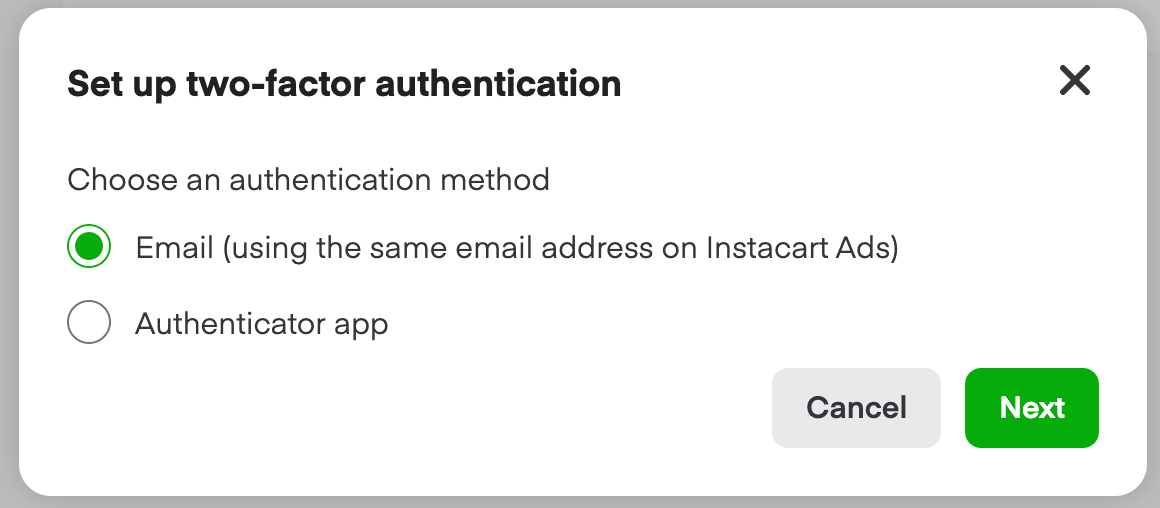
Choose how to receive your code—
- Email: receive a 1-time code delivered to your email address.
- Authenticator app: scan a QR code using a third-party authenticator app on your phone. You can use any standard authenticator app, including Google Authenticator, Microsoft Authenticator, Twilio, Authy, and Duo Mobile.
-
Click Next.
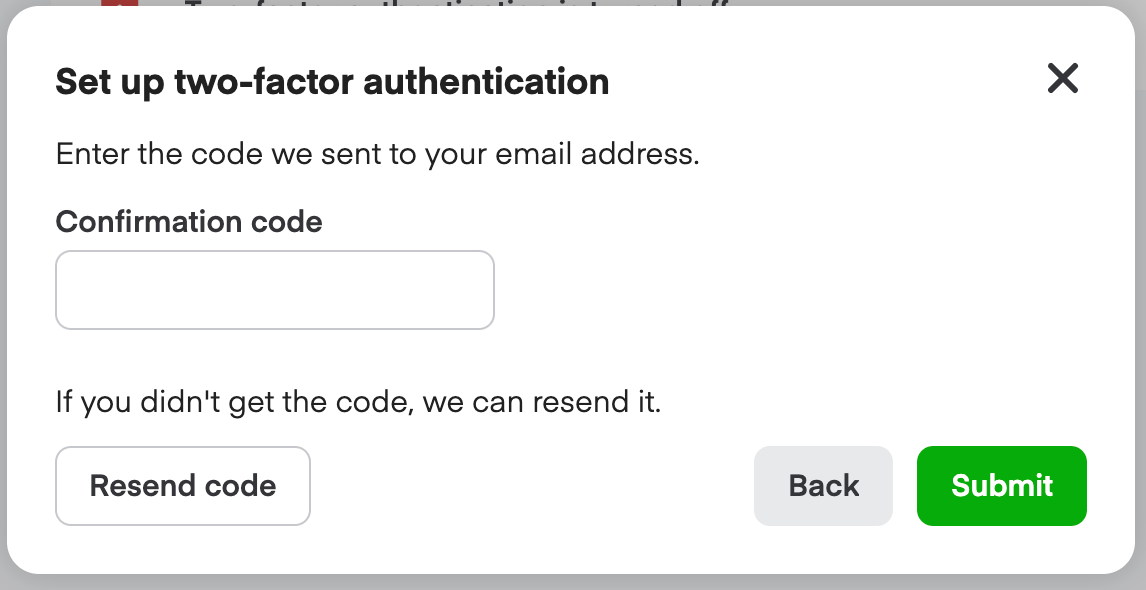
- If you chose email, look for an email with the subject line "Instacart Ads verification code." Enter the code and click Submit.
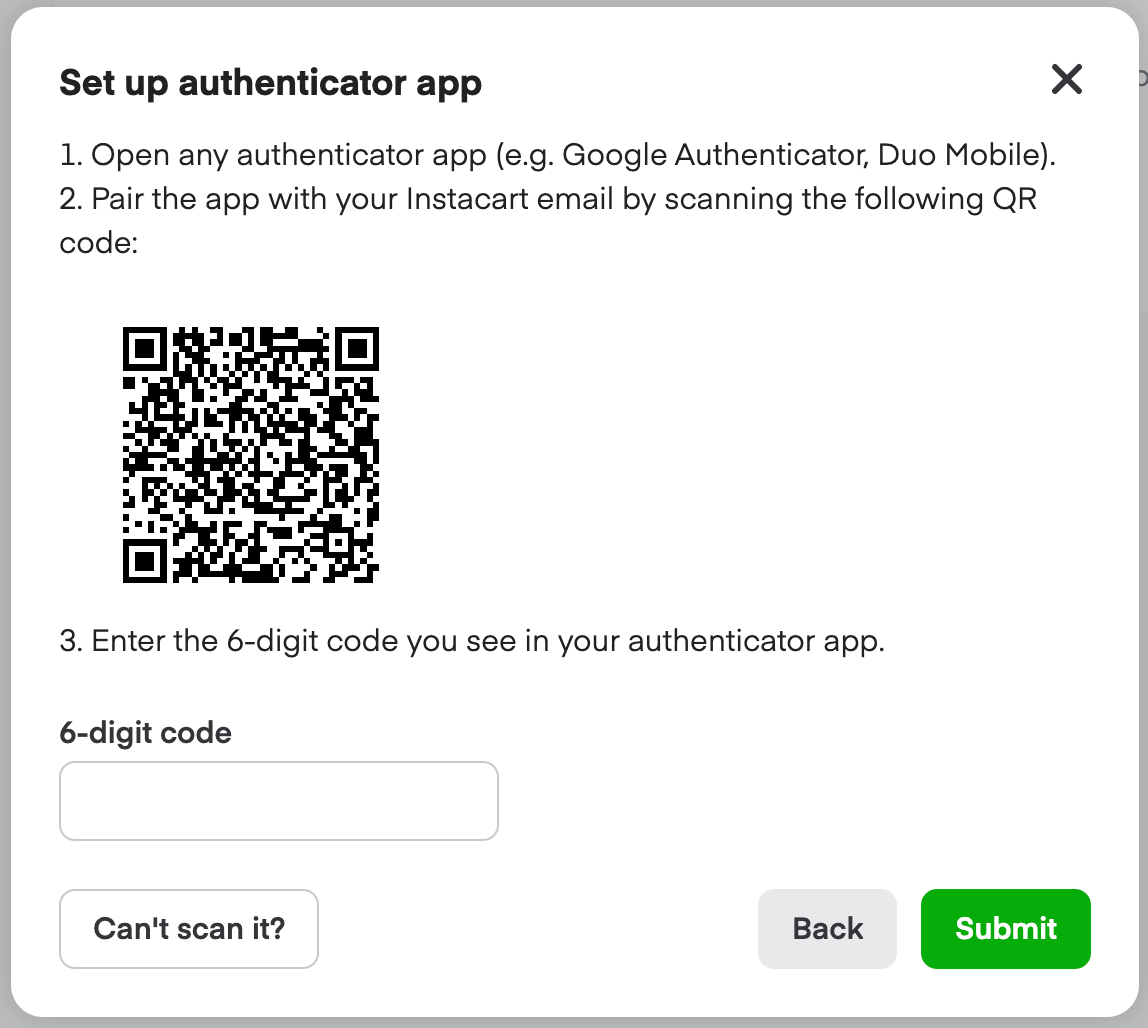
- If you chose authenticator app, scan the QR code in your authenticator app, enter the code from your app, and click Submit.
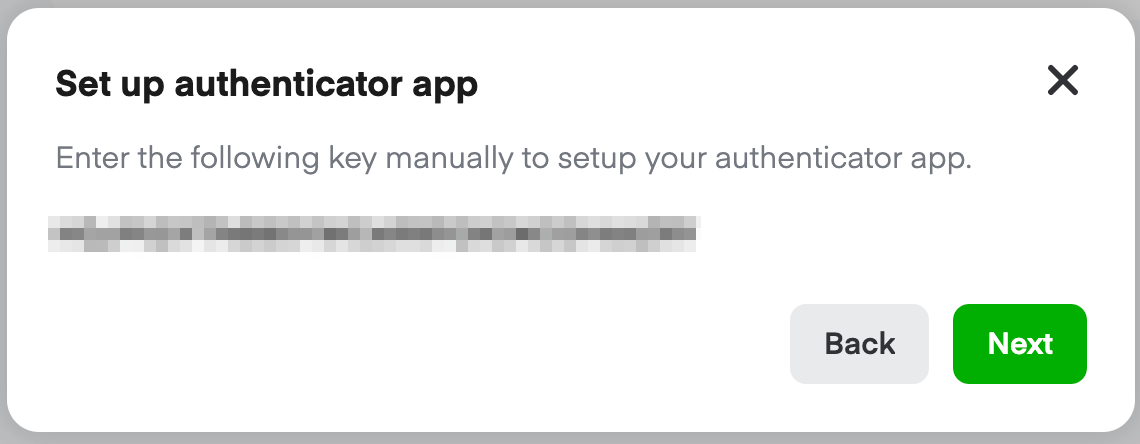
- If you can't scan the QR code, click Can't scan it and enter the key into your authenticator app.
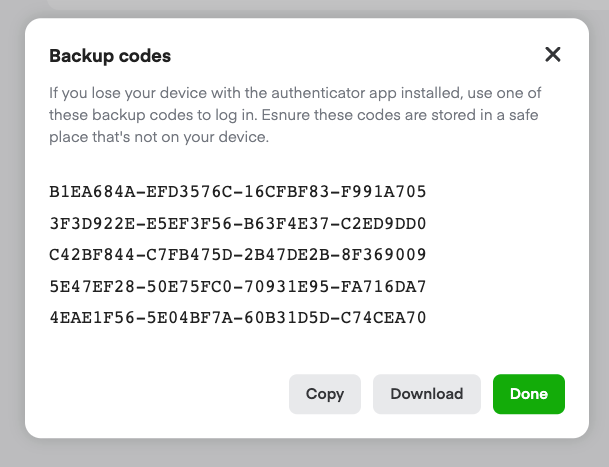
- If you chose authenticator app, we provide a list of one-time backup codes to use if you lose your device. You can't view these backup codes again after leaving this screen. We recommend storing them somewhere other than the device your authenticator app is installed on.
- Ads Manager confirms you turned two-factor authentication on. You also receive a confirmation email.
Log in with two-factor authentication
To login after enabling two-factor authentication—
-
Start logging in as you normally would with your email address and password.
-
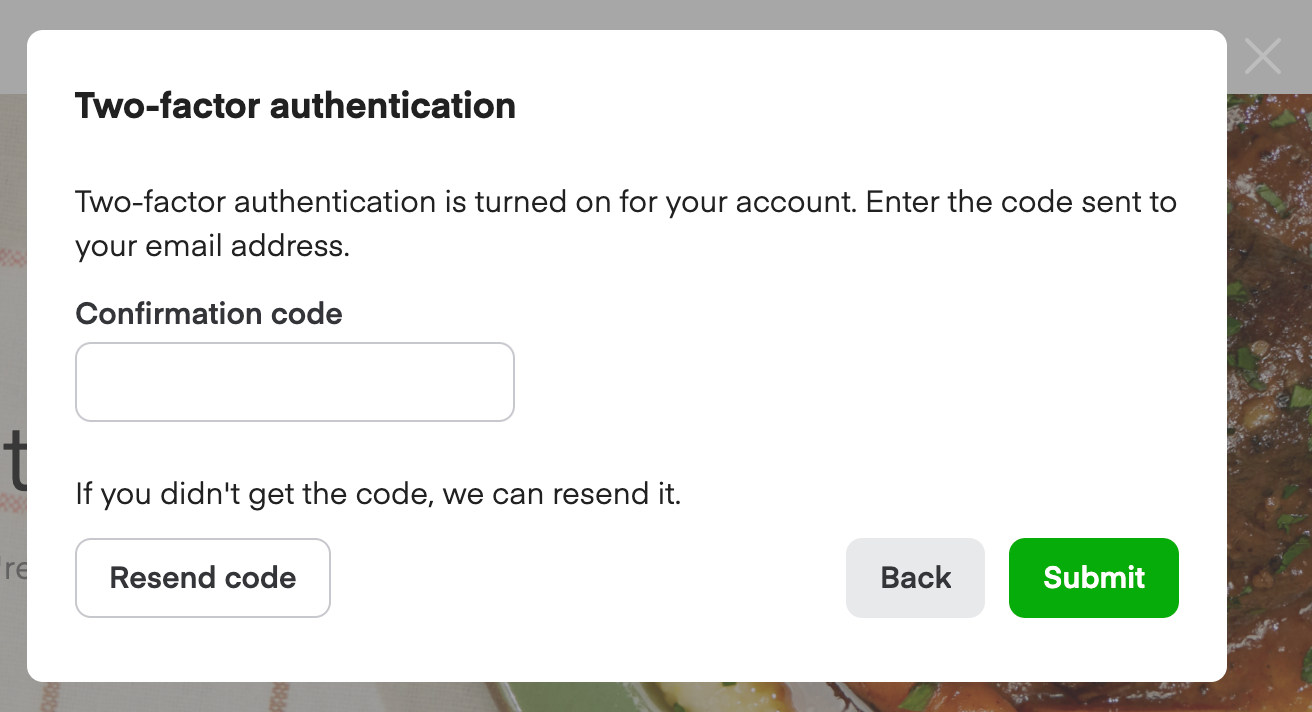
Check your email or authenticator app for the confirmation code.
-
Enter the code and click Submit.
Turn off two-factor authentication
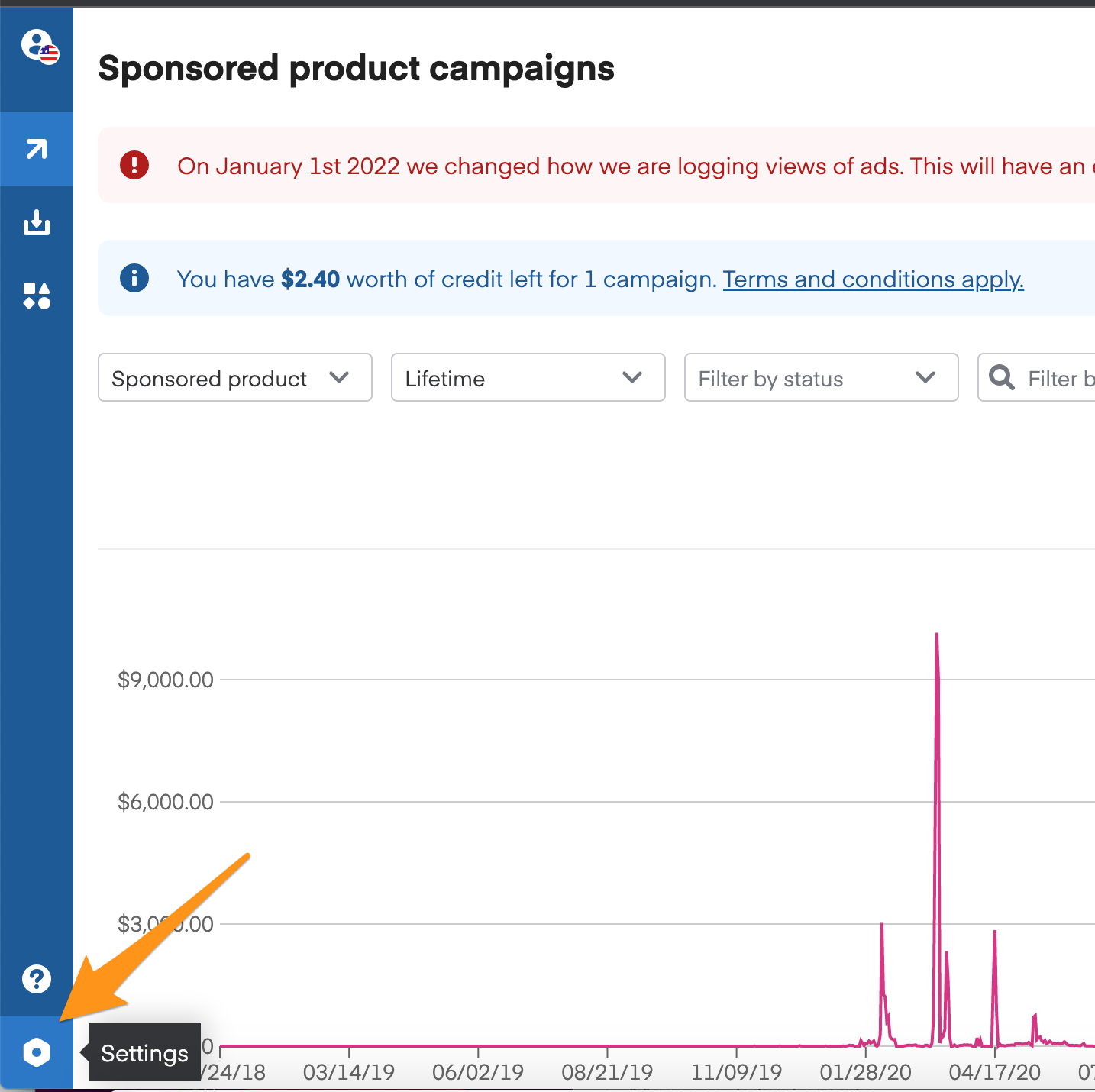
- After logging in to Ads Manager, click Settings in the lower left corner of your screen.
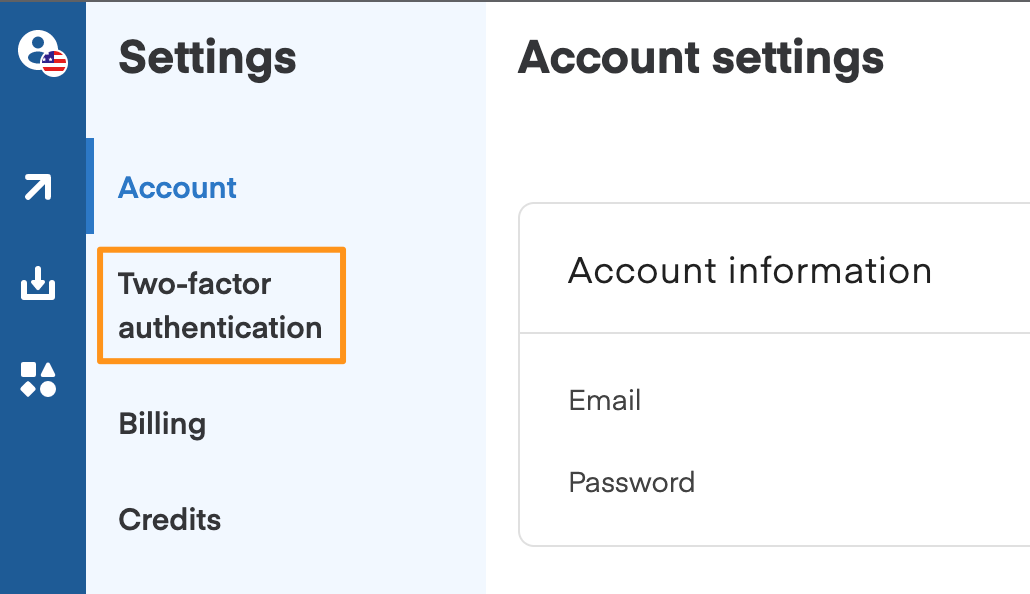
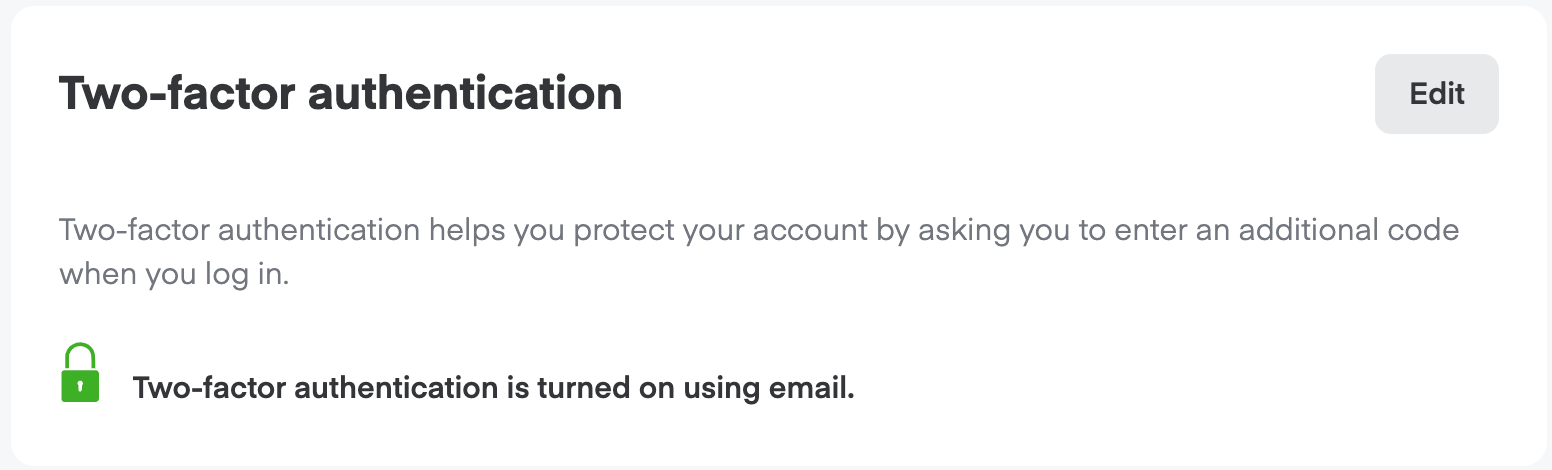
- Click Two-factor authentication in the left-hand menu.
- Click Edit.
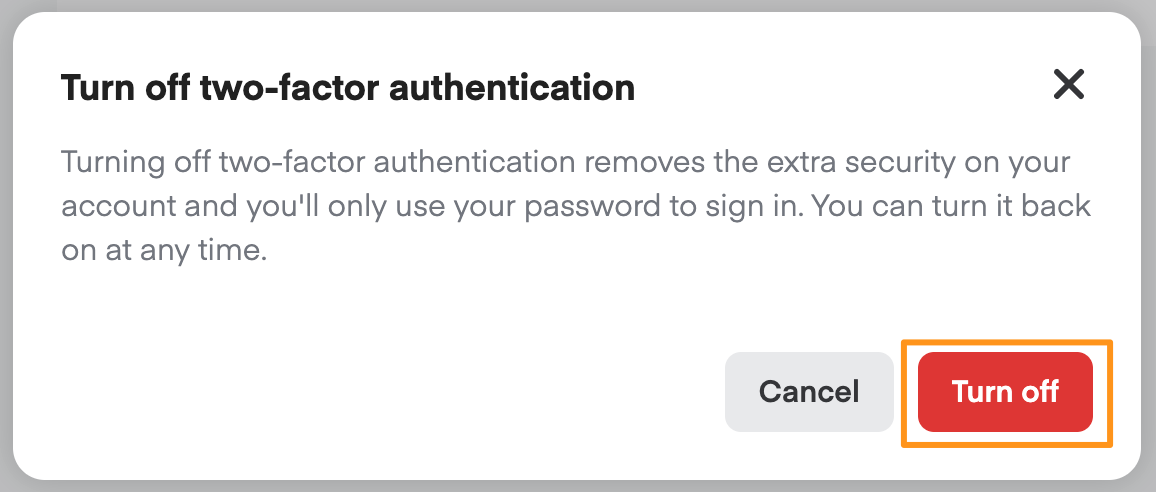
- Click Turn off.
-
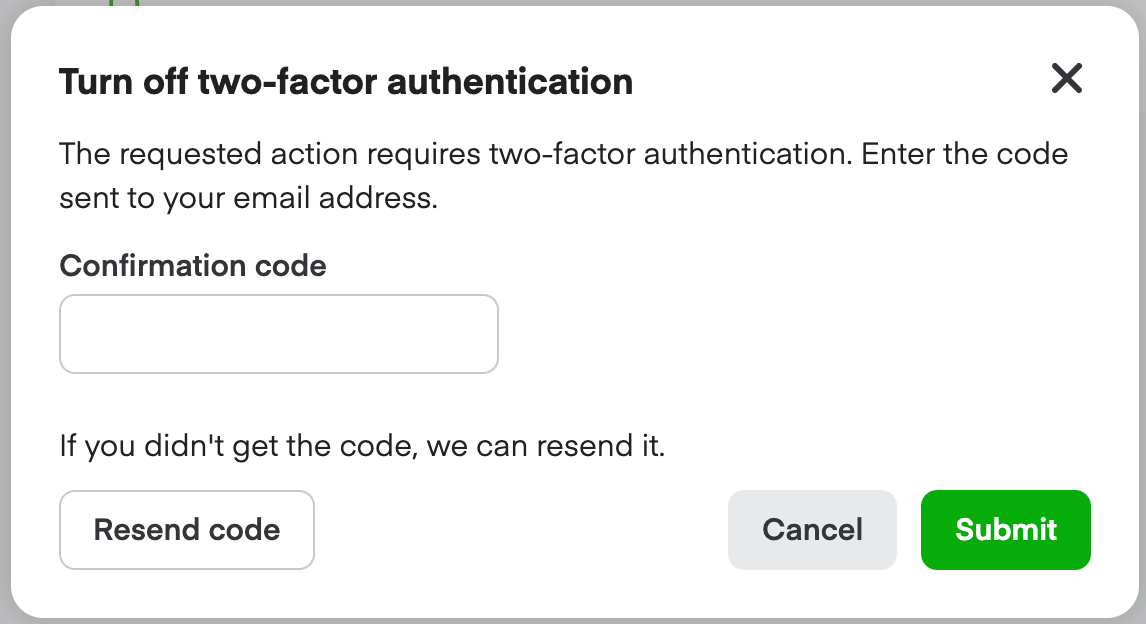
Check your email or authenticator app for the confirmation code.
-
Enter the code and click Submit.
Troubleshooting
Lost authentication device
If you lost your device, you can enter one of the backup codes you received when enabling two-factor authentication. Please note, this option is only available if you set up two-factor authentication with an authenticator app.
To use a backup code—
- Click Use backup code.
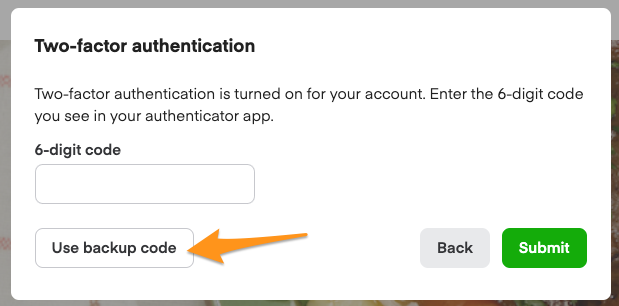
- Enter the backup code and click Submit.
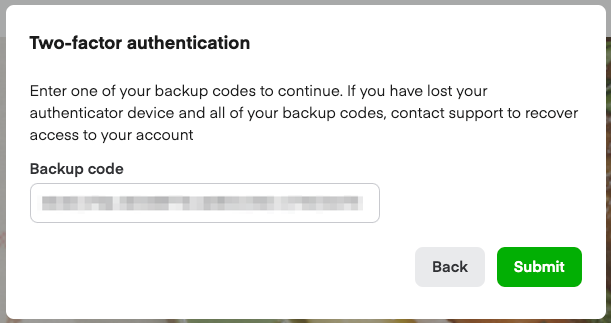
If you don't have your backup codes, contact your account manager. If you don't have an account manager, email ads-help@instacart.com for further assistance.
Not receiving email code
If you don't receive the email with your authentication code, check your spam/junk folder. You can also receive a new code by clicking Resend code.
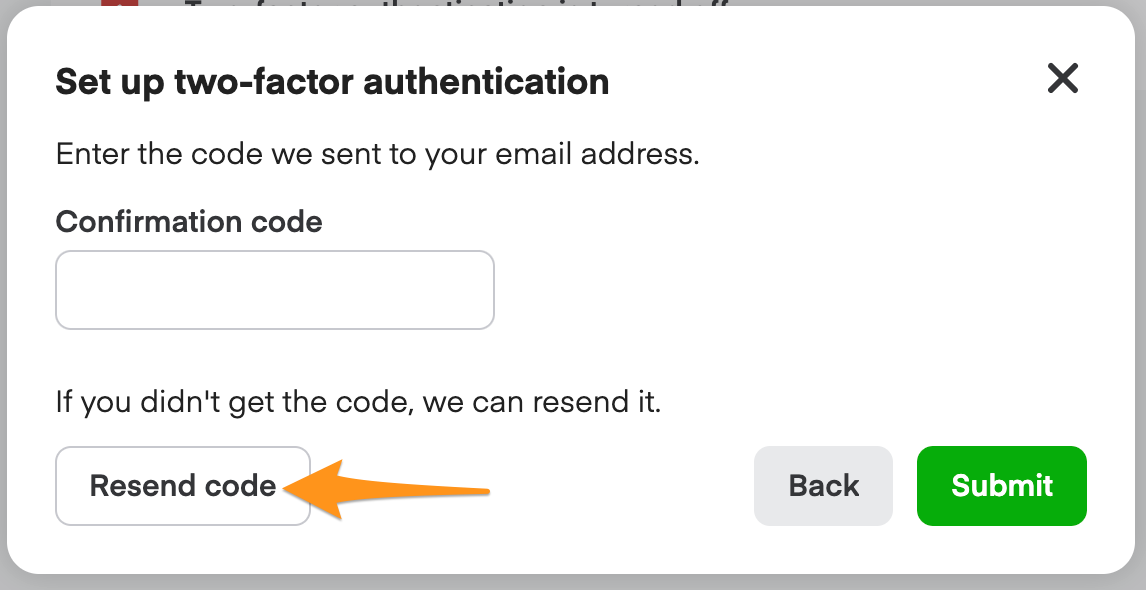
If this doesn't work, contact your account manager. If you don't have an account manager, email ads-help@instacart.com for further assistance.