Setting up brand promotions
All promotions belong to promotion groups. Before setting up a new promotion, you must create a promotion group for it to live under. Learn more about setting up promotion groups.
Promotion types
You can choose from 3 different promotion types—
| Promotion type | Description | How it looks for customers |
|---|---|---|
| Spend $X, save $Y | This is a flexible offer structure designed to build baskets and fuel cross-category purchases. | 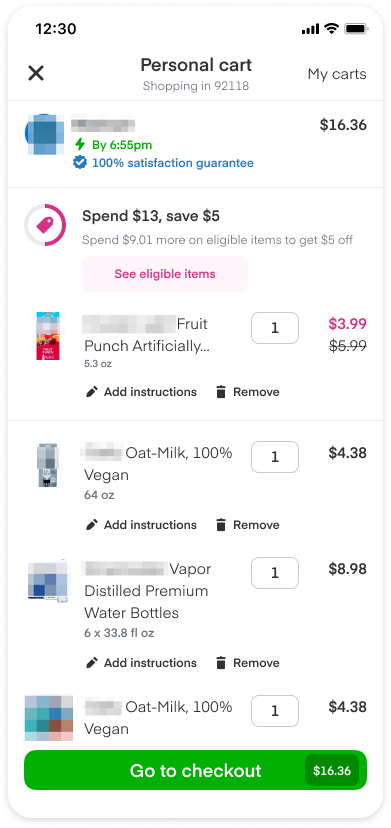 |
| Free gift | This promotion type offers full-sized item sampling to drive discovery and trial. | 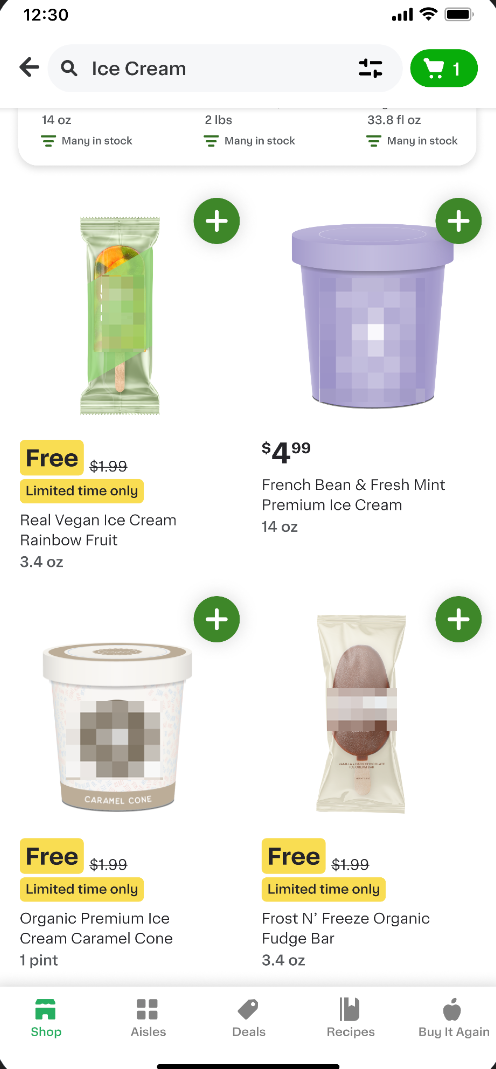 |
Create a promotion
You can create a new promotion directly from your Library—
-
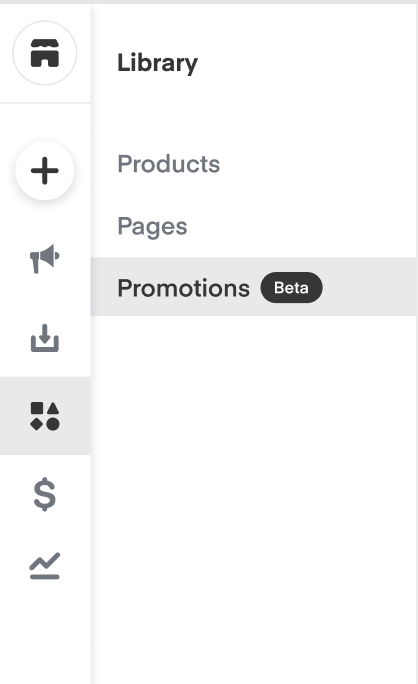
Click Library, then Promotions from the menu on the left
-
Type a descriptive Promotion name
-
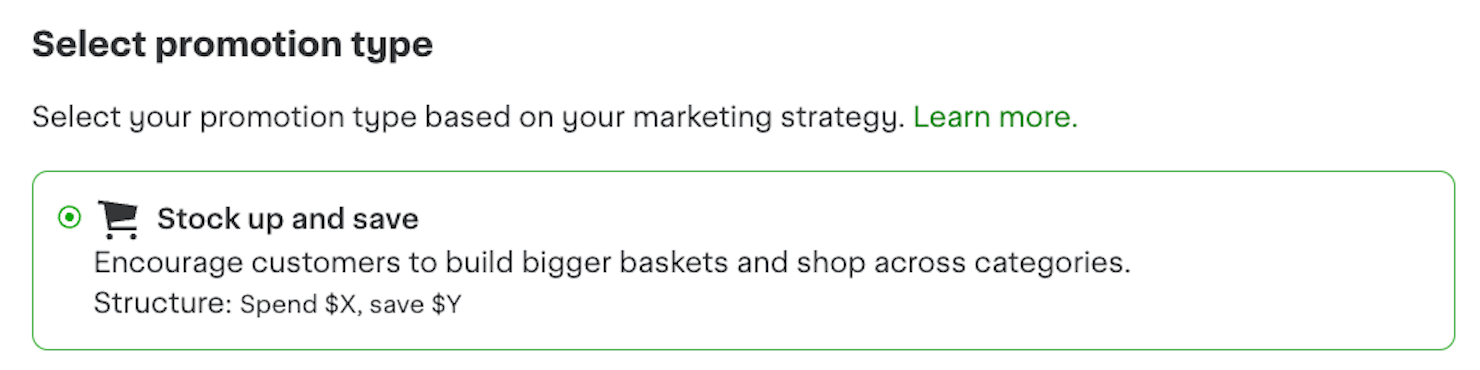
Choose a Promotion type from the drop-down
-
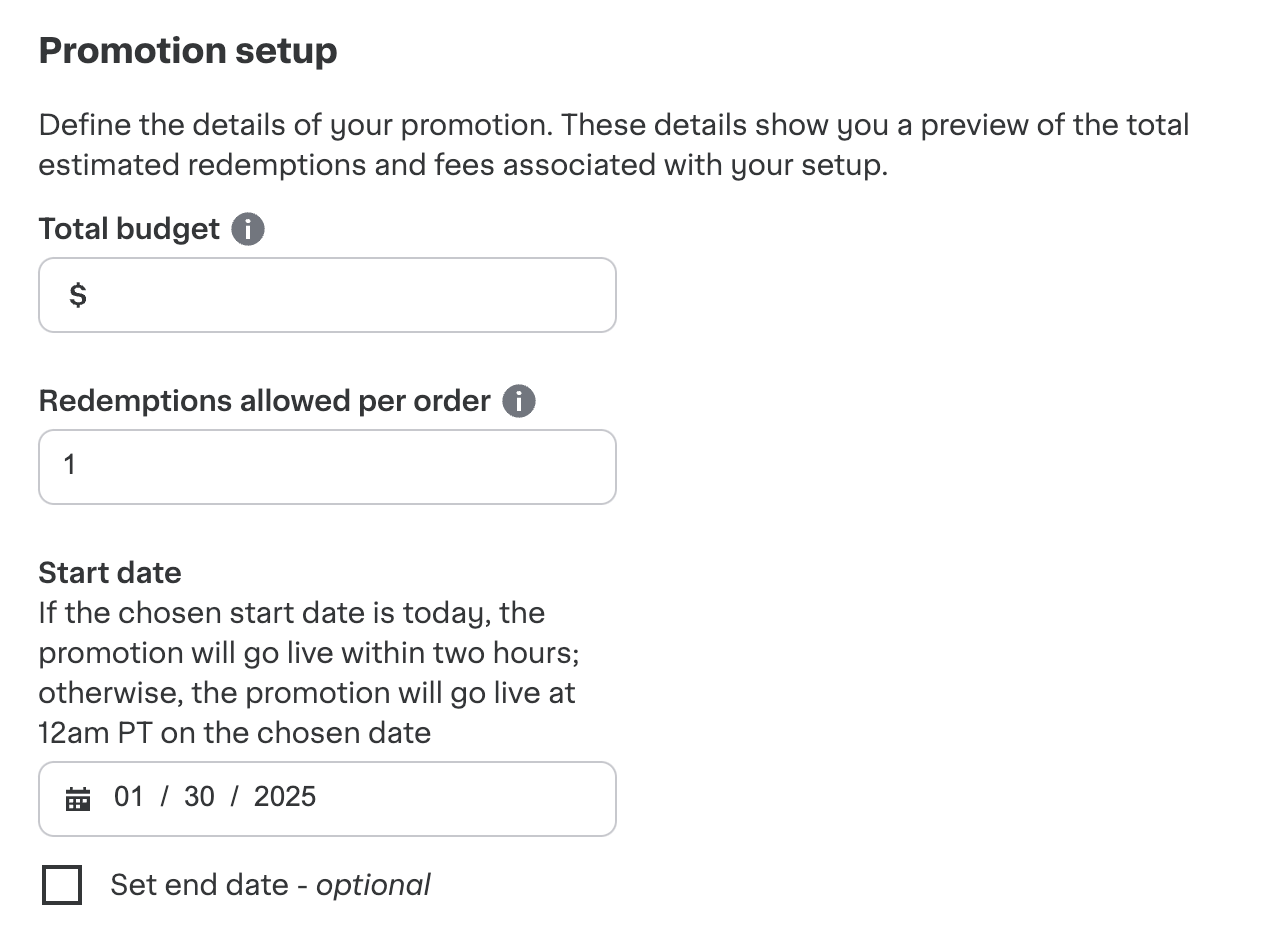
Define the promotion details in the Promotion setup section. Consider the following—
- Total budget: The total budget allocated towards coupon redemptions
- X - minimum amount: The minimum amount of units (Ex. 4) or dollars (Ex. $10) the customer has to spend in order to redeem the promotion.
- Y - savings amount: The dollar amount (Ex. $5) the customer saves when redeeming the promotion.
- Redemptions allowed per order: The total number of times a customer can redeem this promotion in a single order. Customers can redeem every 30 days.
- Start date: The promotion goes live at 12am PST on the date selected.
- End date: An end date isn't required to set a promotion live. If you don't select an end date, the promotion will end with the budget is spent. If you select an end date and the promotion ends before the budget is spent, the unspent budget remains in your account.
-
Attach products to the promotion
NOTE: Promotions only appear on items that are in stock and available at the consumer's selected retailer.
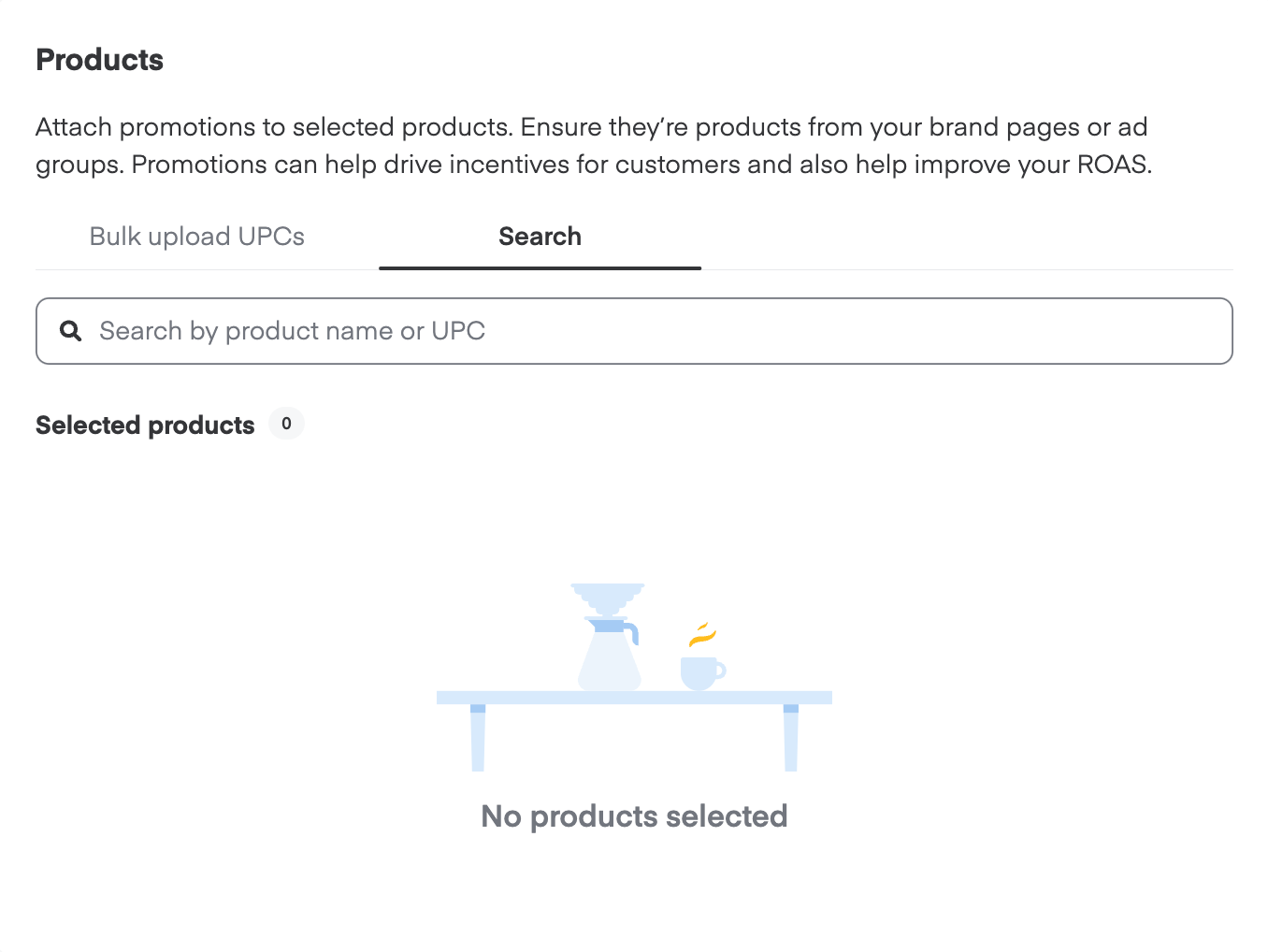
To add products individually—
- Type a product's name, brand, or UPC into the search field
- Ads Manager displays any of your products that match the search term. We won't show you products from other brands
- If you need more information about a product, click Preview to view it on Instacart
- Click + next to the product(s) you want to add
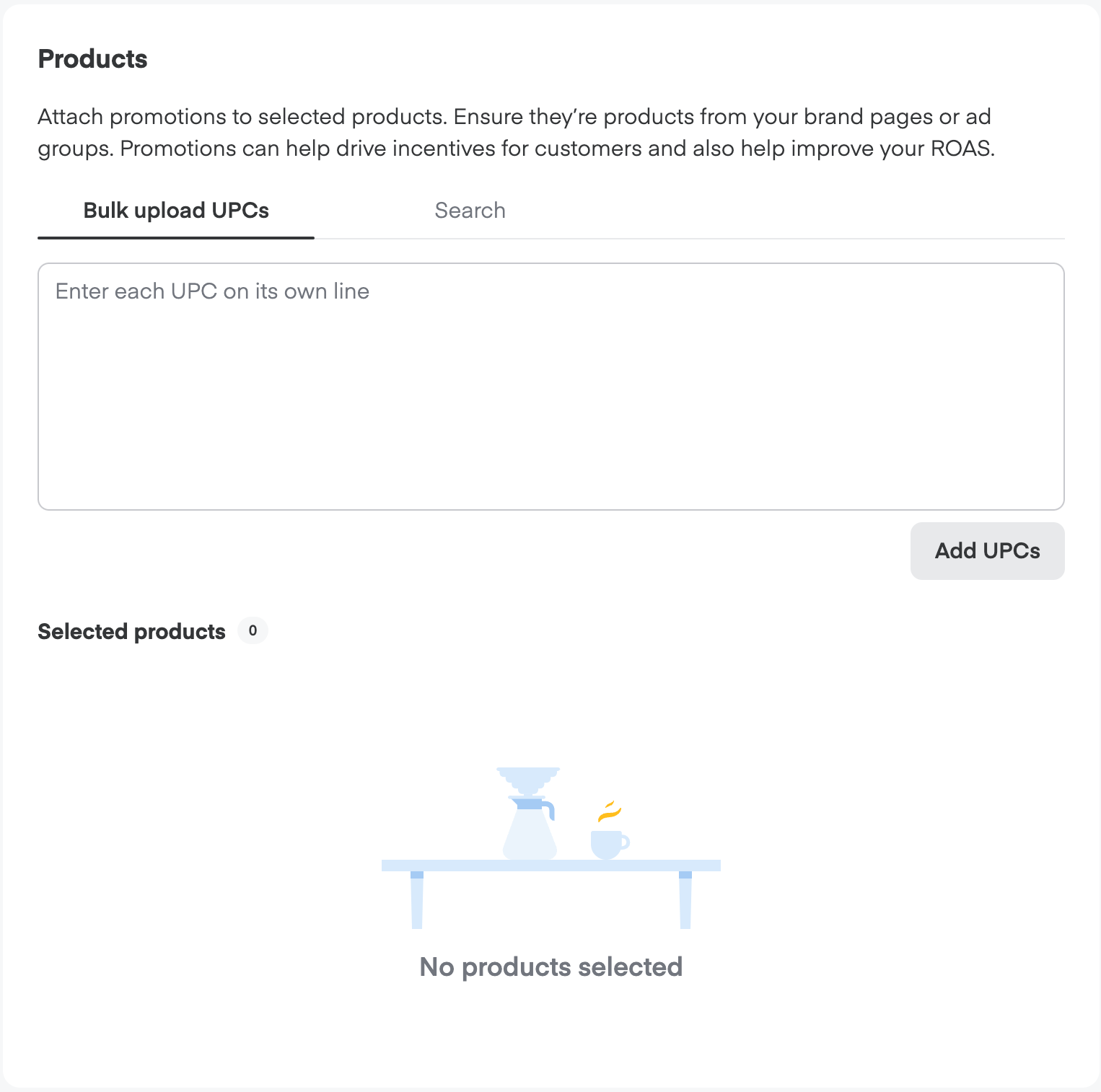
To add products in bulk—
- Add UPCs, each separated by a new line, in the textbox
- Click Add UPCs
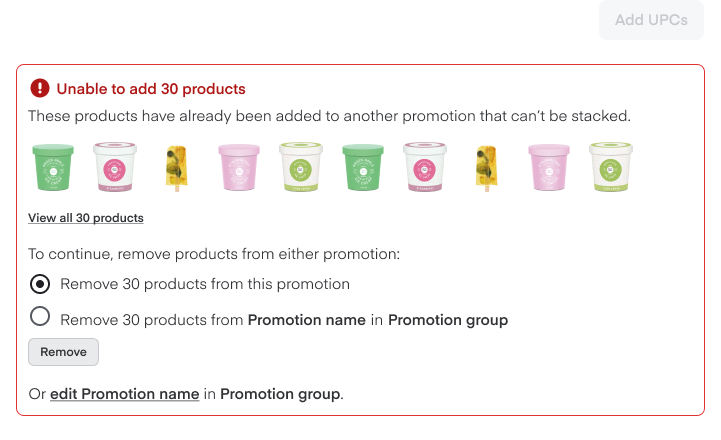
We'll let you know if you try to add products that show up in other promotions.
You can remove these products from the in-flight promotion and add them to the new promotion in Ads Manager—
Click Save in the bottom right corner when you're done adding products and ready to set your promotion live.
Next steps
We recommend monitoring your promotion redemptions and budget over the next few days.
We provide several key performance indicators (KPIs) and metrics to help you understand how your promotions perform. Learn more about managing and measuring promotions.