Managing and measuring brand promotions
Manage promotions
To edit live promotions—
- Go to Library in Ads Manager.
- Click Promotions.
- Click Edit next to the Promotion group name or Promotion name OR click the pencil icon in the top right.

- Edit the fields you want to update and click Launch promotion.
You can—
- Add or remove UPCs while the promotion is live.
- Increase the total budget.
- NOTE: You can't decrease the budget.
- Adjust the minimum spend amount.
- Adjust the savings amount.
- Adjust the redemptions allowed per order.
- Change the end date.
Edits to your promotions go live between 11 pm and 1 am PT. You can also pause promotion groups and individual promotions.
To pause a promotion group—
- Go to Library in Ads Manager.
- Click Promotions.
- Click the toggle next to the Promotion group name you want to pause so it appears gray. This pauses the promotion group.
- Click the toggle again to make it appear green and restart the promotion.

- Click the toggle again to make it appear green and restart the promotion.
To pause an individual promotion—
- Go to Library in Ads Manager.
- Click Promotions.
- Click the Promotion group that owns the promotion you want to pause.
- Click the toggle next to the Promotion name so it appears gray. This pauses the promotion.
- Click the toggle again to make it appear green and restart the promotion.
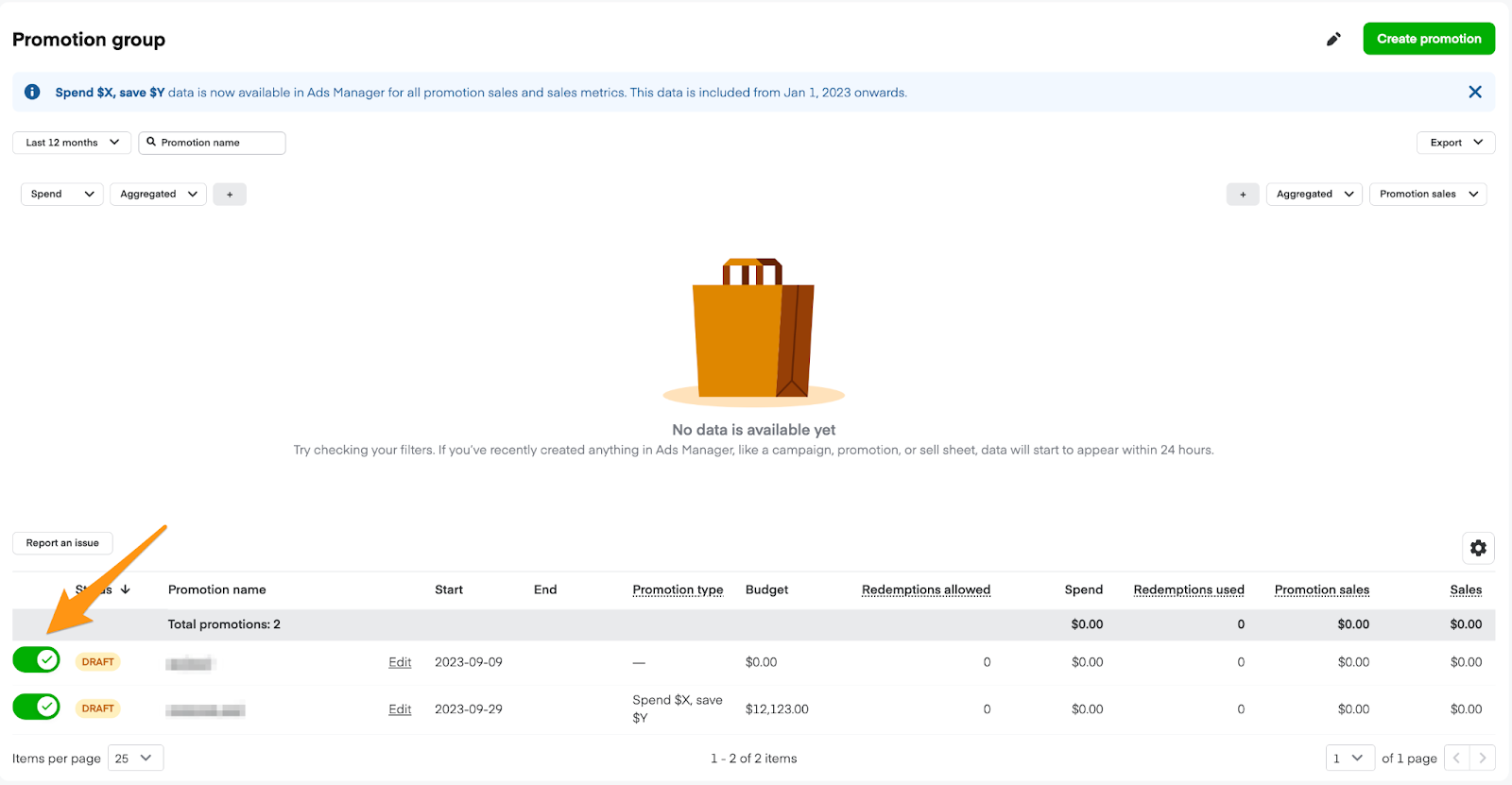
- Click the toggle again to make it appear green and restart the promotion.
You can also pause individual products within a promotion. Pausing a product removes it from the promotion on Instacart.
Performance metrics
To check a promotion's performance, go from Library to Promotions and view the dashboard. You can filter the chart to see specific promotion groups or time frames. The rows below also show statistics for individual promotion groups.
Filtering reports
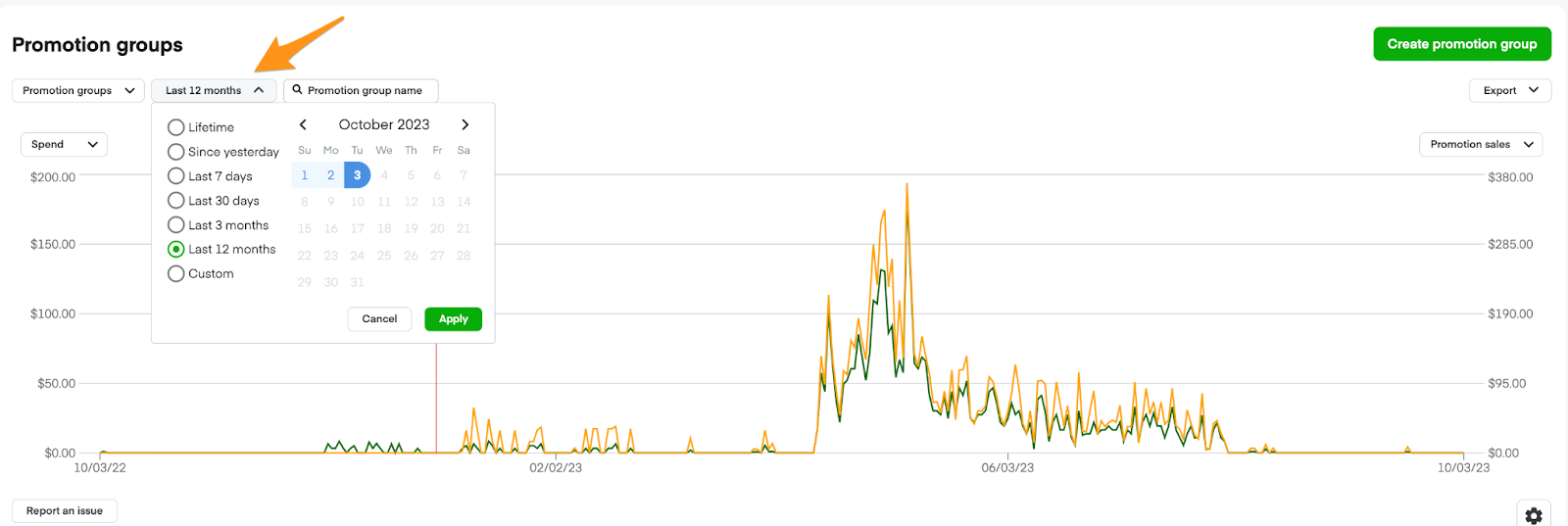
The promotion groups dashboard chart view combines data from all promotion groups. There's an option to filter for specific time periods in the top left.
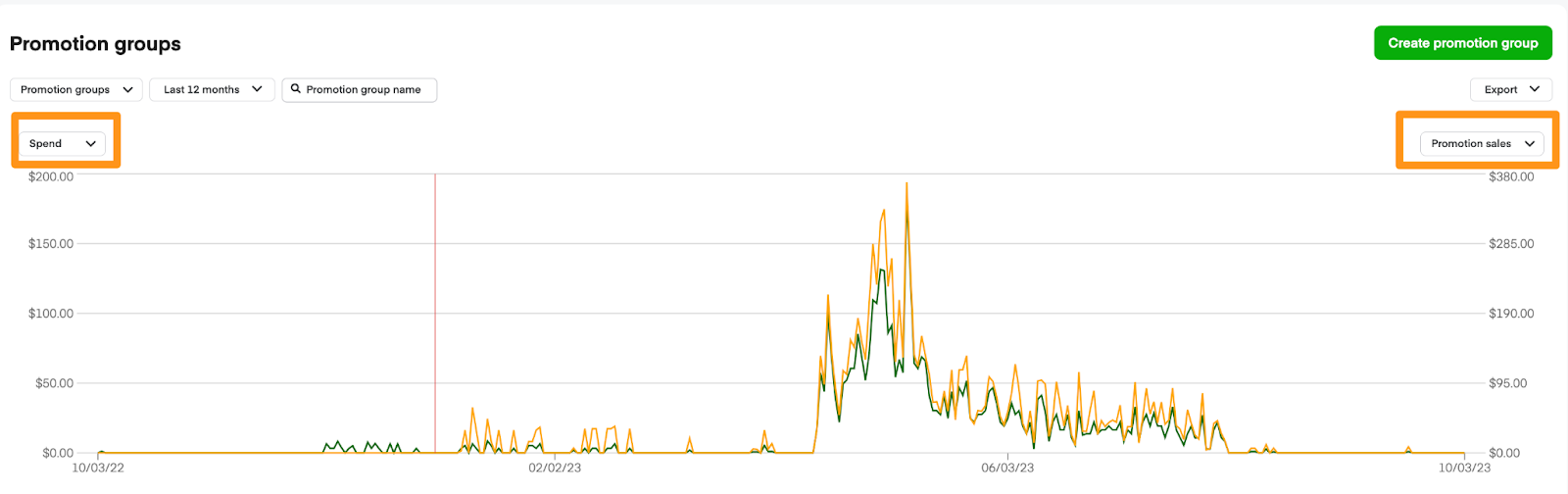
You can view up to 2 metrics at a time. Select a metric in the top left or top right to show that metric's performance over time. The rows below the chart show performance merged at the promotion group level. Click the Promotion group name to view an individual promotion's performance.
Exporting reports
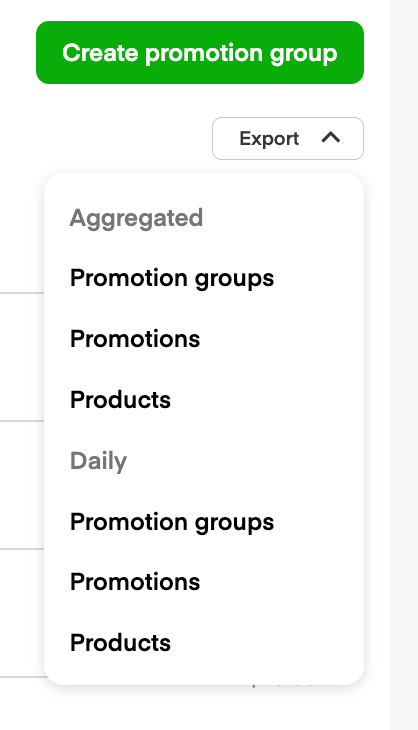
To export this data to a CSV file, click Export in the top right and choose your selection from the dropdown menu.
Performance metrics include—
- Spend: How much budget your promotion spent.
- Budget: The total amount allocated to the promotion.
- Redemptions allowed: The total number of times the promotion can be redeemed as defined by your budget and other details. You choose this value when you create promotions in Ads Manager. This value can include multiple promotions if you're looking at the tooltip from the promotion group level, or redemptions allowed for each promotion at the individual level.
- Redemptions used: The total number of promotions customers redeemed on Instacart.
- Promotion sales: The total sales of a specified product resulting from promotion redemptions.
- Sales: The product's total sales on Instacart, including sales from promotions.
- Promotion type: The type of promotion that you can create on Instacart (ex. buy any X, save $Y).
- New-to-brand promotion sales: Sales during a promotion from consumers who haven't bought from your brand on Instacart within the last 26 weeks. This data is available from April 1, 2023, onward.
- New-to-brand promotion sales %: The percentage of all your promotion sales that were new-to-brand sales. This data is available from April 1, 2023, onward.
Tips
Consider the following when creating and managing your promotions—
- Drive visibility and awareness by pairing promotions with other campaigns or media formats, such as Sponsored product, Display, Shoppable display, Shoppable video campaigns, etc.
- Set up promotions with compelling savings offers to drive engagement.
- Make sure your budget matches your discount and objectives.
- Select products for your promotion that are well-stocked and widely available.
NOTE: Ads Manager reports performance data in Pacific Time. Metrics update every 24 hours. If there's a delay, a banner will appear at the top of Ads Manager.