Setting up shoppable display ads
Each shoppable display ad campaign can contain multiple ad groups. Each ad group contains 1 display creative customers see, according to the targeting criteria you set.
Create a campaign
-
Click Create Campaign in the top-right corner.
-
Type a descriptive Campaign name.
Use naming conventions to help you easily organize your new, current, and future campaigns.
-
Choose Engage for the Campaign objective.
-
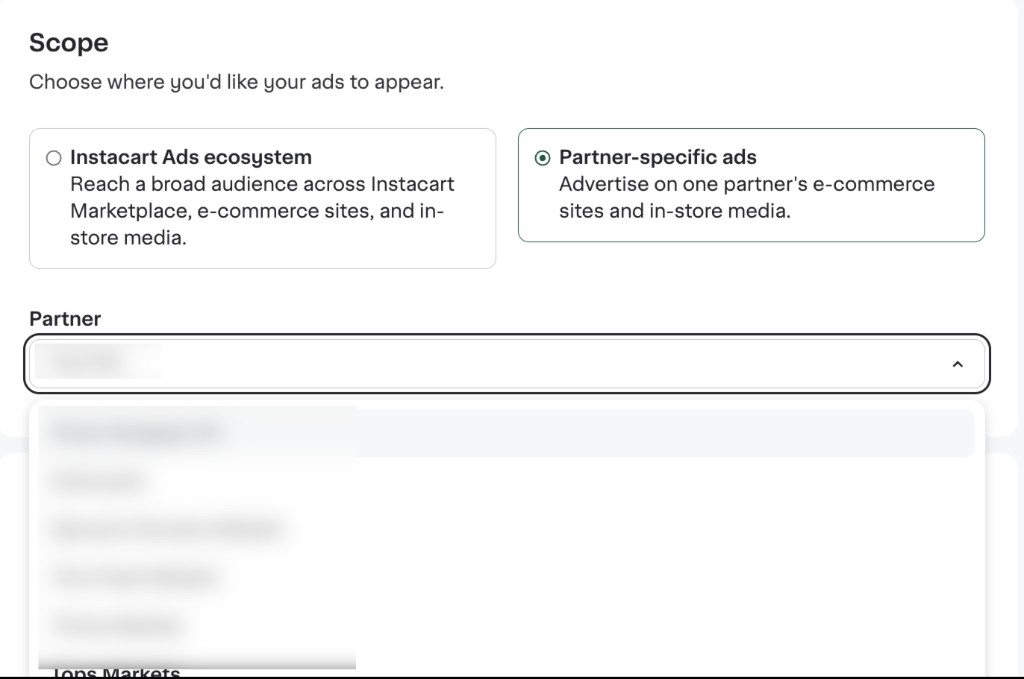
Choose the campaign Scope. Decide whether you want to set up an ecosystem campaign or a partner-specific ads campaign.
- For partner-specific ads, select a partner. After choosing your objective and scope, you can pick a partner from the list. Only partners that support the available formats for partner-specific ads will appear in the list.
-
Choose Shoppable display ad as the Campaign ad format.
Each campaign contains one ad format type. To run a shoppable display ad and a shoppable video ad, create two separate campaigns.
-
Add your total campaign budget.
All the campaign's ad groups share this budget.
-
Select a budget pacing strategy.
- Distributed. Spends your campaign budget throughout the campaign duration. Spend may vary from day to day.
- Accelerated. Spends your budget as fast as possible, which might mean your total campaign budget exhausts sooner.
-
Select a start and end date for your campaign.
Distributed pacing requires selecting a campaign end date. For Accelerated pacing, an end date is optional.
-
(Optional) Add your billing details in the Billing section.
Create an ad group
-
Type a descriptive name in the Ad group name field.
-
Select up to 40 products you want to display by searching for them in your product library.
You can adjust the product order by dragging and dropping. Products higher in the list appear in the shoppable display ad when a retailer has that UPC in stock. Choose well-distributed UPCs with wide retailer coverage and healthy stock levels, and upload 40 UPCs to increase your serving chances. Let Instacart choose is selected by default. This lets our algorithm choose the product order for maximum impact. Uncheck this box to manually control the product order.
-
Link your landing page.
Use the dropdown menu to link to an existing page, or click Create a new page to make a new page.
Set targeting and bid
-
Select keywords you want to target.
Instacart uses exact-match keywords, subject to Instacart's relevancy requirements. We recommend targeting directly relevant, complementary, or adjacent keywords.
- Directly relevant. An ice cream brand targeting specific search terms like "ice cream" and their brand name.
- Complementary. The same ice cream brand targeting search terms like "ice cream cones."
- Adjacent. The ice cream brand targeting the keyword "dairy" extends its reach to a more general audience within a category.
-
Select a keyword match type.
We default campaigns to broad match.
- Exact match. Serves ads on specific searches. This includes common synonyms and misspellings for entered keywords.
- Narrow match. Serves ads on searches related to the original keywords. This includes synonyms, linguistic variations, and related keywords with similar intent (for example, "oatmeal" serves "instant oatmeal").
- Broad match. Default match setting. Serves ads on searches covered in narrow results plus related and complementary items (for example, "oatmeal" serves "cereal").
-
Under Bid, enter your cost-per-thousand (CPM) bid.
Add creative
-
Enter your Tagline to appear next to your logo at the top of the shoppable display ad.
-
Upload your Brand logo and enter alt text to describe it.
-
Upload your Lifestyle image and enter alt text to describe it.
Products for creative attribution
View-through attribution measures products sold up to 14 days after users view a shoppable display ad without clicking on it. Learn more about view-through attribution and other display analytics.
Our AI automatically suggests Products for creative attribution, which are used to report sales from customers who viewed your ad creative. The feature works as follows.
- The AI analyzes your creative to identify featured brands and products.
- Product recommendations are then selected from your shoppable products and landing page.
- You can review and edit the list before submitting.
We recommend adding UPCs that meet the following criteria.
- Directly appear in the creative.
- Fall under the same product line, sub-brand, or brand as UPCs in the creative. This can include additional flavors, pack sizes, and complementary products.
- Appear prominently on your page.
Edit products for creative attribution
-
Click Edit.
A pop-up window opens.
-
Review the products grouped by the carousels on your brand page.
Use this view to see the UPCs selected for measurement.
-
Search for products you want to add, or clear the checkbox for products you want to remove.
Submit a campaign for review
-
Click Next in the lower-right corner.
-
(Optional) Click +Ad group in the left navigation bar to create additional ad groups.
-
Click Submit for review.
Our Ads Quality team reviews your campaign within 3 business days. Your campaign is eligible to participate in the auction on the day of approval. Keep in mind, your ad group is subject to auction dynamics, so the start date may vary.
You get an email with more information if we reject your campaign. Learn more about appealing campaigns.
By clicking Submit for review, you agree to our Terms and Conditions and display ads additional terms.
Learn more about our policy guidelines.
Instacart Ads provides several metrics to understand your display ad performance. You can see the metrics update in Ads Manager once your ad goes live.